
While you can view and Annotate many different types of documents in the Document Viewer, there are certain file types that you cannot view (or hear, in the case of audio or video files). The Launch extension in GlobalSearch can be used to open any of your documents in its native format allowing you to make edits and then save any changes directly back into GlobalSearch when complete.
The Launch feature can only be used when it has been enabled in the Extensions interface on your client machine. GlobalSearch can only communicate with the Extensions tray application when the file type of your document has been mapped so that GlobalSearch knows which program to launch and when you have the given the necessary permissions. In addition, Launch functionality is unavailable if the document is currently in a Workflow Queue that you do not have permissions to or is currently queued or in process for PDF Conversion.
Launch a Document from the Search Results View
-
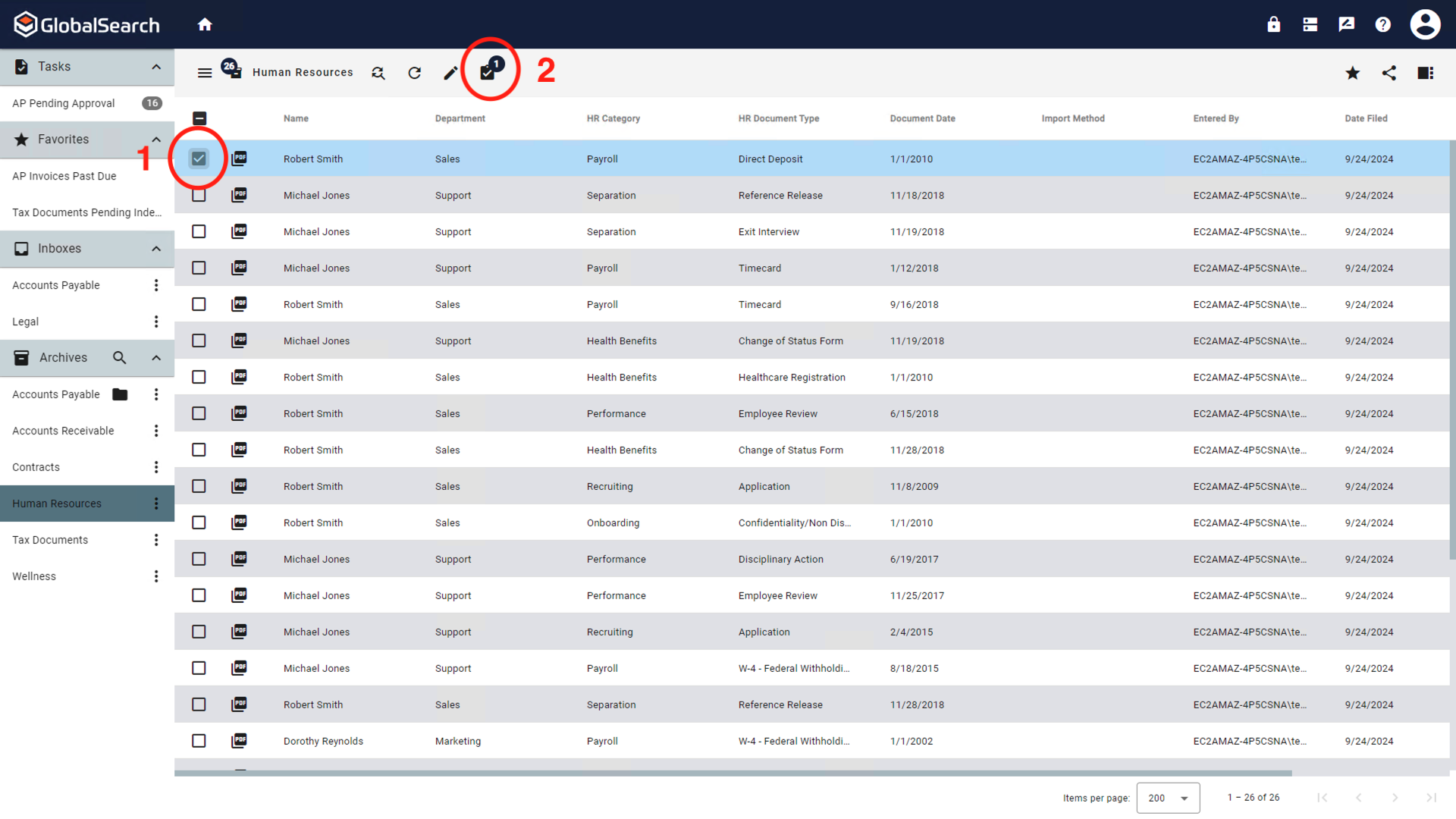
Run a search to return the document(s) you would like to launch. With one or more documents selected in the Search Results Grid, select the Actions (

-
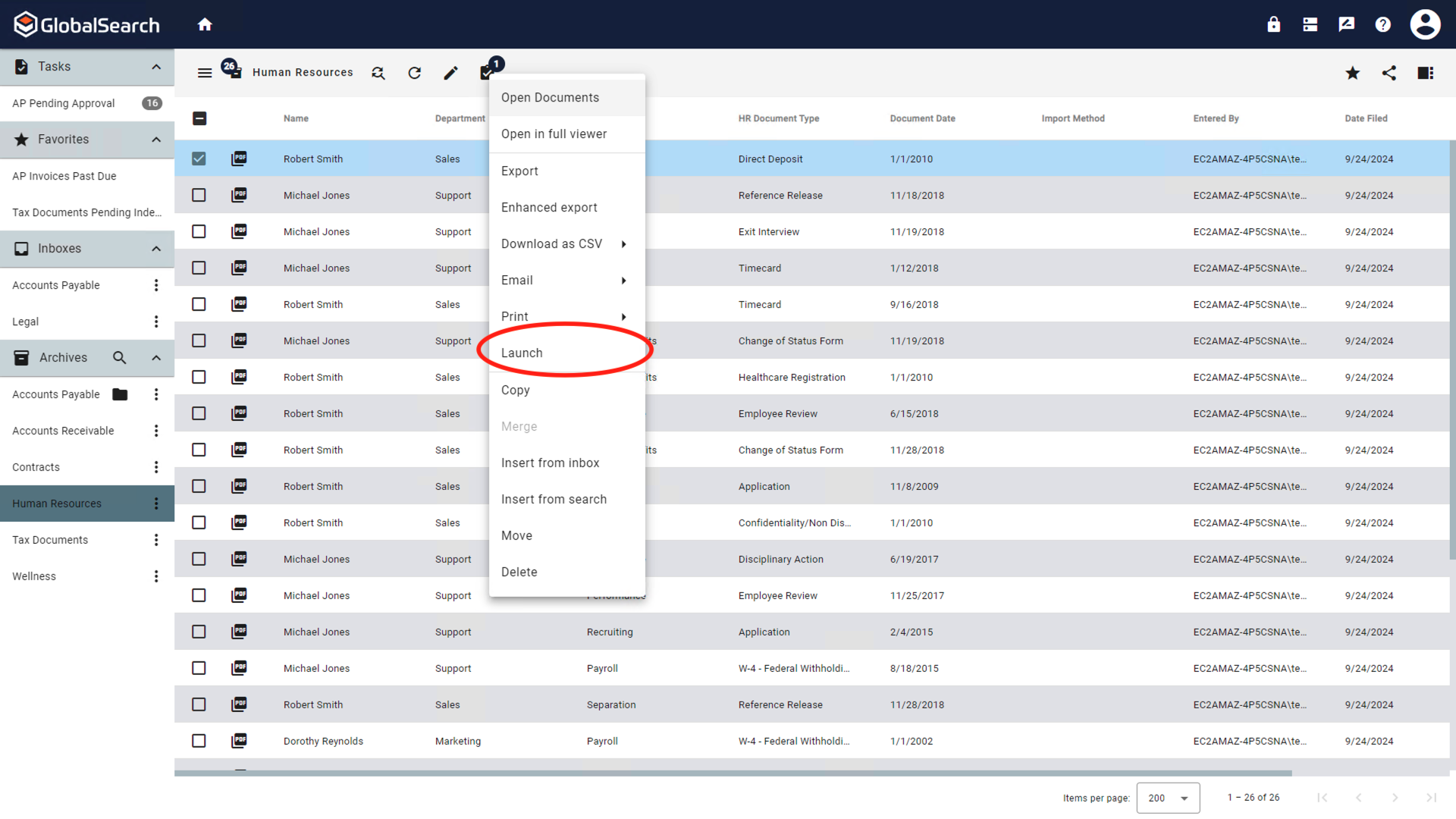
Select Launch from the available Actions to launch your document.
-
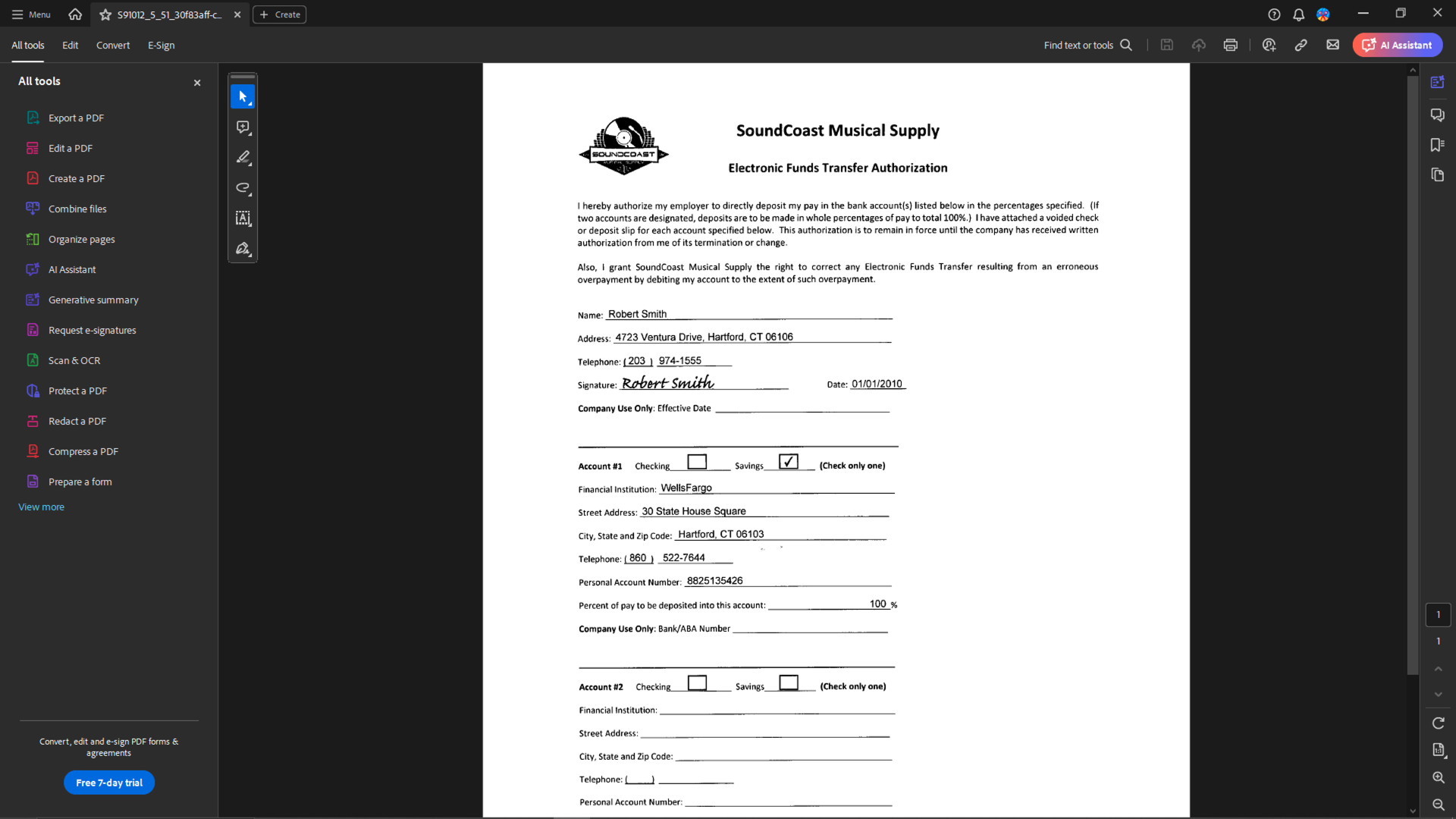
Each document will open in the mapped application for the selected File Type.
-
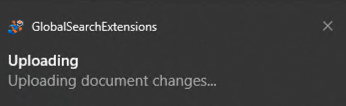
From your local application, edit, save, and close the launched document. If you do not wish to save the document, simply do not save changes in the native application. If you have saved the changes, those changes will be uploaded to GlobalSearch when the document and/or the local application is closed. A notification from GlobalSearch Extensions will appear indicating changes are being uploaded.
If the Archive is Version controlled, a new version of the document is crated.
Your GlobalSearch administrator can help you adjust your Launch settings:
-
If you wish to prevent saved changes from being upload, discuss configuring applications to launch in Manual Monitor mode.
-
If you expect you may need to the ability to revert changes made to documents that have been launched, discuss configuring Versioning.
Launch a Document from the Document Viewer
-
With a document open in the Document Viewer, select the Actions (
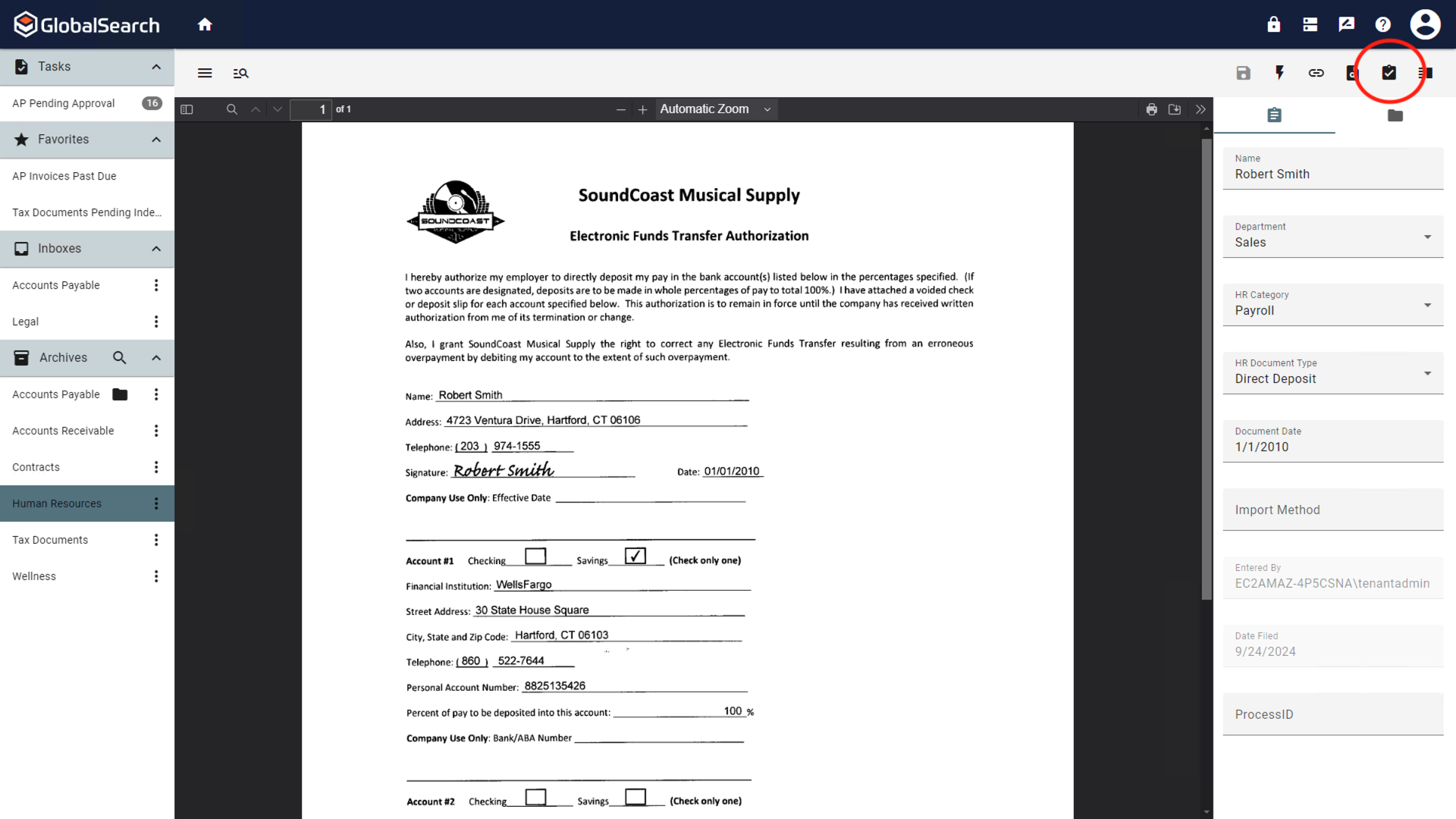
-
Select Launch from the available Actions to launch your document
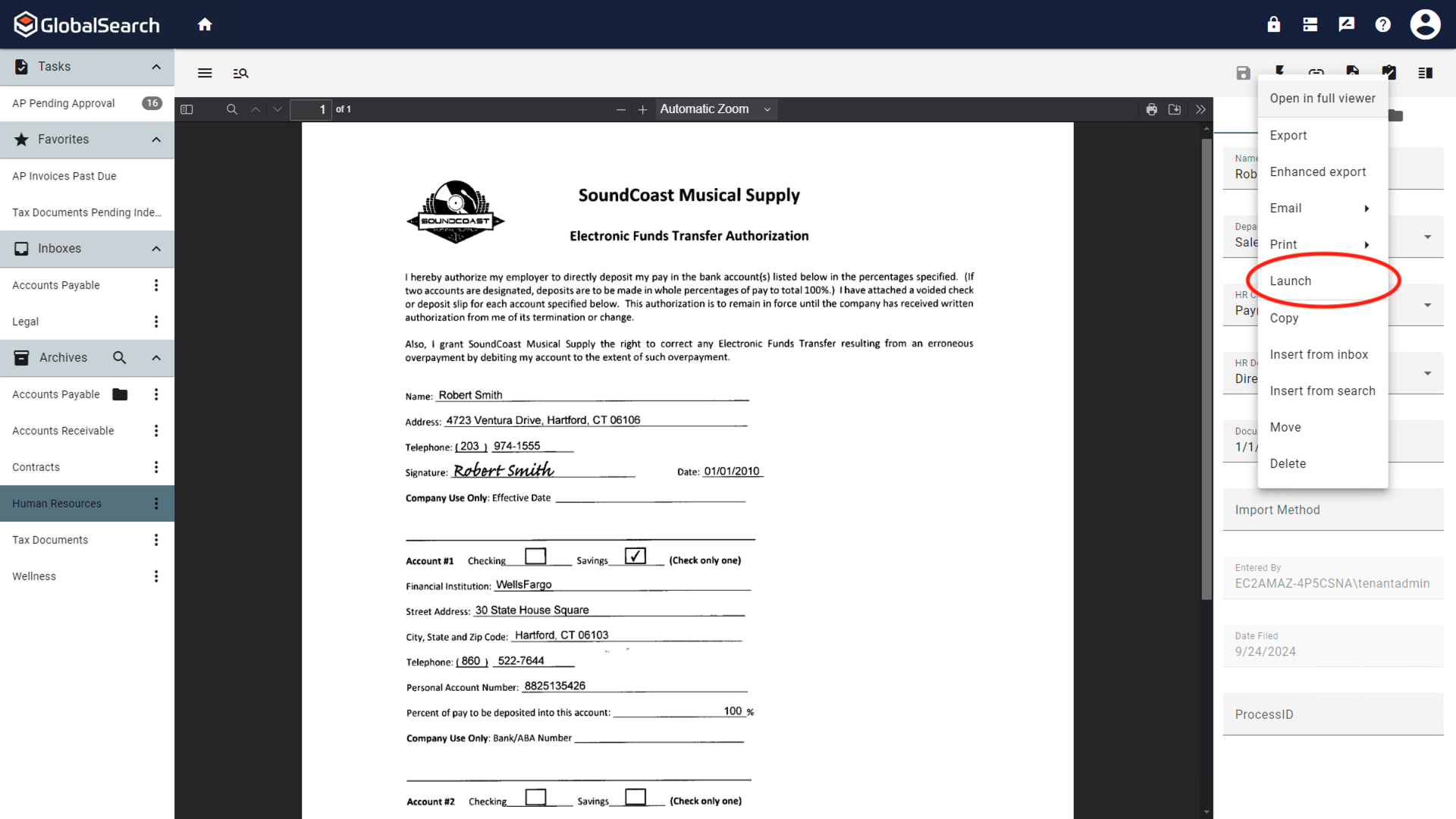
-
The document will open in the mapped application for the selected File Type.
-
From your local application, edit, save, and close the launched document. If you do not wish to save the document, simply do not save changes in the native application. If you have saved the changes, those changes will be uploaded to GlobalSearch when the document and/or the local application is closed. A notification from GlobalSearch Extensions will appear indicating changes are being uploaded.
If the Archive is Version controlled, a new version of the document is crated.
Your GlobalSearch administrator can help you adjust your Launch settings:
-
If you wish to prevent saved changes from being upload, discuss configuring applications to launch in Manual Monitor mode.
-
If you expect you may need to the ability to revert changes made to documents that have been launched, discuss configuring Versioning.
Use Manual Monitor
Specific file types may be configured to Launch in Manual Monitor mode. When launched in this way, the Launch Queue will be displayed alongside the local application. In most cases, the Launch Queue will only display the document that is currently launched out of GlobalSearch. If you have more advanced needs, you do have the ability to launch multiple documents simultaneously out of GlobalSearch. In this case, the Launch Queue will present all documents that have been launched and are awaiting action.
Accessing Launch Queue
To access the Launch Queue:
-
Right click on the Extensions (

-
From the Extensions menu, select Show Launch Queue.
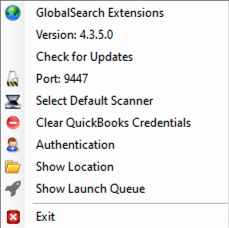
Launch Queue Interface
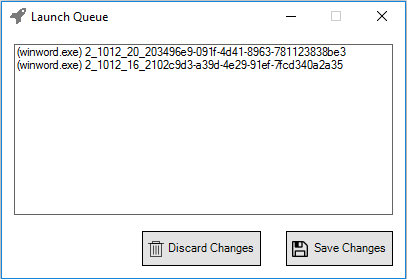
In the Launch Queue interface that appears, select a document and click either Save Changes or Discard Changes. It is important to note that if you do not click Save Changes, edits to your document will not be sent back into GlobalSearch.