-
On the GlobalSearch toolbar, click on the Administration (

-
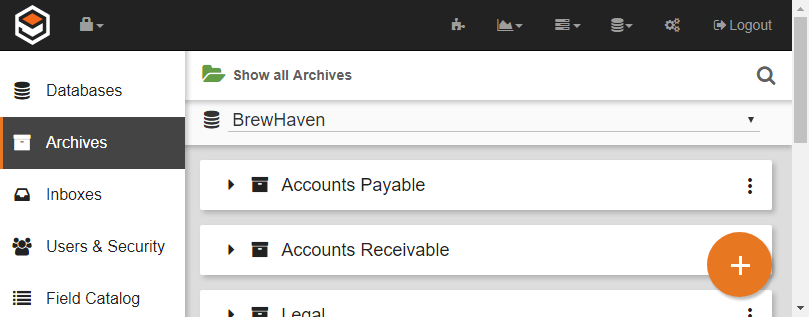
In the vertical Administration menu, select Archives.
-
Select a database. A list of the Archives in the database will appear.
-
Create a new Archive in one of two ways:
-
Click the Add (

-
Click the More Options (

-
-
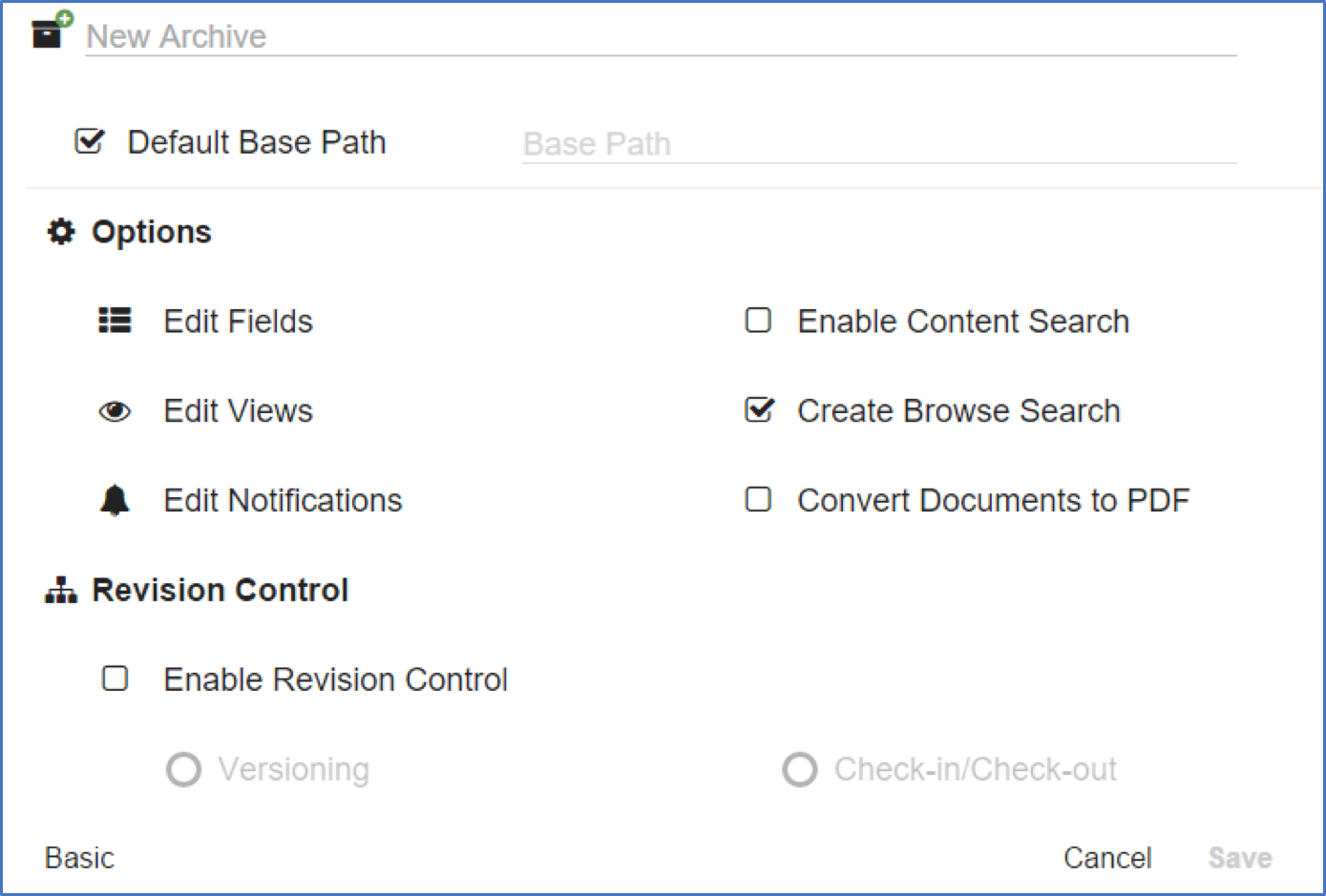
Enter a name for the new Archive in the New Archive text box.
-
Click Advanced and configure the Archive settings.
-
Click Edit Fields in the Options group and, in the Edit Fields dialog that appears, assign at least one Field. (Refer to Assign Fields to Archives for details.)
-
To override the default physical storage location for documents, deselect Default Base Path and enter a new, server relative path in the Base Path text box.
If you have installed GlobalSearch using the default database locations, leave Use Default Path enabled to store your Archive files in a sub-directory of the default path created underc:\GlobalSearch\Archive\.
-
Optionally, choose settings for Views, Email Notifications, Content Searches, Browse Searches, Converting to PDFs, and Revision Control.
-
Click Save.
