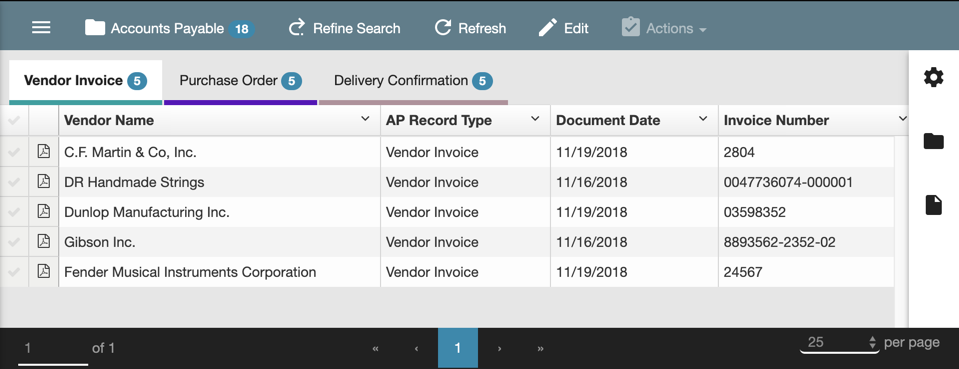
With GlobalSearch enterprise content management from Square 9®, you can easily store and retrieve your business information, including, documents, business forms, drawings, audio, and video files. GlobalSearch allows you to work with your electronic documents much like you would with a hard-copy version. You can quickly navigate through pages, change their orientation, view and edit indexing data, or add an annotation. Documents can be easily printed or emailed. Once your documents are captured, you can use workflows to automate routing, notifications, escalations, and much more.
With GlobalSearch you can enjoy untethered access to your documents no matter where you are in the world, with a secure connection to your most critical business content and language localization on demand. As a true cross-platform application, GlobalSearch supports all modern browsers.
Toolbar Options
Navigate GlobalSearch with simple clicks from the menu choices on the toolbar.

GlobalSearch User Home Page
When you log into GlobalSearch, the GlobalSearch user home page appears. You can resize and reshape your screen using your standard web browser features. Place your mouse over an icon to see its tooltip. Use the scroll bar to view more of the interface.
Administration Menu
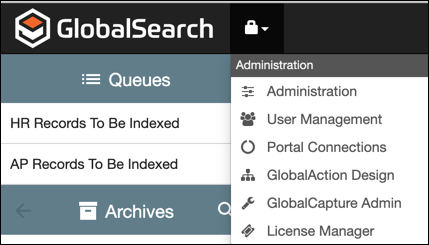
If you have administrative permissions as a member of the SSAdmin group, you will see the Administration lock icon. 
From the Administration menu, you can access the GlobalSearch Administration interface, where administrators can create new Users and secure existing users.
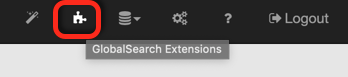
Extensions Manager
GlobalSearch is designed as an integral part of your total business solution. From the Extensions Manager interface, you can extend the power of GlobalSearch to your other line-of-business applications by installing and setting the various features you need on your computer.
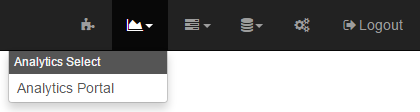
Analytics Select Menu
GlobalAnalytics adds business intelligence to Workflows by providing management reports on document-driven processes. You can select all Workflows or just a single Workflow to view invaluable information about their processes, including individual sub-processes or Queue status. For details, please refer to the GlobalAction documentation. Note that Analytics is part of the GlobalAction server license.
Batch Select Menu
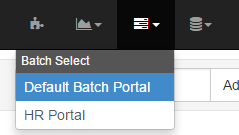
You can select a Batch Portal from the GlobalSearch toolbar. The Batch Manager interface for that Portal will open. Refer to the GlobalAction documentation for details on Batch Manager. Batch management is a feature leveraged by those users working with documents that are active in a GlobalCapture or GlobalAction workflow.
Database Select Menu
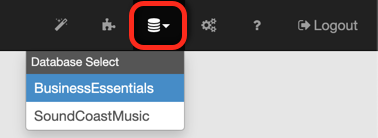
Document records are stored in one or more databases. In GlobalSearch, they are represented by folders called Archives, an organizational structure similar to Windows Explorer®, where documents are organized for searching and security. You must be in a database to access its Archives and the documents in those Archives. You will only see the databases and Archives which you have permissions to view. When working with multiple databases, you can select from a list of accessible databases from the toolbar.
User Settings
The User Settings interface is where you can set personal preferences, such as viewing in Archives, viewing icons with or without labeling, scanner, language, Search, and KeyFree Indexing settings.

User Interface Panes
Queues Pane
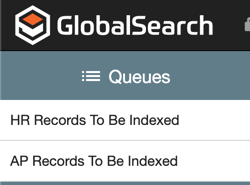
The Queues Pane shows specific Searches that an administrator has marked as a Queue Search for you or for a group of which you are a member. Like “Favorites” in a web browser, you would want the Searches you run most often in GlobalSearch in this pane.
Archives Pane
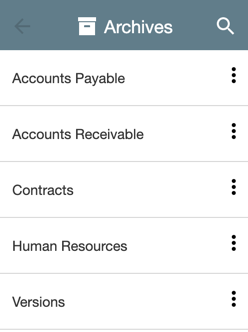
Use the Archives Pane to navigate the list of GlobalSearch Archives, where documents and their data are stored. To organize your documents, "parent" Archives can have "child" Sub-archives (like in Windows Explorer®).
Search Results Pane
When you run a Search, the results appear in the Search Results Pane, to the right of the Archives Pane.