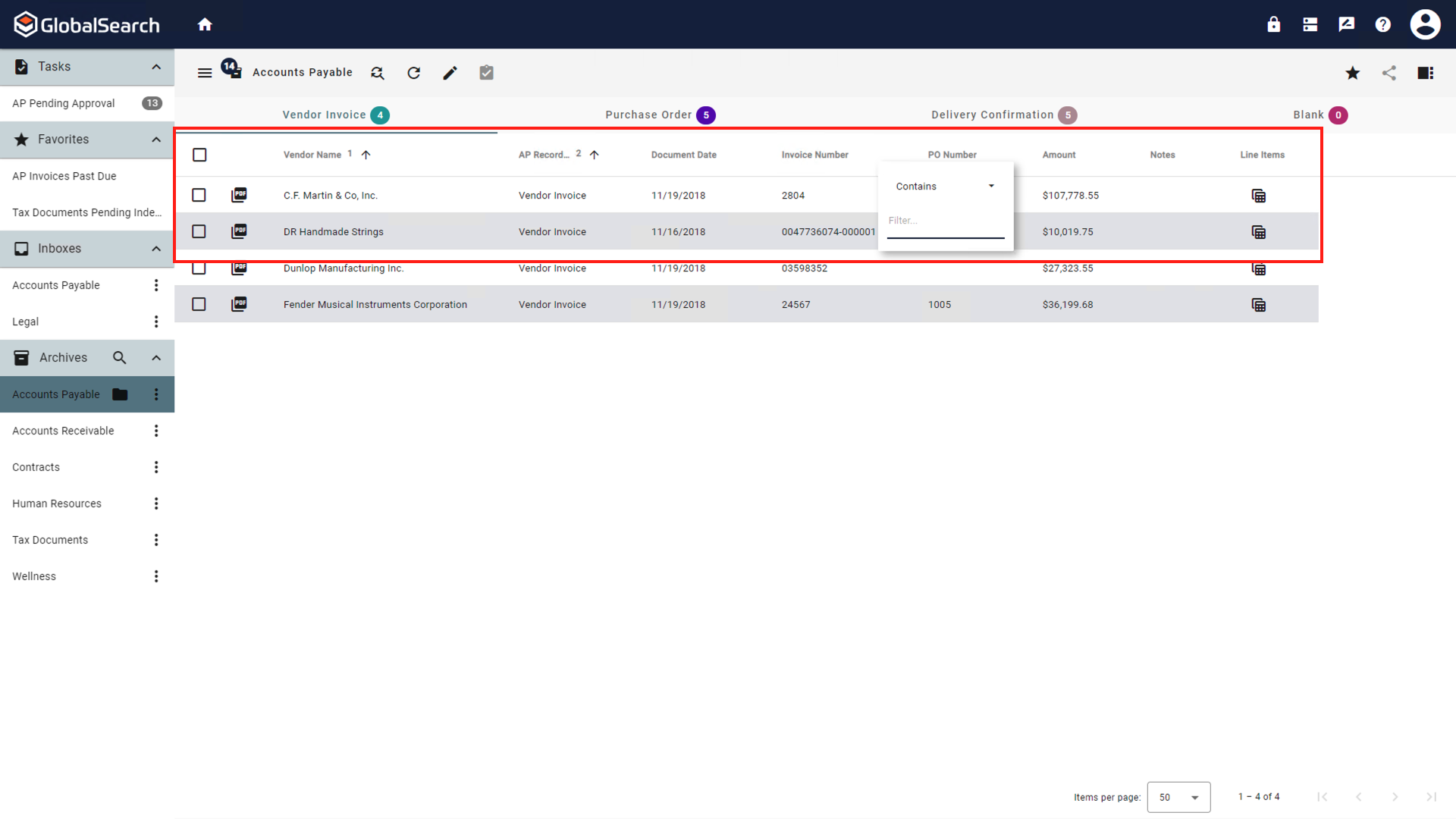
In the Search Results Grid, the header row of the table contains tools for selecting and sorting results, as well as labeling the Index Fields assigned to a column. From here you can reorder rows and resize columns to quickly customize how you view your data. Your settings persist for each Archive, are saved to your browser cache, and only affect your personal user settings.
Sorting
Click a column header to Sort results. A small black up arrow appears to indicate that results are sorted in ascending alpha-numeric order of the data in the selected column. Click the column header again to resort in descending order, indicated with a small down arrow icon. Click a third time to clear the sort.
To do additional Secondary Sorts, hold down your Shift key while clicking on other Index Field column header cells. Numbers will appear next to the small arrows to indicate which sort columns are primary, secondary, tertiary, etc.



Re-arranging and Resizing
Place your mouse cursor over the side of a header row cell and, when your mouse cursor turns into a Double-Arrow Move Cursor ( 
Filter
You can further Filter your results without rerunning a search by selecting the Filter ( 
-
Over over the index field to filter by and select the Filter (
-
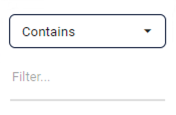
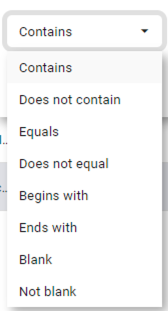
Select an Operator. None are case sensitive.
|
Operator |
Enter at Prompt |
Search Results |
|---|---|---|
|
Contains |
Part or all of a word, phrase, or number. |
Anything that includes what has been entered. Ex. “Square 9” will included ”Square 9” and ”Square 9 Softworks”. |
|
Does not contain |
Part or all of a word, phrase, or number. |
Anything that does not have what has been entered. Ex. ”Square 9” will exclude ”Square 9” and ”Square 9 Softworks”. |
|
Equals |
Exact data you are looking for. |
Only documents whose data matches exactly what has been entered. Must match all data in the field to be included. Ex. ”Square 9” will only return ”Square 9”, not ”Square 9 Softworks”. |
|
Does not equal |
Exact data to exclude. |
Only documents whose data does not match exactly what has been entered. Must match all data in the field to be excluded. Ex. ”Square 9” will still return ”Square 9 Softworks”. |
|
Begins with |
The start of the data to look for. |
Any results whose data starts with the indicated values. Ex. ”S” will return ”Square 9” and ”S9S” |
|
Ends with |
The end of the data to looked for. |
Any results whose data ends with the indicated values. Ex. ”ks” will return ”Square 9 Softworks” and ”Works”, but not ”Square 9 Softworks Inc”. |
|
Blank |
No user prompt. |
Returns only results where the index field being filtered is blank. |
|
Not blank |
No user prompt. |
Returns only results where the index field being filtered has data. |
-
Enter text to filter your results.
-
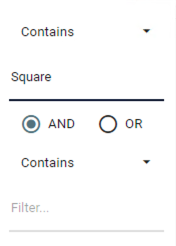
Enter additional filters to broaden (OR) or narrow (AND) your results.
-
When a filter is applied, the Filtered (


-
To clear your filter, click the Filter (
Resetting
To clear the sort, either click the arrow again in each header cell or click Reset Layout (