You can select a Search from GlobalSearch Archives, from the Document Viewer, or from File XChange drives (if you have File XChange installed). Searches can even be run from your favorite line-of-business applications using the optional Image XChange extension. Your administrator can add your favorite Searches to the list in your Favorites pane or you can add them there yourself by clicking the Favorites icon ( 
If a search looks in multiple archives, it will return no results for any archive to which you are not secured, even if there are documents that match search criteria.
Types of Searches
Searches can be configured in several ways:
-
Static Searches – Use a Static Search for often-repeated Searches; they need no user input. When a static search is selected, the search is run automatically and any results are displayed in the Search Results View.
-
Variable Searches – Use a Variable Search when the results should be based on user input. You provide some or all search values in response to a prompt presented by the Search. There are several kinds of Variable Searches.
-
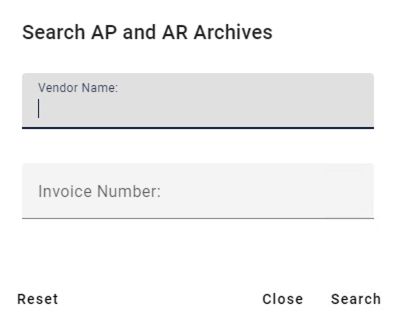
The Browse Search prompts you for each Index Field that existed in the Archive when it was created. You can enter a value for one or more of the Fields. This Search gives you a lot of options and is a good choice if you need to browse through more results to find the documents you need.
-
A standard Search could prompt you for one or several Index Fields. They are set up by your administrator and run by you to get very specific results, with a narrower number of documents. There are many search conditions you can use to tailor your results.
-
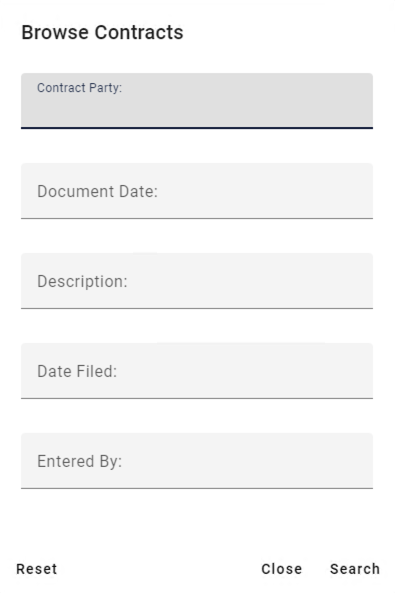
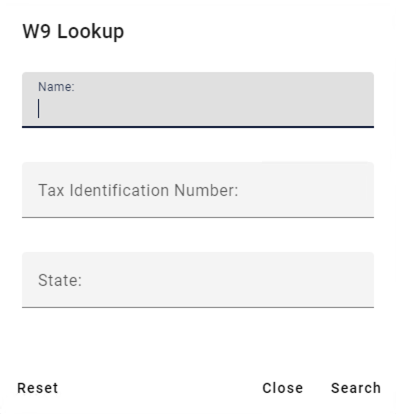
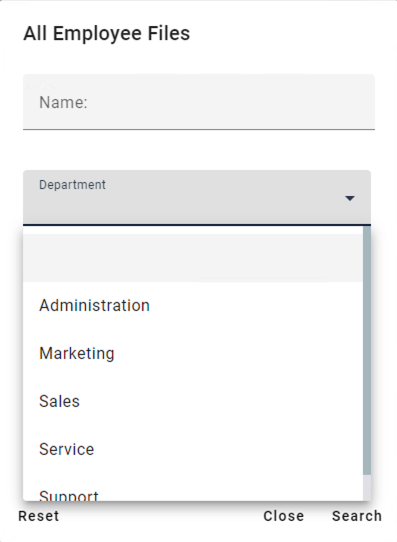
Searches may contain preconfigured lists of values in the prompt, to save you typing. These could be in the form of a Pick List, which are good for searching using standardized words or phrases (like a company name). They could contain a Dynamic Pick List. When you select a keyword from the primary list, the secondary list is contextual. (For example, first select East Coast Vendors and then select a vendor from the list that only contains vendors on the East Coast instead of the whole country.) They could contain a Type-Ahead Pick List, where you can begin entering your keyword and GlobalSearch will fill in the rest of the word or phrase for you, if you wish (similar to the suggestions provided by a search engine).
-
-
Static and Variable Searches – Finally, a Search could contain both static and variable criteria. (An example would be a Search where you enter in the customer name (a variable) but only want to see documents that are of type Invoice (a static value).
-
Content Search - Most Searches look for Index Field data to return results. A content search provides a deeper level of business intelligence by looking within the text-based documents in your database for keywords or phrases.
Enter Search Criteria
The search criteria used for a Search determines the results in the Document List. That criteria could be very broad (to return all documents) or very specific (to return only invoices over 60 days and $5,000). Criteria could be set for you already by an administrator (a Static Search), or you could choose what indexing data to search for (a Variable Search). Searches are likely to be run on the Archive which you have selected, but they can be configured to search across multiple Archives as well.
View Prompt Configuration
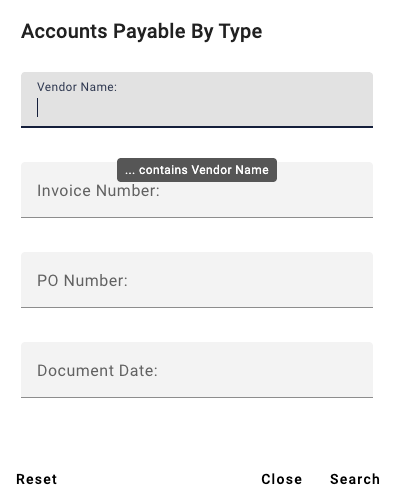
When running a search, you are presented with the search prompt. Here you can enter your search criteria. When hovering over each search prompt, a tooltip will appear displaying how that prompt is configured. This tooltip displays the Search Operator and prompt.
This can be very useful in deciding how you will enter search criteria. You can choose to enter a partial value (contains) or a more exact value (equals), a specific date (equals), or a more general date (greater than or equal to, less than or equal to).
Multi Value Search
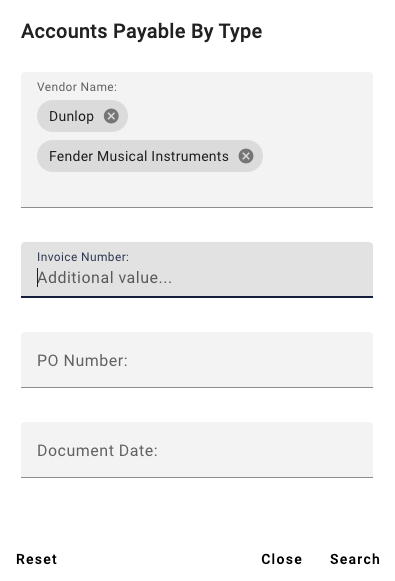
Multi Value searches allow you to enter multiple, discrete values into a single prompt for an index field. The index field will then return any results for the values entered into the Multi Value search prompt using the OR operator. These values will then be combined with any additional prompt data using the parameters defined by the GlobalSearch Administrator in the search configuration.
Multi Value search prompts are identified by the appearance of “Additional value…” in the prompt when selected. This data can either be a comma delimited string of data or a line broken string of data. (This allows you to copy a column of data from excel directly into the input). Each value will appear in a separate chip.
Accessing Searches
Search from Favorites Pane
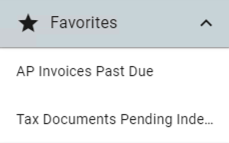
An administrator can assign Searches to your Favorites Pane or you can Favorite a search yourself. This is where the Searches you need to access quickly or often can be accessed. Just select a Search from the list to run it.
Search from Archives Pane
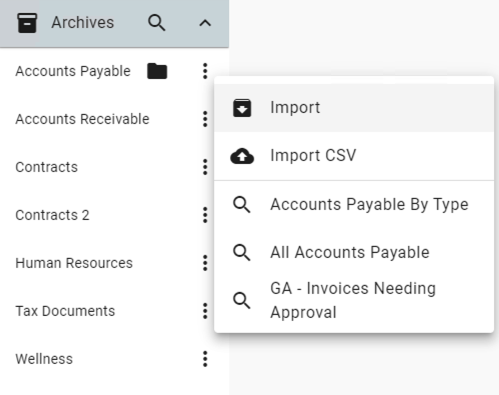
The Archive Pane has many Searches options, which can be tailored for your searching needs. Each Archive in the pane can have one or more Searches and each Search will look through the indexing data for one or more Index Fields. Archives could have Default Searches and other Static Searches that are easy to run and Variable Searches that have a great deal of flexibility to filter your documents exactly how you need them.
Search from Document Viewer - Related Searches
When you are working with a document it is common to need to reference similar or related documents. From the Document Viewer toolbar, click the Related Searches ( 
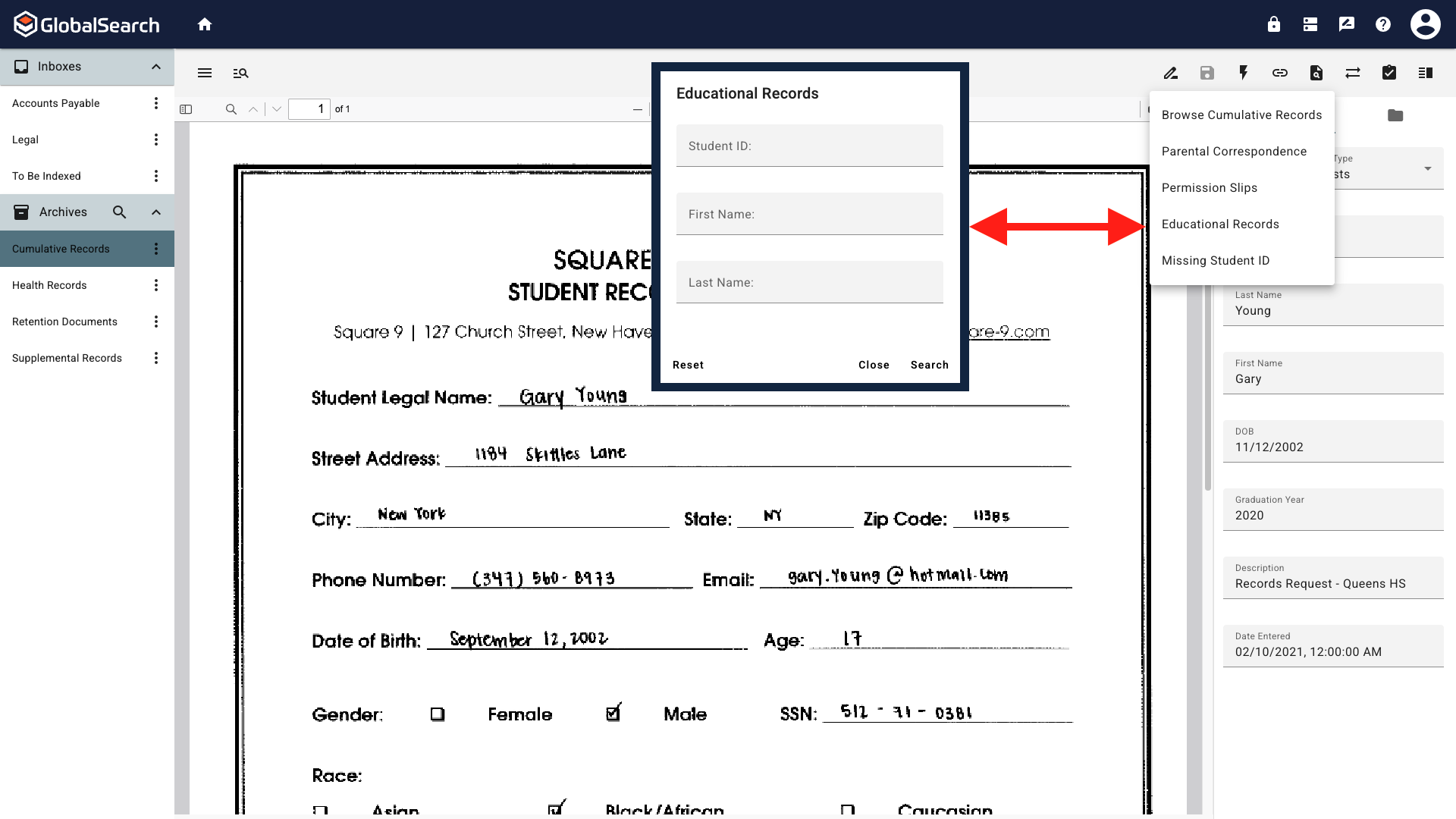
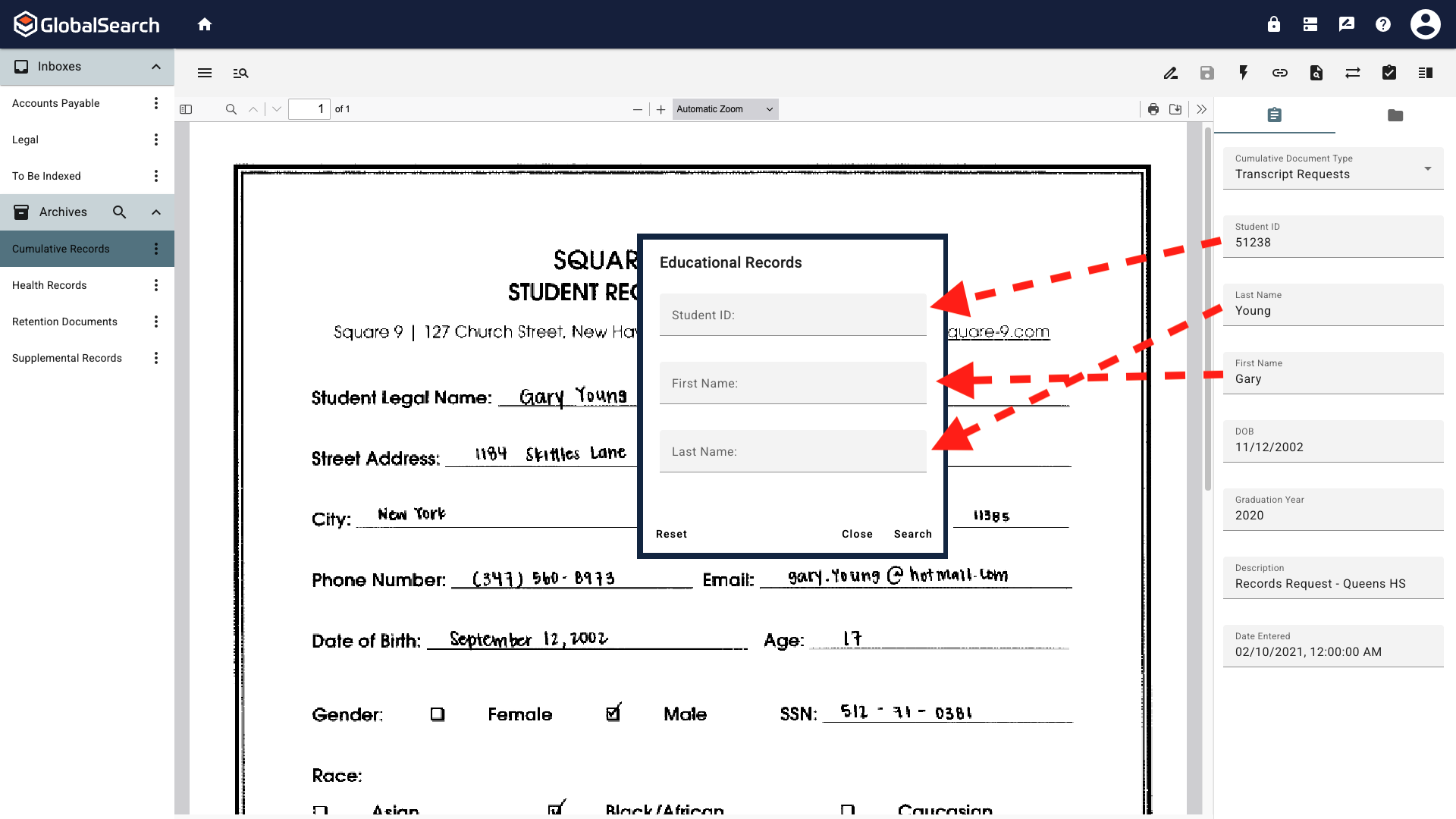
It is important to understand the prompts available in the selected search since any data associated with the current document will be passed to the corresponding prompt in the selected search.
To return to your original document in the Document Viewer after viewing a searched document, click your web browser Back button.
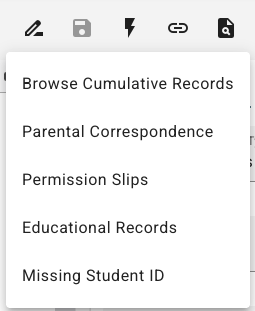
The Educational Records search has prompts for Student ID, First Name, and Last Name. Since the document currently open in the document view has data for all 3 fields populated, if this search is run, all three pieces of data will be passed to the search.
Refine Search
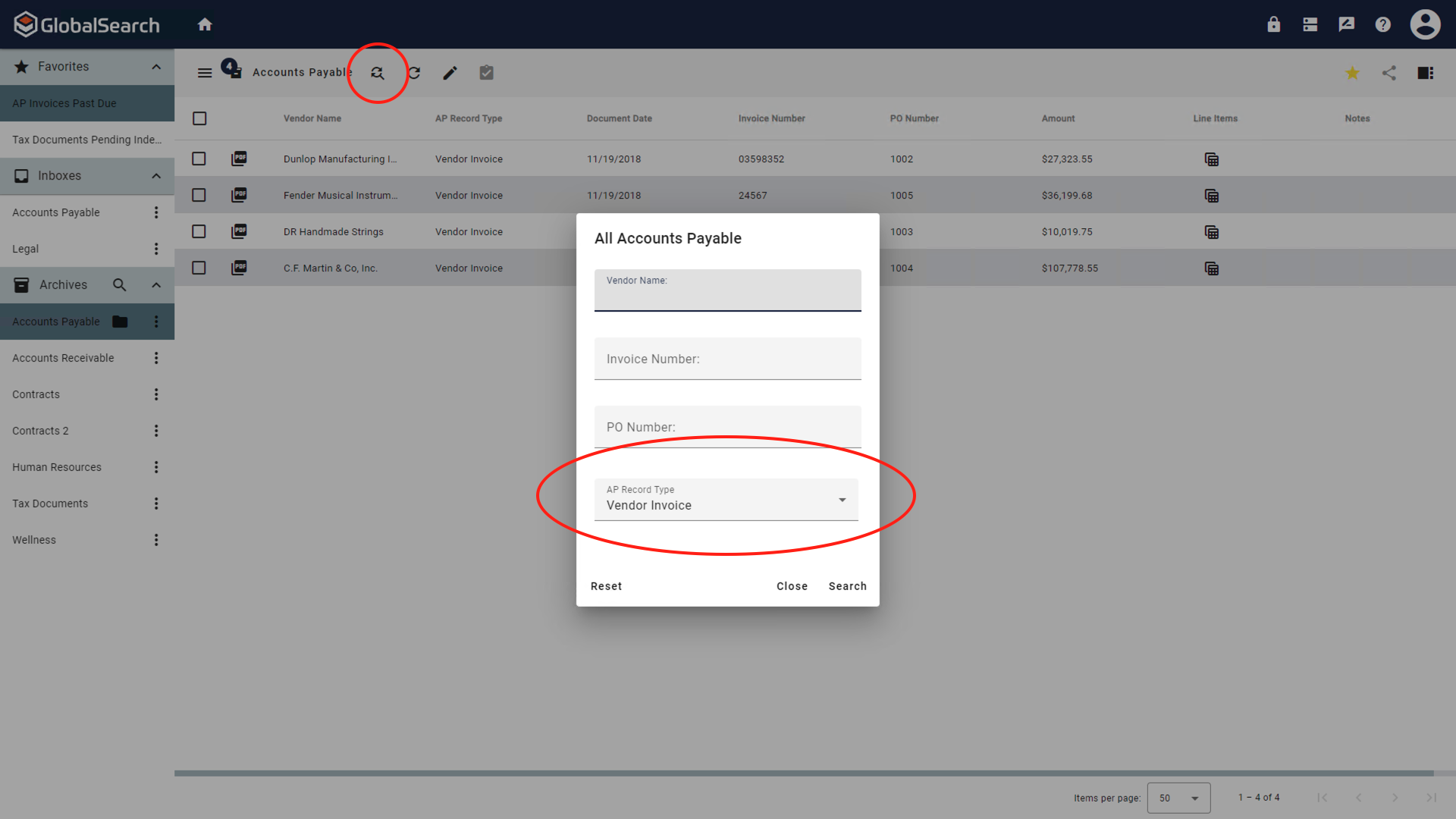
Search from Search Results Menu Bar. If you need to run the Search again with different criteria or updated criteria, from the Search Results Toolbar, click Refine Search ( 
Refresh Search
Clicking the Refresh Search ( 
Search for Documents
Your most common Searches can be configured to run quickly and easily using either some keywords (a Variable Search) or none at all (a Static Search). When you run a Variable Search, you will be prompted to enter searching keywords to filter your results. You can choose to enter indexing data for none, one, or multiple Index Fields in the Search interface. When you run a Static Search, your GlobalSearch administrator has already entered any search keywords for you; all you have to do is select the Search and it will run.
Run Default Searches
Most archives are configured with a Default Search. This is a Search that runs automatically when you simply select an Archive.
For a Default Search to run, an administrator must assign a Default Search to the Archive.
Manually Run Searches
Other Searches assigned to Archives do not run automatically. Instead, the Search prompt will open so that you enter your specific search terms. You can enter your search criteria in one or more fields, or you can leave them all blank and run the Search. Refer to the Understanding Search Conditions page for more information on choosing Search values to get optimum results.
Archive Search
-
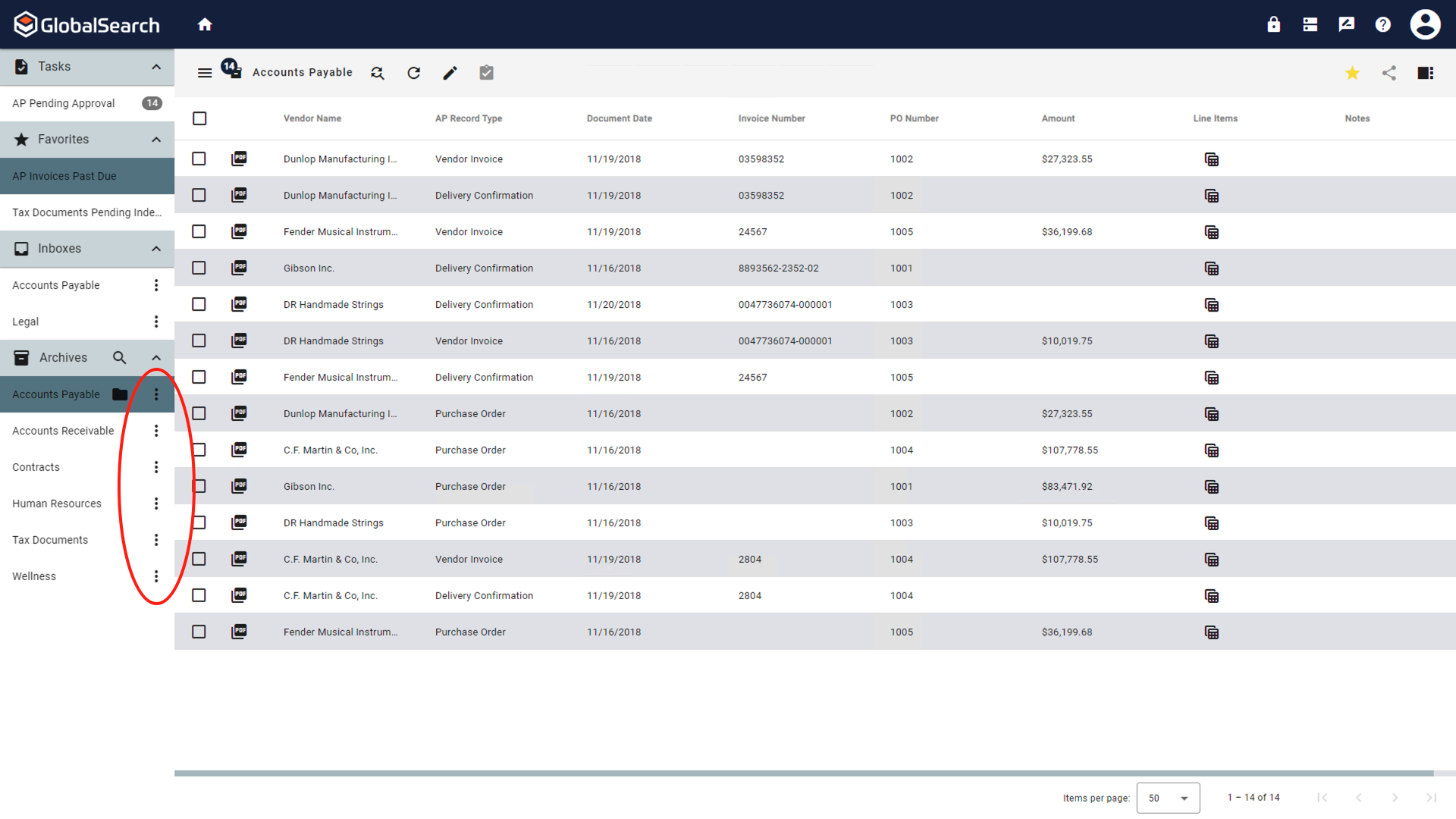
To select from the available Searches for an Archive, click on the Ellipsis (

-
Below the Archive Import options, select a Search from the list.
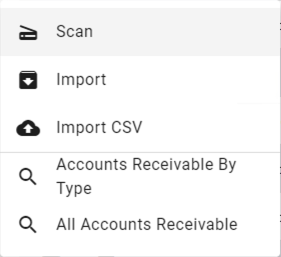
Note that only Searches the you have been granted permissions will appear in the list. Click anywhere off the list to Close the menu and Cancel the search.
-
If you select a Static Search, the search will run automatically without any further interaction and the results will appear in the Search Results Grid.
-
If you select a Variable Search, in the Searches prompt that appears, either enter no values (to return all), or enter one or more values (to filter your results down to a more specific list of documents). The prompt for a Search value should indicate what type is needed (like "Customer Name" or "Date of Delivery"). If you enter the wrong type (like "$1,00" for the "Vendor Address" Field), you will see a message asking for the correct Data Type.
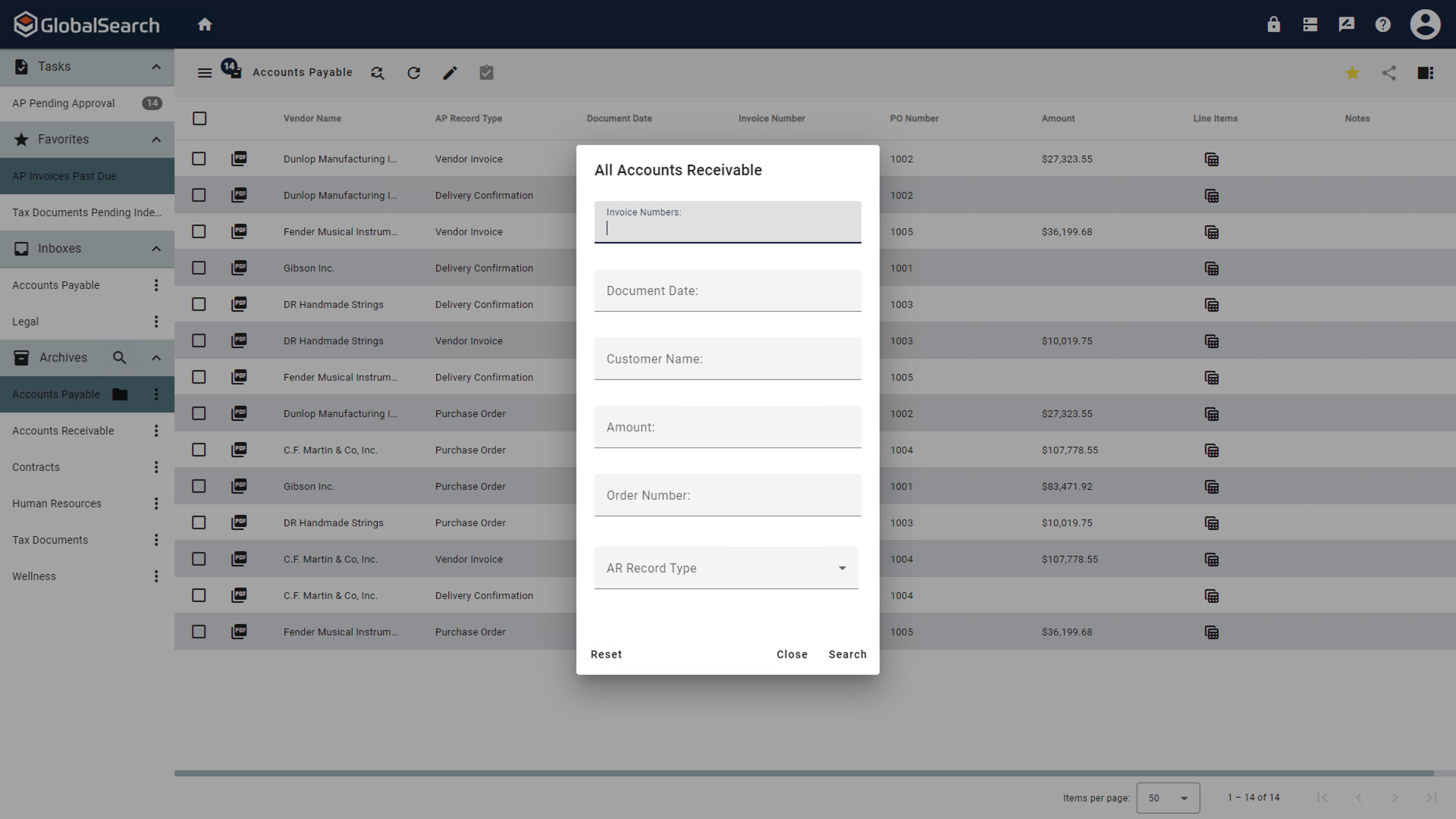
Note that after you have run a Search, the Search Results Toolbar appears. You can click Refine Search to bring up the Searches dialog, if you would like to change the criteria for your chosen Search.
-
If the Search has a Pick List Field, do one of the following:
-
If the Search has a standard Pick List Field, click on the Field to expand the drop-down list and select the value you wish to use in your Search.
-
If the Search has a type-ahead Pick List Field, you can enter the entire keyword or phrase, but you do not have to. Just type the first letter or so and, when the Pick List appears, select the value.
-
-
Click Search to show the search results. Choose Close or click anywhere off the search prompt to close the dialog without running a Search, or click Reset to clear any search criteria in the prompt.
Root Search
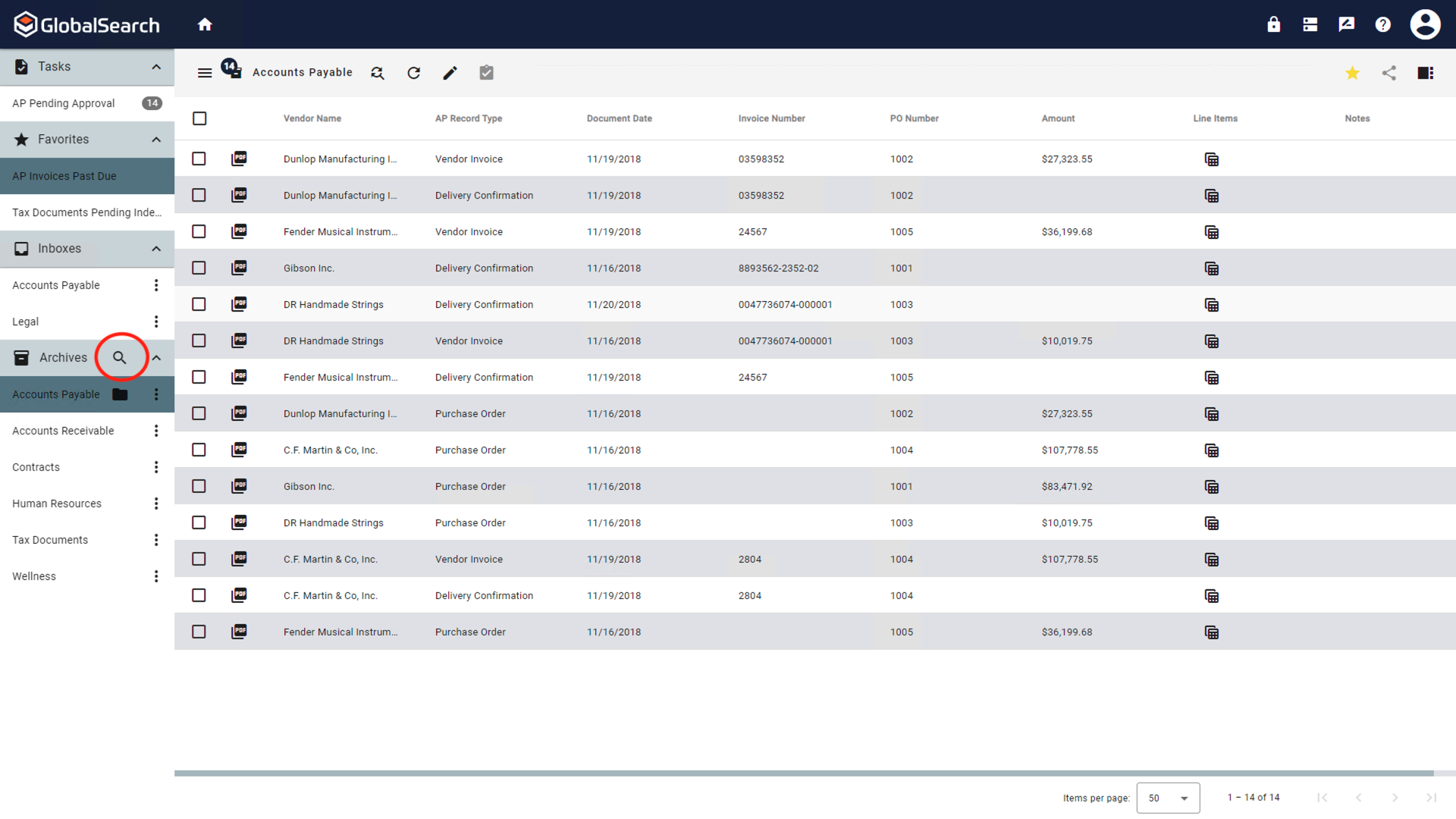
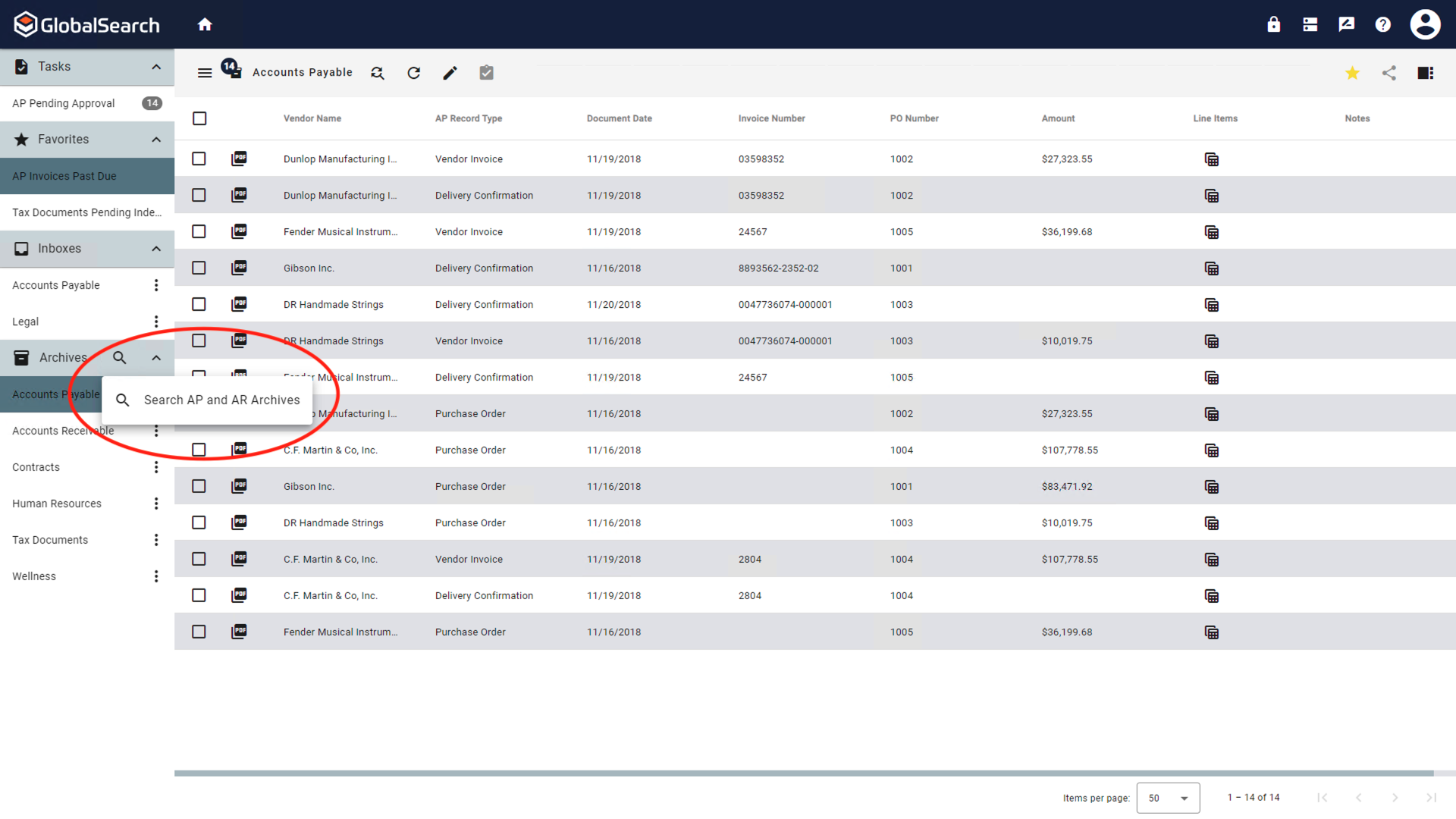
A Root Search is a search that lives at the database level, has access to all index fields, and often searches in multiple archives. The available search fields and the archives in which is looks are configured by your GlobalSearch Administrator. To run a Root Search:
-
Select the Root Search (

-
A list of available Root Searches will appear. Select the desired search.
-
If you select a Static Search, the search will run automatically without any further interaction and the results will appear in the Search Results Grid.
-
If you select a Variable Search, in the Searches prompt that appears, either enter no values (to return all), or enter one or more values (to filter your results down to a more specific list of documents). The prompt for a Search value should indicate what type is needed (like "Customer Name" or "Date of Delivery"). If you enter the wrong type (like "$1,00" for the "Vendor Address" Field), you will see a message asking for the correct Data Type.
-
Click Search to show the search results. Choose Close or click anywhere off the search prompt to close the dialog without running a Search, or click Reset to clear any search criteria in the prompt.