
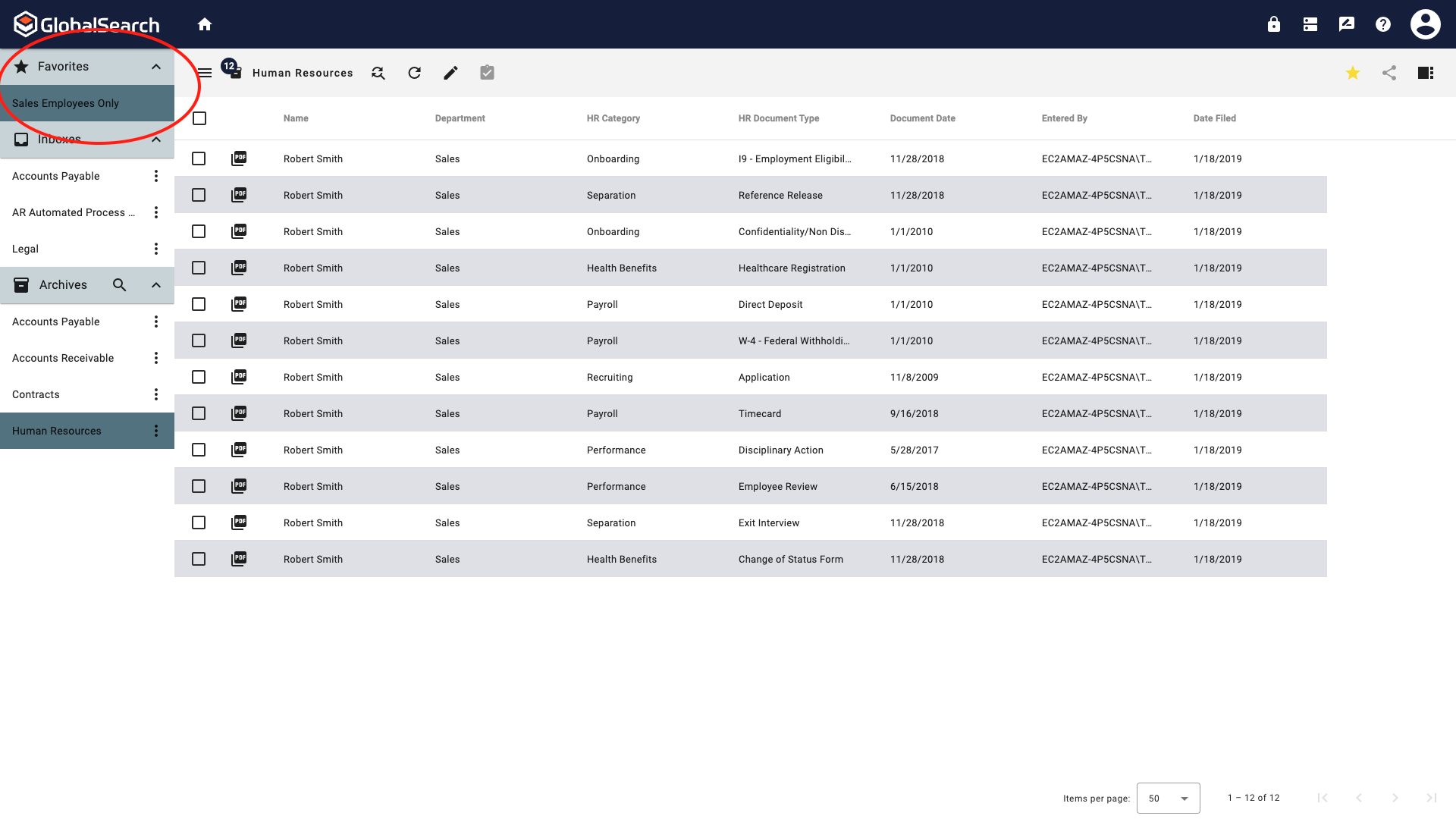
Favorites give you one click access to any searches to which you are secured. You can favorite as many searches as you want and they are added to the Favorites pane in the Archive panel. Favorites gives you the flexibility to name your favorited search, decide if the search prompt will appear when clicked, and the ability to keep the last set of search criteria. You can do all of this and still have access to the original search within the archive ellipsis menu.
Example: I could favorite my All Accounts Payable search to return only invoices for a specific vendor, provide it a unique name in the favorite pane so I know what the search is for, but still have access to the All Accounts Payable search in the Accounts Payable Archive.
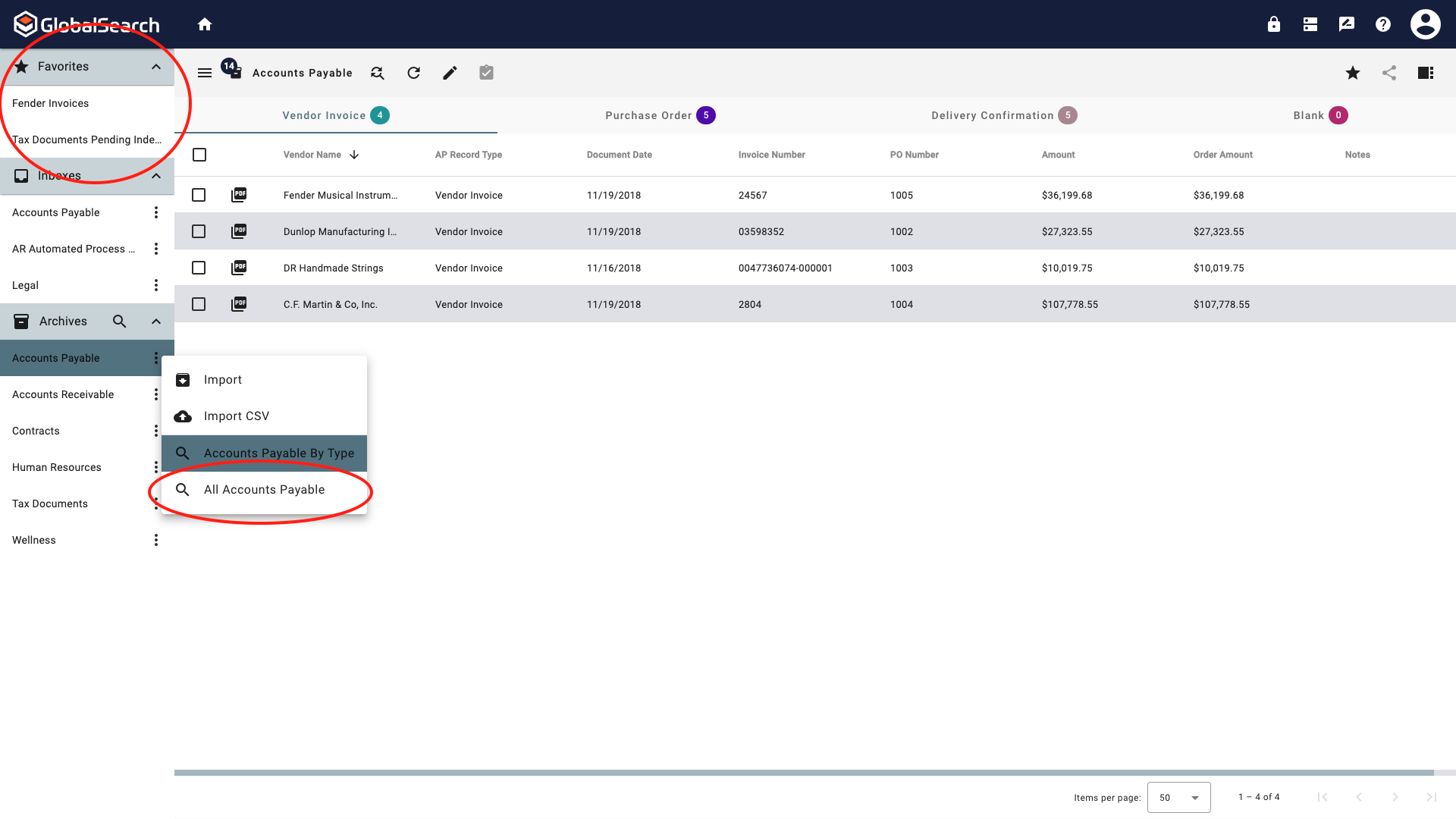
You must enable Favorite in User Settings to display favorites in the Navigation Panel.
Adding a Favorite Search
-
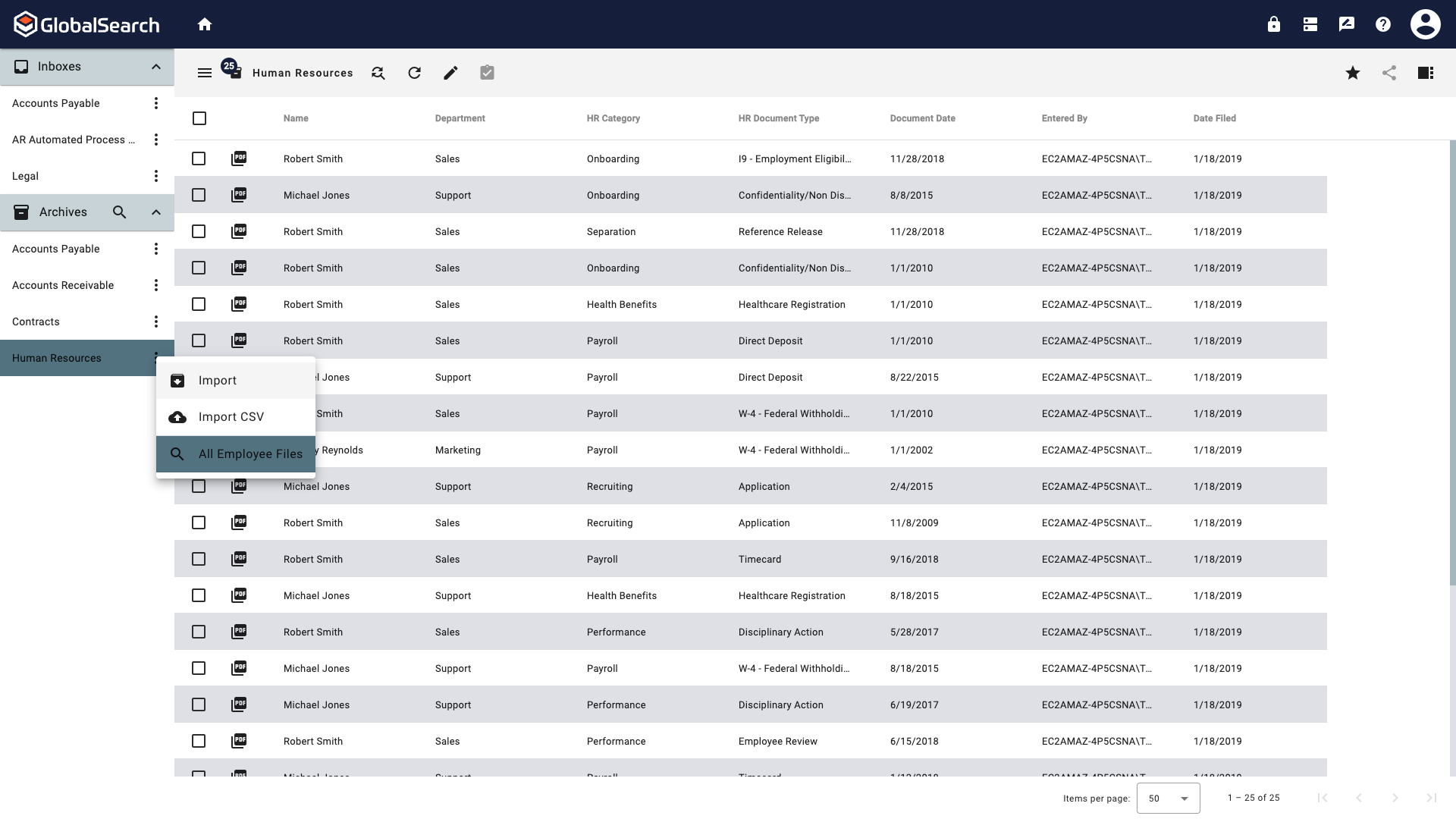
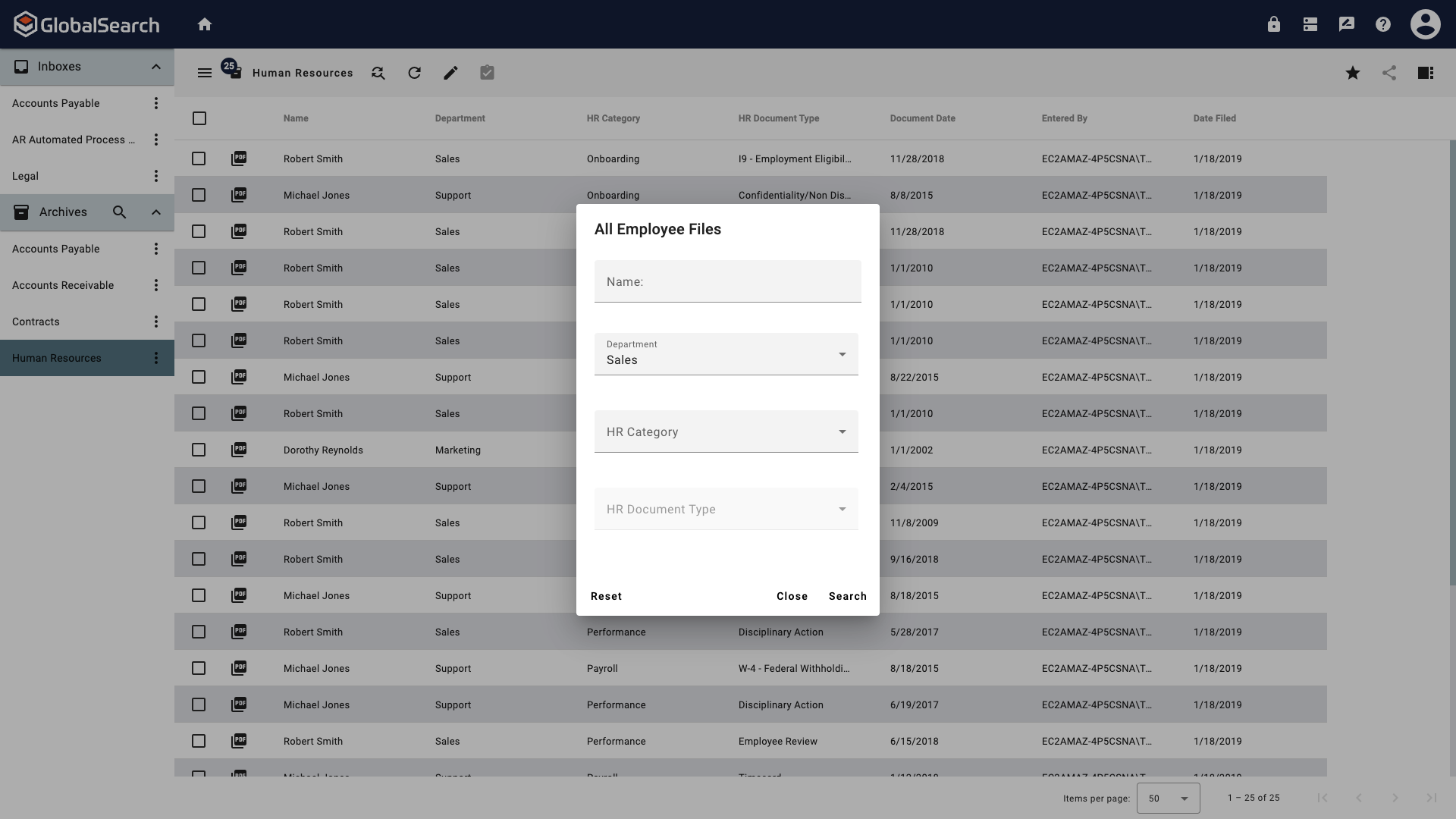
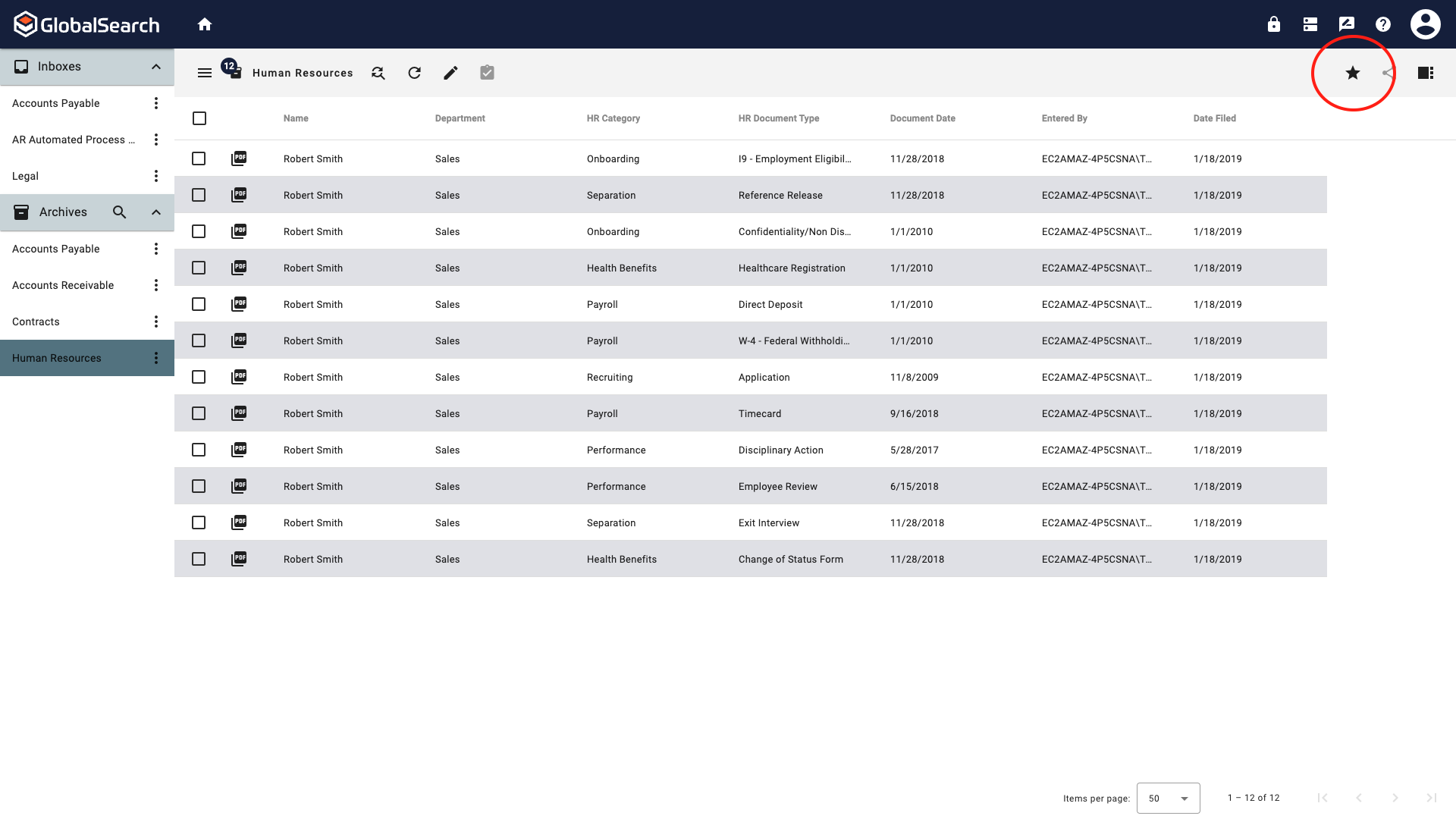
Select and run a search from the Archive Ellipsis menu. Include any search criteria you want to include in your favorited search.
-
Click the Favorite (

-
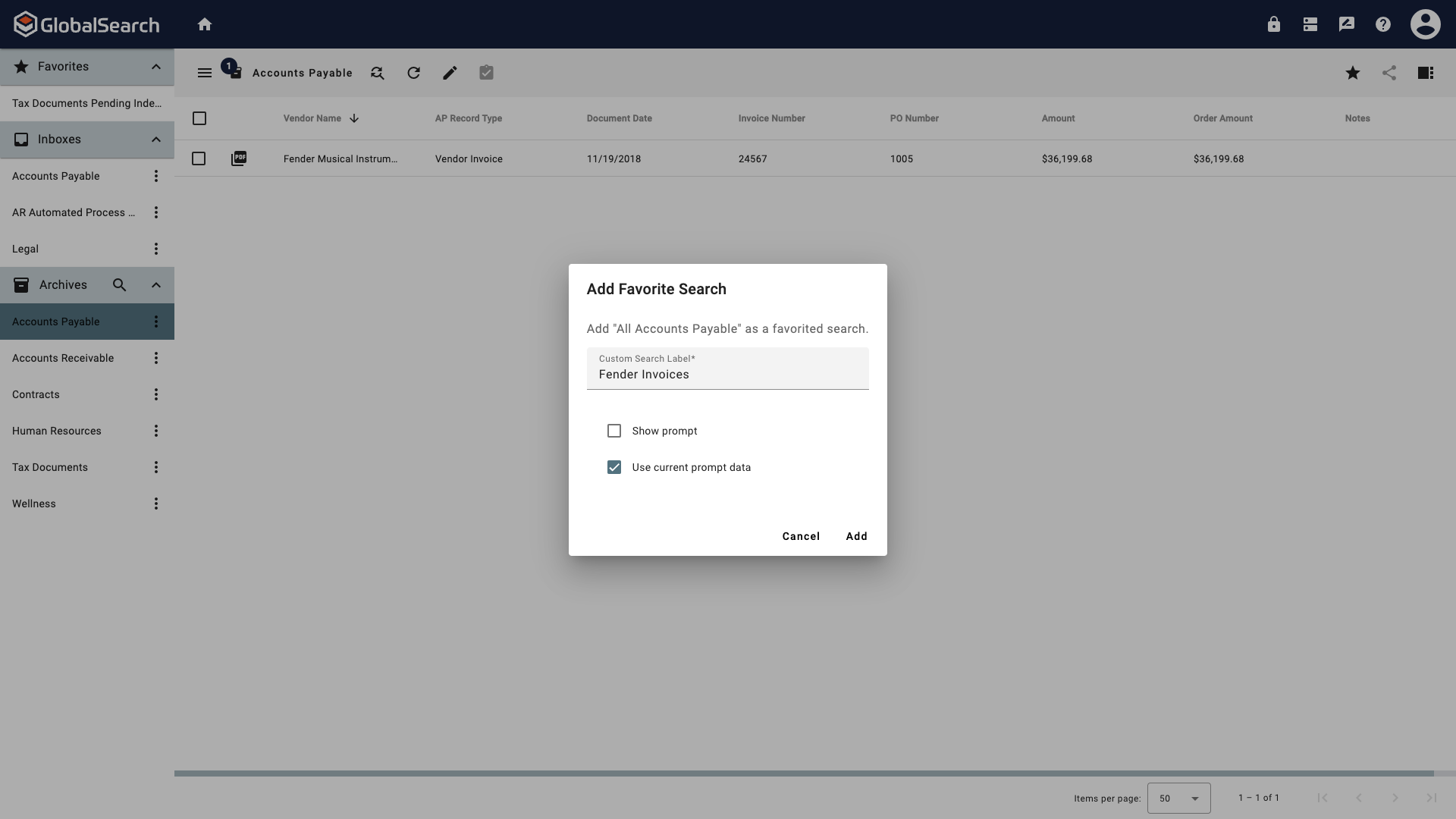
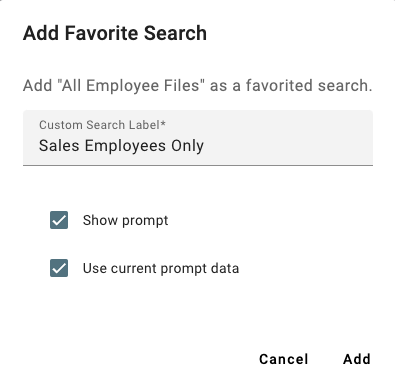
In the Add Favorite Search Settings menu:
-
Custom Search Label - Gives the search a custom name in the Favorites pane.
-
Show prompt - If enabled, when the favorited search is selected from the Favorites pane, the search prompt will appear.
-
Use current prompt data - If enabled, when the favorited search is selected from the Favorites pane, the data that was entered into the search prompt when favorited will be maintained in the search.
-
-
Click Add.
Important Information
-
Each search can only be favorited once, even if a custom search label is applied.
-
The original search found in the Archive Ellipsis menu is unaffected by the favorited search.
-
The order of the searches in the Favorites pane will be the same as the order they appear in the archives, regardless of the name of the search or the custom search label.
-
If a search that has been favorited is run from the Archive Ellipsis menu, the search in the Favorites pane will be highlighted, even if search criteria are different.
Running a Favorite Search
-
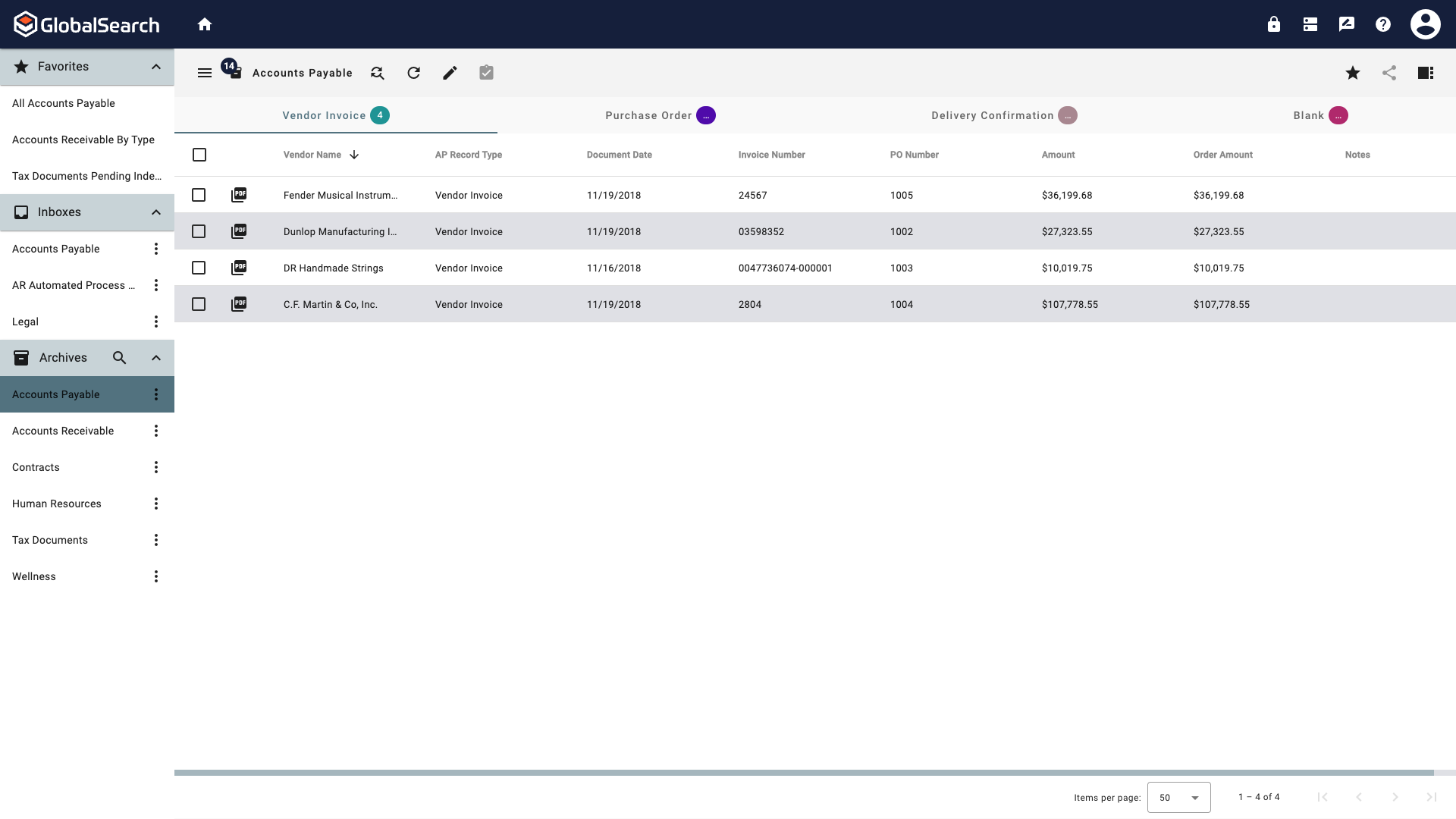
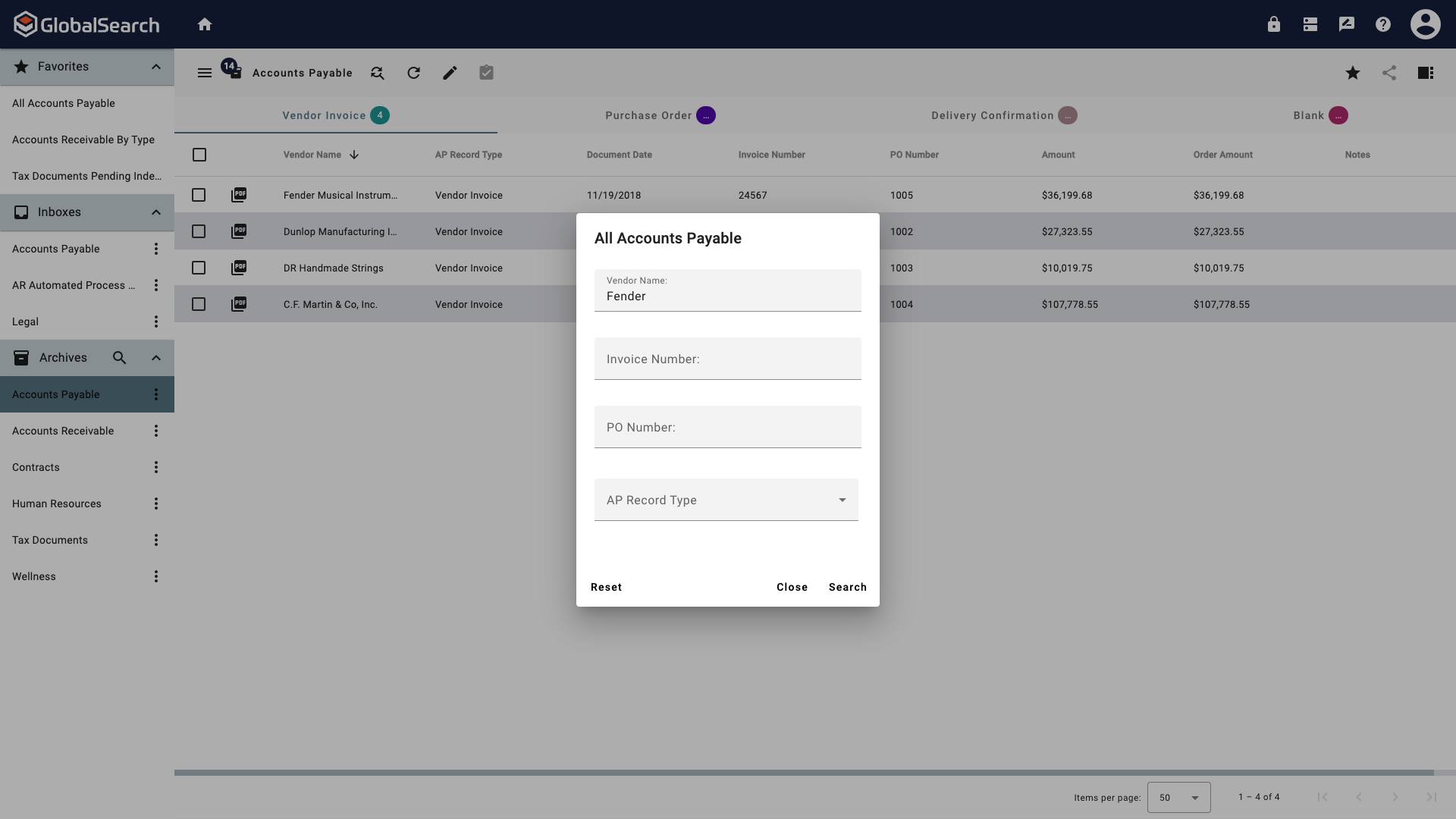
Select the search to run from the Favorites pane.
-
If prompted, enter any search criteria.
-
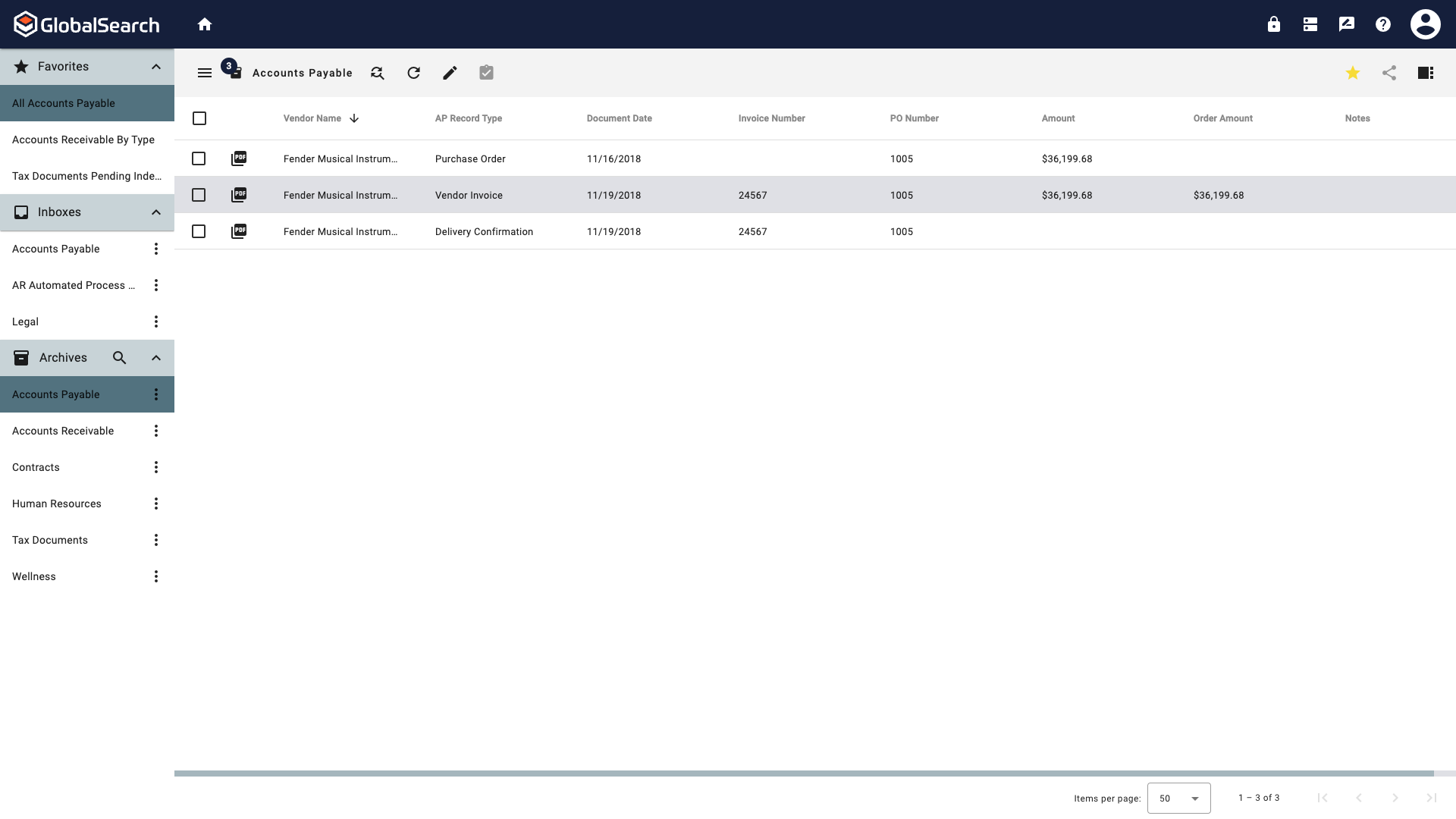
Click Search.
Removing a Favorite Search
-
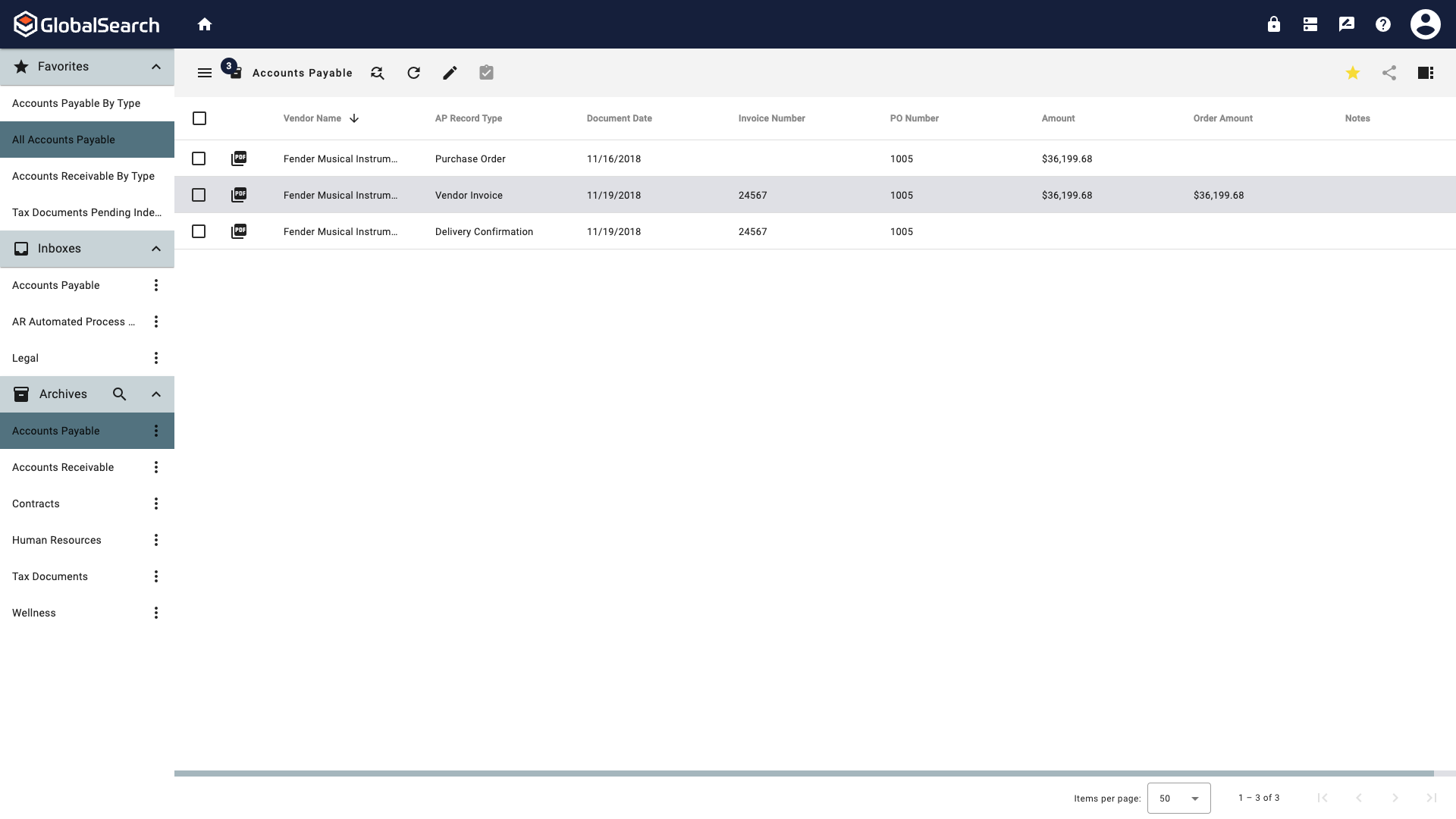
Run a search from the Favorites pane.
-
Click the Favorite (
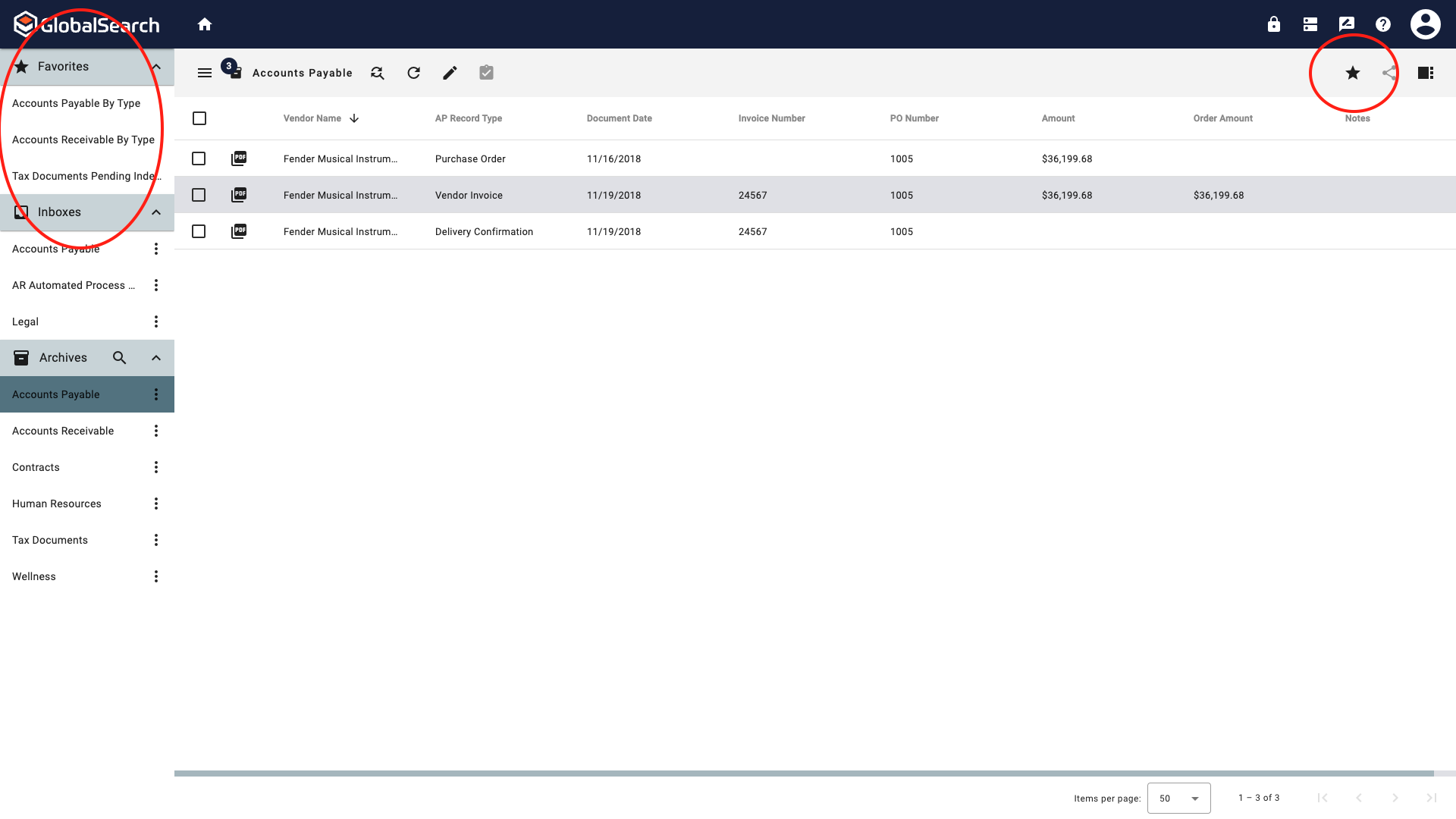
If the GlobalSearch Administrator has designed a search as a Queue search in security, removing the search using the star it only temporary. The search will return to the Favorites pane when the page refreshes.
Modifying a Favorite Search
To modify any Favorite search settings:
-
Follow the procedure for Removing a Favorite Search.
-
Follow the procedure for Adding a Favorite Search.