Prior to using the node, your Google administrator will need to setup a a Google Cloud project for email access. Once a Client ID and Secret have been generated, you can configure the node in any GlobalCapture workflow requiring it. Note, this node WILL REPLACE the existing Import node step.
Configure a Google Cloud Project
-
Browse to https://console.cloud.google.com/ and login as your workspace admin user.
-
From the project selector in the upper right corner, either select a project to work in, or create a new project.
-
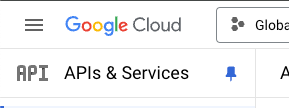
Open the APIs & Services panel.
-
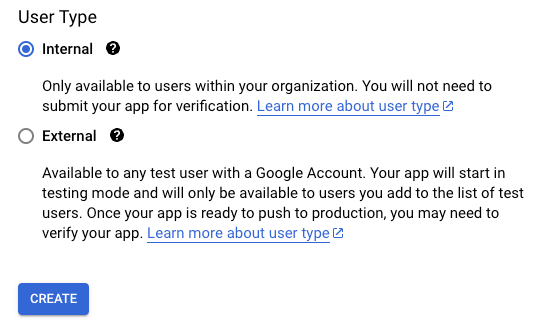
Select the OAuth consent screen menu, select Internal, and click CREATE.
-
Provide the required app information
-
App name: GlobalCapture Email
-
User support email: Your Google Workspace admin
-
Provide a logo if desired. The Square 9 logo here conforms to the size parameters from Google
-
A developer contact is also required, and will generally be the same as your support email
-
Click Save and Continue
-
-
Click Save and Continue again on the Scope screen
-
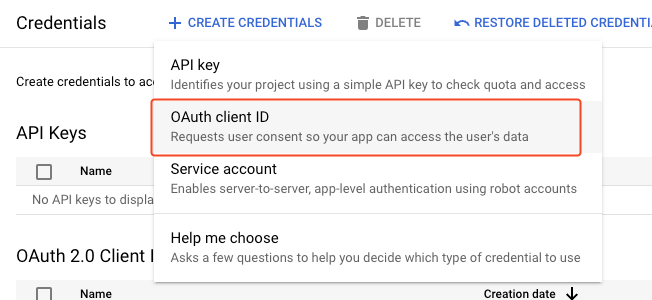
Click the Credentials menu, and click Create Credentials, then select OAuth client ID
-
For Application type, choose Web application
-
Provide a description name. Something like “GlobalCapture server access”
-
Add an authorized redirect URL and add the following url:
https://square9cdn.s3.amazonaws.com/oidc/gmail-oauth-import-callback.html -
Click CREATE
-
Copy the Client ID and Client secret provided. This information will be required when setting up the workflow in GlobalCapture.