
Administrators can create, modify, and delete Square 9 Users in GlobalCapture.
Users are secured to GlobalCapture using Active Directory authentication or using Square 9 Users created in GlobalCapture. When creating, modifying, or deleting a user, the Notifications ( 
Create Square 9 Users
-
-
To create a Square 9 User, click the Manage (

-
In the Manage interface that appears, click User Management.
-
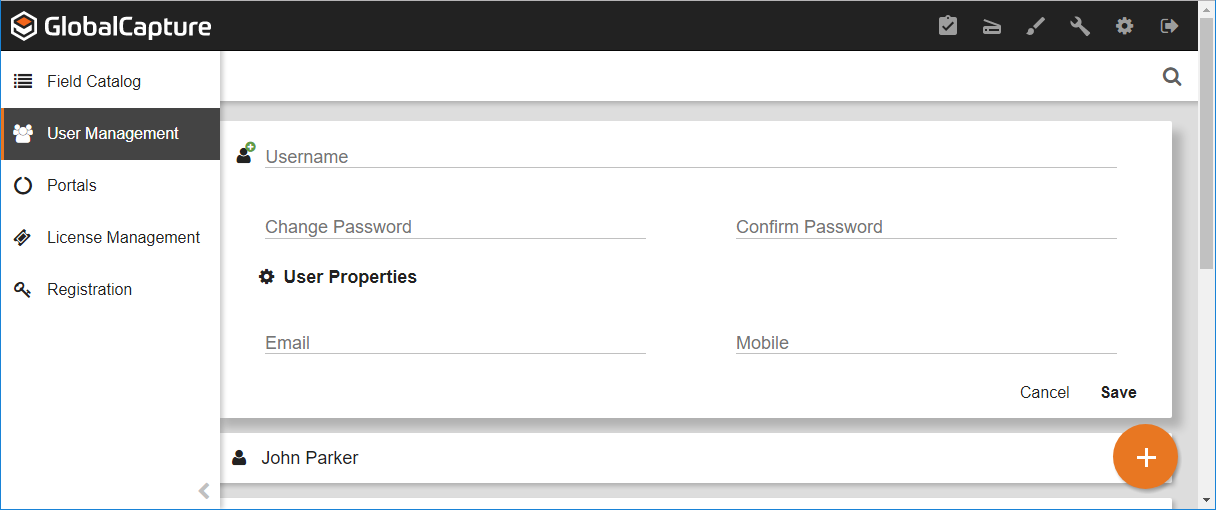
Click the Add (
-
Enter a username.
-
Enter a password and then confirm the password. The Square 9 User password must be 6 to 18 characters in length.
-
Optionally, enter one or both User Properties. You can enter the specific information or use S9 Notation to dynamically add user information. When using S9 Notation, replace "
Username" appropriately.
Note that these be references when using Set Process Fields and and Email Nodes. Also note that they are not case sensitive.-
Email – Enter an email address for the user. The field is alphanumeric and must contain "
@domain." -
Mobile – Enter a mobile phone number for the user. The field is numeric, with a maximum length of 16 digits.
-
-
Click Save to create the Square 9 User.
If GlobalCapture is connected to a GlobalForms Portal, the user will be created in GlobalForms as well.
-


Modify Square 9 Users
-
To change a Square 9 User’s password, click the More Options (

-
Enter the new password and then confirm it. The password must be 6 to 18 characters in length.
Square 9 Users can also change their own password from the Settings interface. -
Click Save to save the changes.
Delete Square 9 Users
-
To delete a user, click the More Options (

) icon for the selected user and click Delete.
-
Because this will permanently delete the user, enter the displayed text in the Confirm Action prompt.
-
Click Delete.