
With the GlobalCapture Server updated, you can upgrade any additional GlobalCapture Engine instances you have installed.
-
Navigate to the
GlobalCaptureEngineStandaloneInstallerdirectory, expand this directory, right-click onsetup.exeand select Run as Administrator.
-
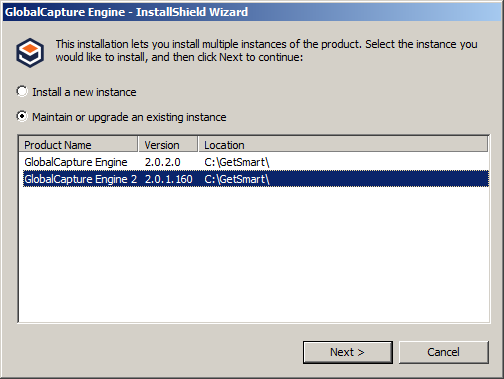
Select Maintain or upgrade an existing instance and click Next to start the next GlobalCapture Engine installation process.
-
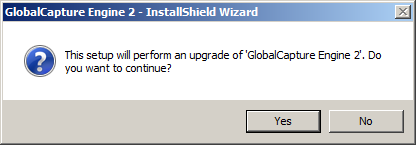
At the prompt to perform an upgrade, click Yes.
-
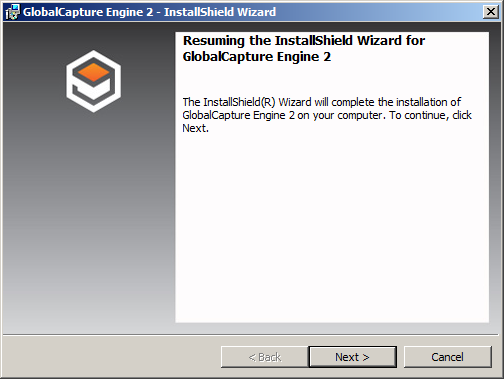
Click Next to start the GlobalCapture upgrade process using the Installation Wizard. There will be a pause while the installation is processing.
-
To view and save a log of actions and times related to the installation for future reference:
-
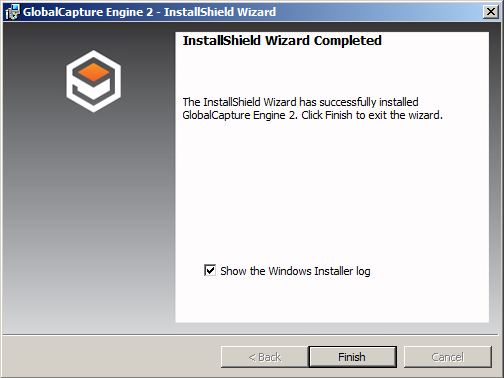
In InstallShield Wizard Completed, enable Show the Windows Installer log.
-
In Notepad, do a Save As to save your log and then close Notepad. Saving a log is recommended. When you are done, you will be returned to the installer.
-
-
Click Finish to complete the additional GlobalCapture Engine installation.
-
In GlobalCapture Engine 2 Installer Information, at the prompt, click Yes to reboot the system, so that the GlobalCapture Engine is operational. Or, click No if you will manually reboot later.