Customers on a current GlobalSearch version (6.3.159 or greater) may choose to leverage an updated and improved GlobalSearch client.
GlobalSearch Go is a hosted client. Prior to being able to leverage the client on your GlobalSearch instance, a configuration file must be placed on the server.
Square 9 Cloud Customers can skip to Step 3, but should contact support@square-9.com to enable access if there are any connection problems.
1. SSL Certificate
GlobalSearch Go requires an SSL certificate to function. The certificate needs to be setup in your IIS (Internet Information Services). Which you acquire through a valid SSL provider. See our article:
How To Perform A GlobalSearch SSL Switch-over
Using a self signed certificate is not recommended. This is for temporary test machine demonstration purposes only.
2. Adding the Config File
A new folder and file will need to be added to the Square9API folder on your GlobalSearch server.
-
Navigate to c:\inetpub\wwwroot\square9api (or the location of your Square 9 install).
-
Create a new folder called public.
-
Within the public folder, create a new file named config.json. The contents of this file should be:
{
    "apiUrl":  "https://YOURFQDN/square9api/api",
    "viewerUrl":  "https://YOURFQDN/globalsearchviewer",
    "licenseManagerUrl":  "https://YOURFQDN/square9web/GSWLicenseManager/",
    "userManagementUrl":  "https://YOURFQDN/square9web/UserManagement/",
    "adminUrl":  "https://YOURFQDN/square9web/#/admin/full",
    "gseUrlDefault":  "https://127.0.0.1:9443",
    "dashboards":  [],
    "authenticationProviders":{},
    "defaultShareDocumentExpirationDays":3
}
Be sure to update YOURFQDN with the fully qualified domain name of your GlobalSearch instance.
3. Using GlobalSearch Go
-
Browse to https://square9.cloud.
-
Enter your tenant address when prompted for Instance.
-
On Premise customers must have a valid SSL Certificate installed. The client accessing GlobalSearch Go needs to be able to access the Square9API and have the aforementioned config.json configured. Enter https://YOURFQDN or if you entered a hostname in the bindings enter https://YOURHOSTNAME for the instance.
-
Cloud customers can enter https://YOURCOMPANYNAME.mysquare9.com to access their cloud instance.
-
Users familiar with the GlobalSearch web client will have no issues navigating the updated experience. Layout and functional elements are consistently placed. The biggest difference users will notice is with document viewing.
4. GlobalSearch Go Documentation
Visit our GlobalSearch Go documentation to learn more about the Dashboards, the Search Results View, and the Document Viewer.
Troubleshooting
Problem: When I enter my instance name, I get an error message that says “The instance name is invalid or unavailable.”
Cause: If you have followed the configuriton properly, this is most likely caused by a security setting in the browser.
Resolution: Enable Local network and Apps on device for Square9.cloud.
-
Navigate to square9.cloud.
-
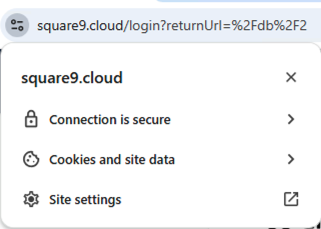
Click the View Site Information () to the left of the URL.
-
Select Site Settings.
-
At the very bottom of the list, find Local Network and Apps on device. Change the permission for each one to Allow.
-
Close your settings page and refesh your browser.
If everything else is configured correctly, you should now be presented with the login screen.