
Easily share a document without exporting the document from GlobalSearch. Using Share ( 
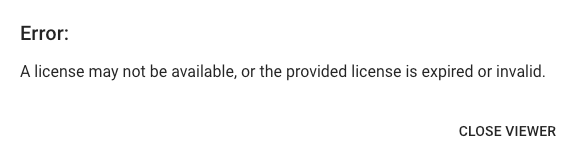
Using Share requires read only licenses. At least one license must be available for the link to work. If no licenses are available, you will receive an error message.
Sharing a Document
Expiring links can only be created for a single document. To share multiple document, you will need to create a link for each document, or use Copy and Merge features to create a single document to share.
-
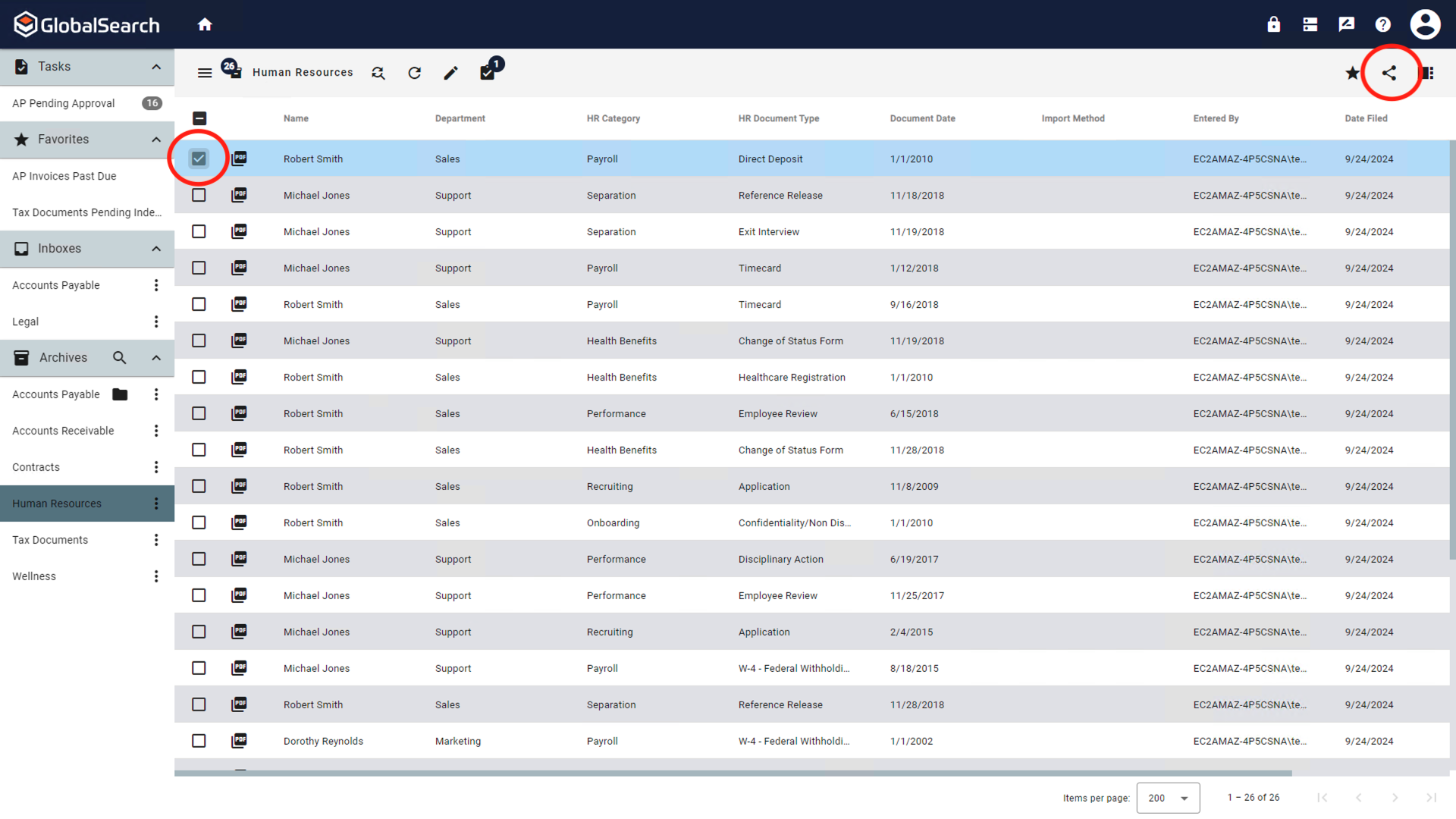
Run a search that returns the document to share. Select the document and click the Share (
-
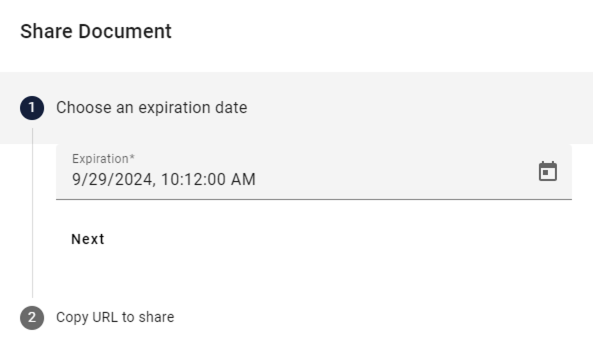
In the Share Document window, choose an expiration date. Click Next.
-
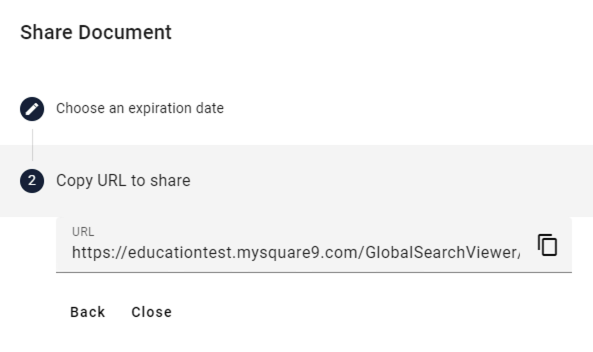
The URL is automatically generated. Click the Copy (

-
Click Close or anywhere off the Share Document window to close the window.
To share the link, paste the link into an email, chat window, etc. to share the document.
Canceling a Shared Document
A shared document can be canceled at any time by the GlobalSearch Administrator by removing the shared document link from the License Manager