
You can print documents and their indexing data to a printer or PDF file. The exact printer settings and behavior will depend upon your browser application and printer setup.
Printing from the Search Results View
-
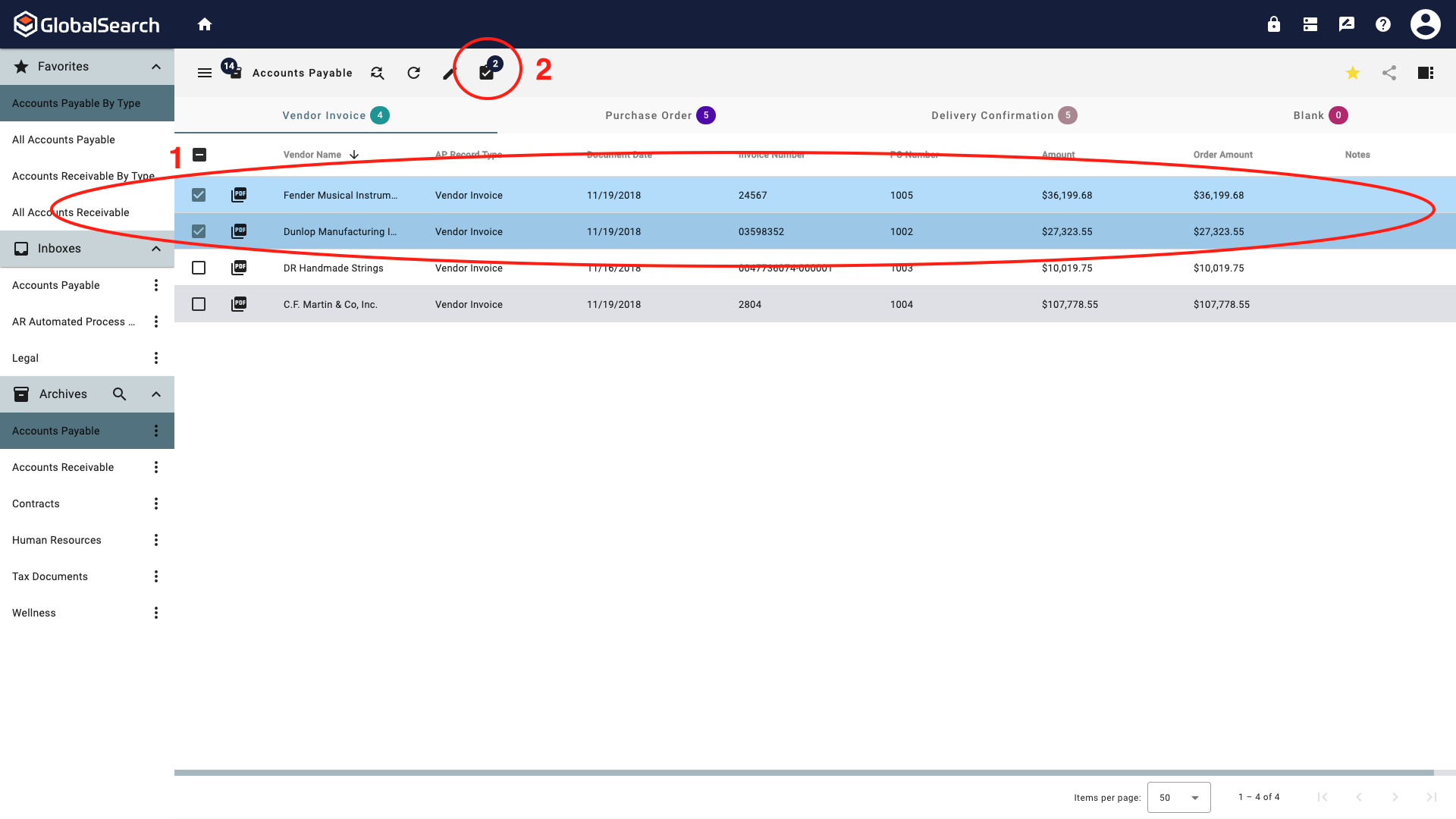
To print the document(s) from the Search Results View, check the box next to each document to print. This will activate the Actions menu (

-
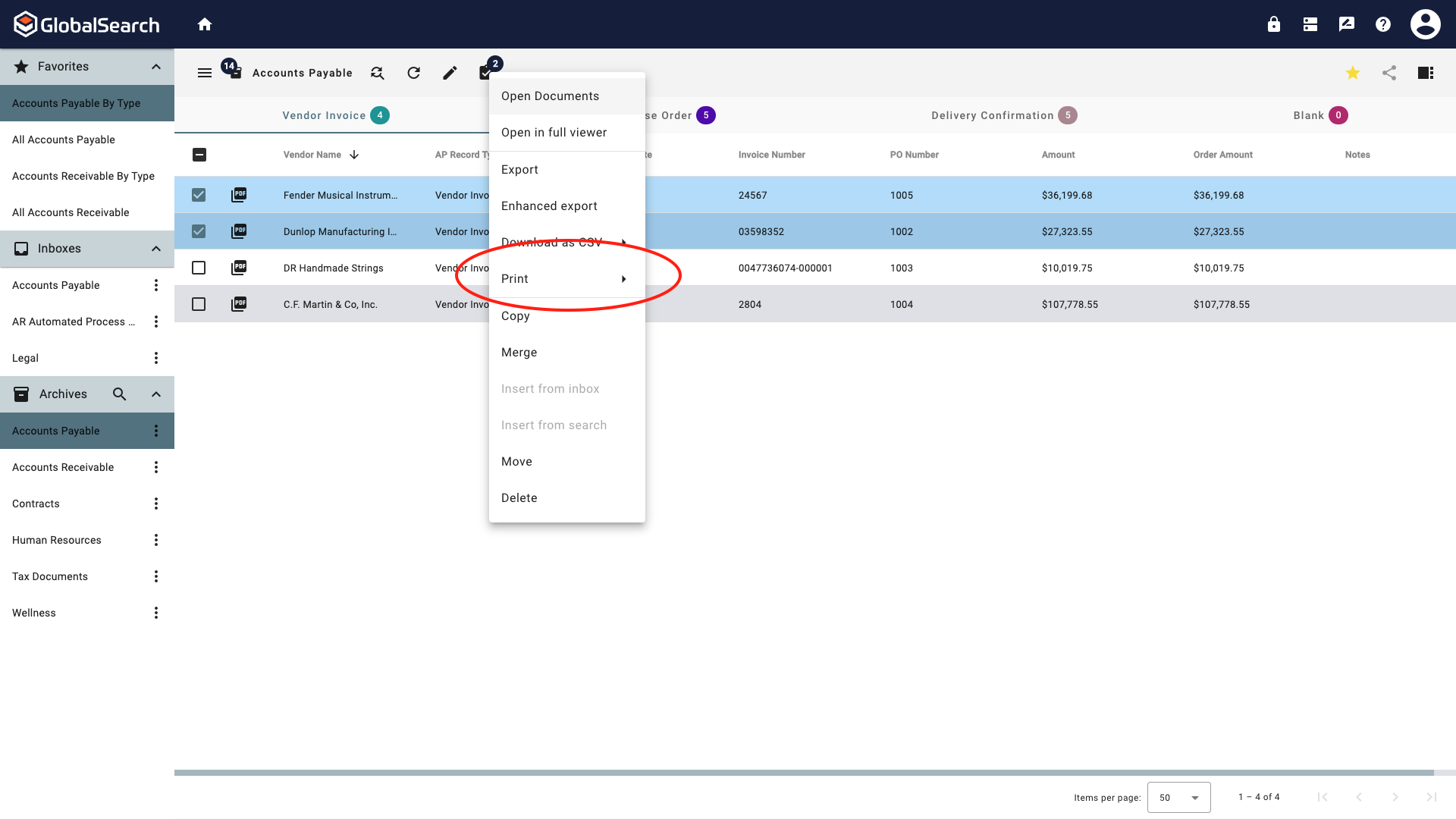
From the Actions menu, select Print.
-
Select:
-
Print with Annotations to print the document with the annotations in place.
-
Print without Annotations to print the document in its original form.
-
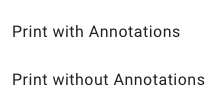
Print without Annotations requires annotation permissions. Users without annotation permissions who select Print without Annotations, will output the document with annotations.
-
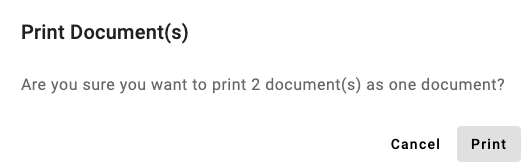
If multiple documents are selected, you will be prompted to confirm printing the documents as one. Click Print.
-
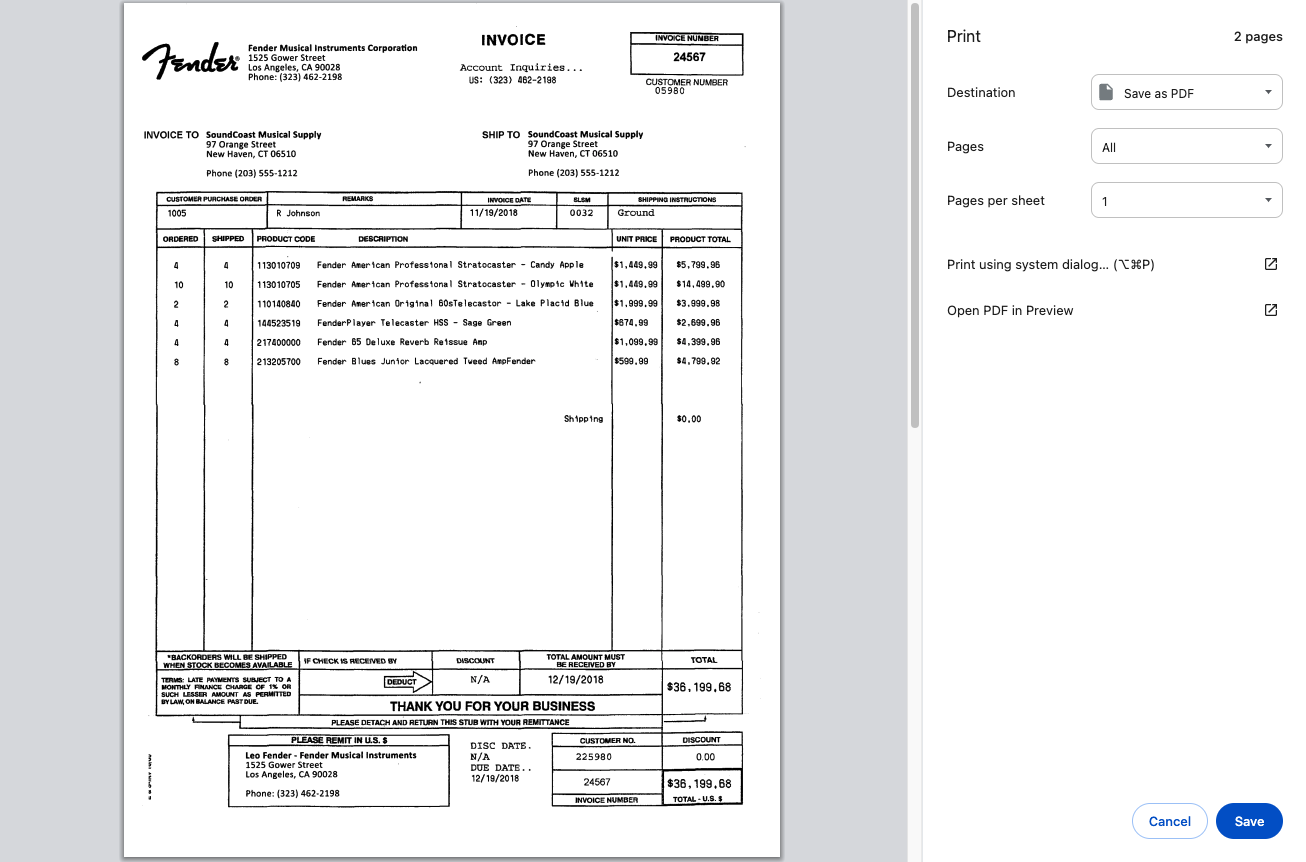
From the printer dialog box, select printer settings (settings may vary, depending on the application you select), and click Print.
Printing from the Document View
-
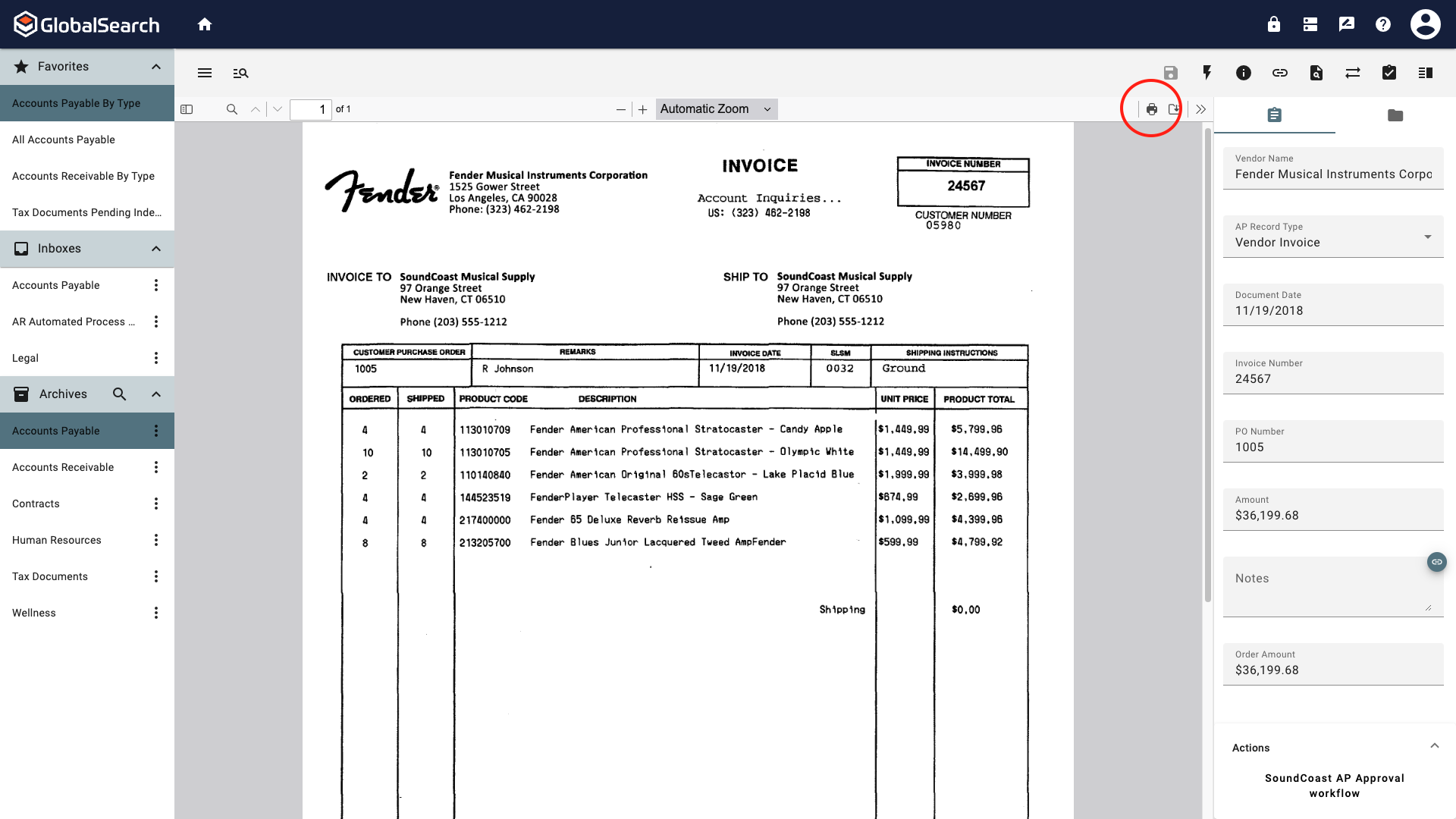
To print the document from the Document View, click on the Print (

-
From the printer dialog box, select printer settings (settings may vary, depending on the application you select), and click Print.