
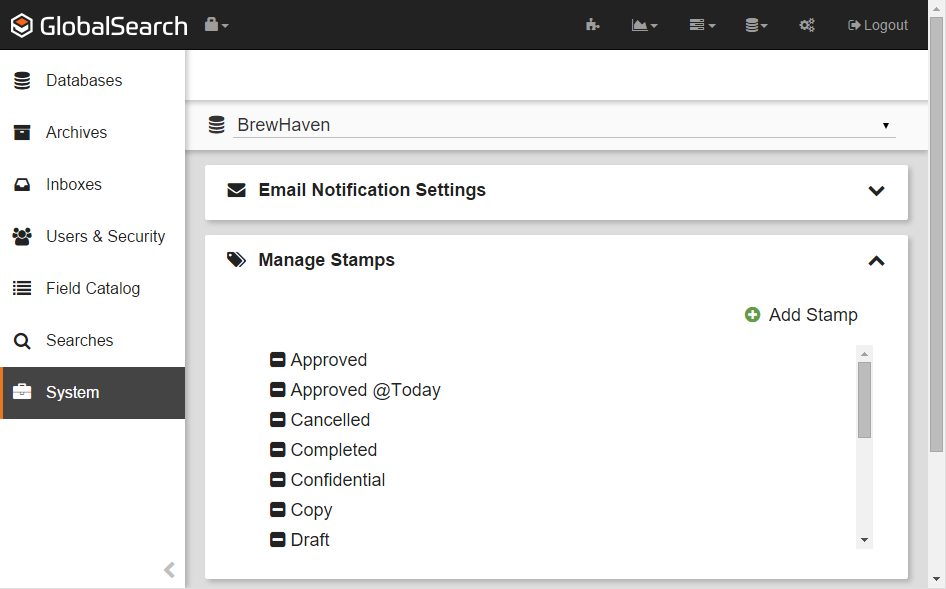
In addition to the base set of Stamp options available to GlobalSearch users, administrators can create additional stamps for all users in the desktop and the web client.
-
To create a Stamp available for all users, in the Administration menu, select Administration.
-
In the vertical Administration menu, select System.
-
Click the Database toolbar and select a database from the drop-down list.
-
Click the Expand (down arrow) icon on the Manage Stamps bar.
-
Click Add Stamp.
-
Enter the text for the Stamp in the New Item text box.
-
Optionally, insert variable data into the Stamp text. Select from the following:
-
-
@Today – Add the current date.
-
@User – Add the logged in user’s username.
-
Edit Stamps
-
To modify a Stamp, in the Manage Stamps bar in the Administration Screen, select a Stamp by clicking its text and it will become editable.
Delete Stamps
-
To delete a Stamp from GlobalSearch, in Manage Stamps on the Administration Screen, click the Delete (-) button next to the selected Stamp.