
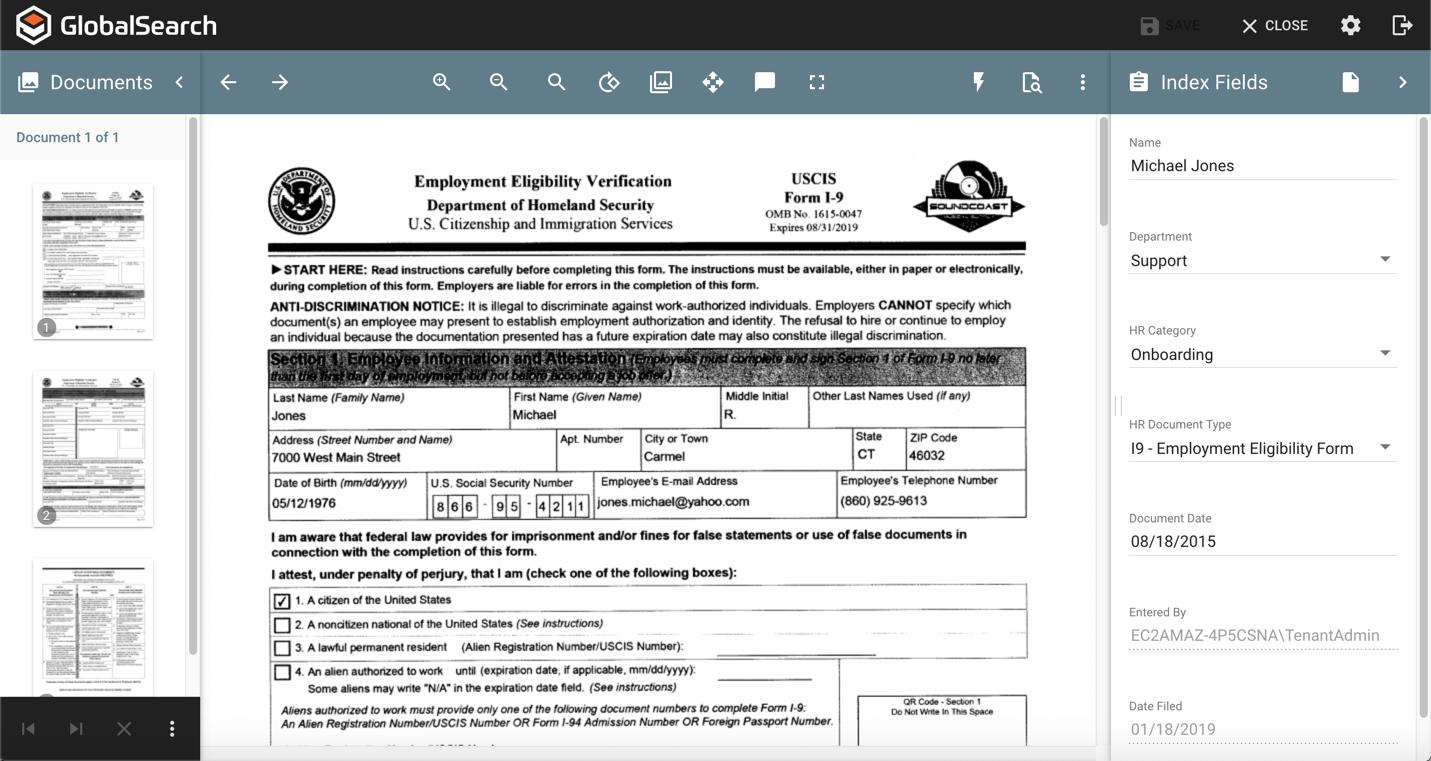
Moving from left to right on the toolbar of the document viewer, there are several options for how you can view and navigate documents within GlobalSearch. Remember, most document functions may be performs with keyboard shortcuts as well.
Page Navigation
-
Toggle Thumbnails - By default, the thumbnail pane within the document is always open. Clicking on the collapse arrow to the right of the Documents header will collapse the thumbnail pane. To reopen the thumbnails, click on the thumbnail icon on the toolbar (the leftmost icon).

-
Next Page – Move from one page to the next.

-
Previous Page – Move back a page.

Page Sizing
Select one or more options from the Viewer toolbar to adjust the size of the image being viewed
-
Document Scaling – Use Zoom In and Zoom Out to resize the document image.

-
Document Position – Select

-
Document Orientation – Choose this option to change the orientation of your document by your choice of 90, 180 or 270 degrees.

Document Panning
Select the panning feature from the viewer toolbar to easily navigate to an enlarged area of the document for closer inspection

Full Page Viewing
To fully optimize the GlobalSearch footprint, select the full screen option. This will fully expand the viewing area of the application and remove all of the browser chrome from around the application interface.
