
Email is a specific and static entry in the Launch table that takes on special meaning. Rather than launching a document for editing, the Email option is used to create new mail messages. With this entry configured, the email options in the Action menus will create a new mail message with one or more documents attached. Microsoft Outlook® is configured by default; no additional configuration is required to use it. Alternately, settings may be modified to support other mail applications. Square 9 does test functionality with IBM Notes® in addition to Outlook, but any mail application that supports creating new mail messages using command-line arguments can be configured to work with the GlobalSearch email options.
Edit Email Entries in Launch Table
-
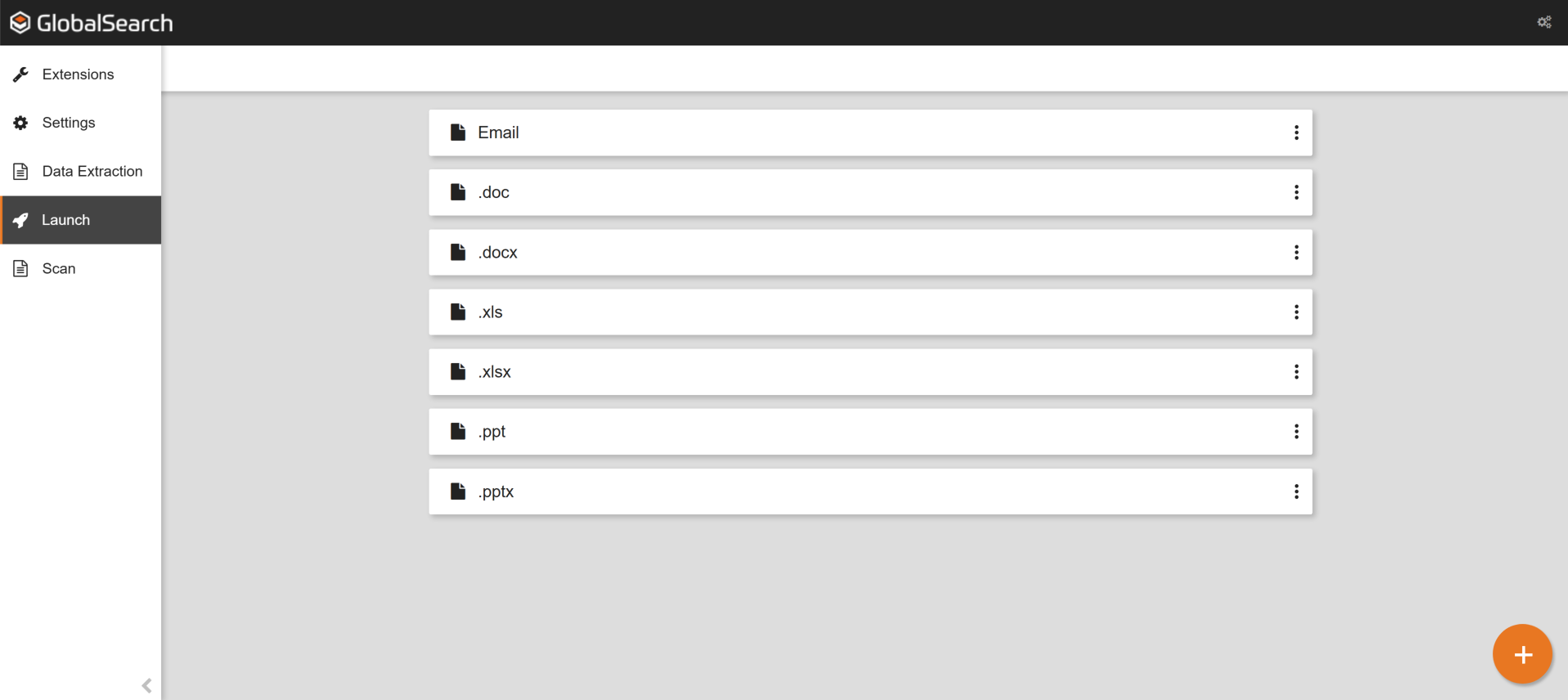
To create entries in the Launch Table for applications on your local machine, select the Launch option in the vertical Extensions menu (this appears when Launch is enabled). Email should always be the first option in this list.
-
In the Email bar, click the More Options (

-
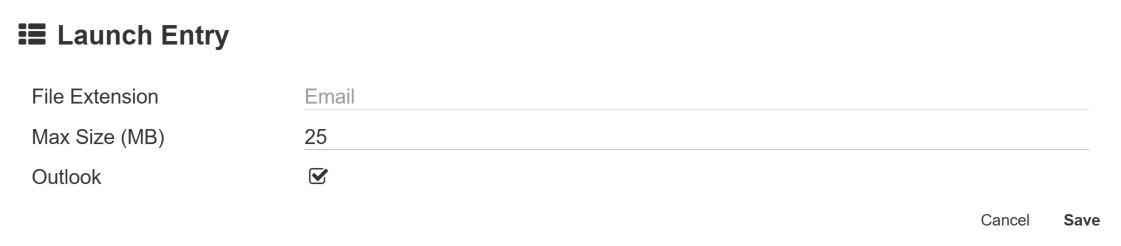
Microsoft Outlook is the default email application; it does not require further configuration. You can change the Max Size setting, if you wish. In the Max Size (MB) text box, enter the maximum size (in megabytes) that attached files can be, per email message. You can type in the amount or use the Up/Down arrows to the right of the box.
Because most email servers limit the allowable size per message to no more than 25 MB, this is set by default. If you change the Max Size limit and your email server cannot handle the file size, documents will fail to attach to the message.
Alternate Mail Client Settings
-
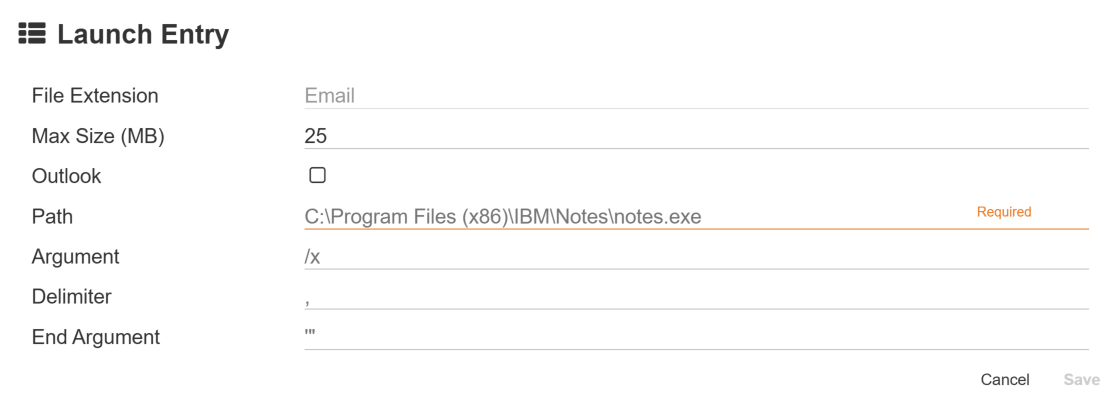
To configure an alternate email client, simply uncheck Outlook.
-
In the Path text box, enter the path and filename of the email client executable.
-
In the Argument text box, enter the argument needed to tell the email client how to compose a new message and begin attaching files. Files are passed by GlobalSearch to the application on startup. If the application requires specific parameters to indicate the start of the attachment list, it should be included at the end of your argument list.
-
In the Delimiter text box, enter the character(s) used to separate attached files by the application. Again, this information is dictated by the command-line options for the selected application.
-
Some applications may require an argument to be added to the end of a file list. Enter the arguments needed to end the message in the End Argument text box.
-
Click Save and the specified application will be mapped for use with Email.
IBM Notes Example
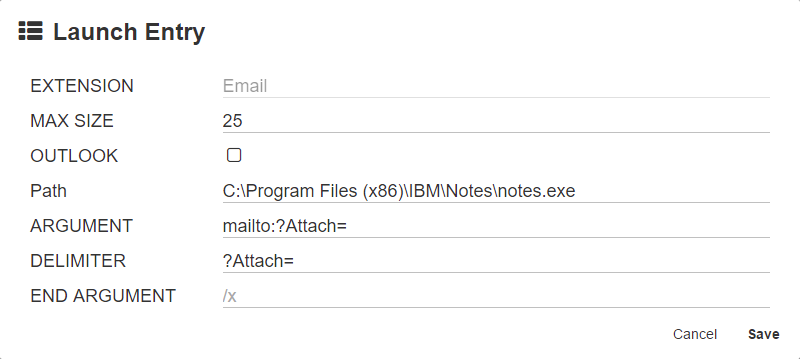
The illustration below shows the proper configuration to setup email for use with IBM Notes®.
To create a new message on startup, Notes expects the text "mailto:" to be passed as an argument on startup. Files are passed by GlobalSearch in the command line are expected to be prefixed by the text "?Attach=", so that is also included in the Argument text box. Each file passed to Notes must be separately prefixed with the same "?Attach=" text, so this is added to the Delimiter text box. There are no end argument requirements for Notes, so End Argument is left blank.
Mozilla Thunderbird Example
The illustration below shows the proper configuration to setup email for use with Mozilla Thunderbird®.
To create a new message on startup, Thunderbird expects the text "-compose " to be passed as an argument on startup. Files are passed by GlobalSearch in the command line are expected to be prefixed by the text "attachment='", so that is also included in the Argument text box. Each file passed to Thunderbird must be separated by a comma, so this is added to the Delimiter text box. The attachment list for Thunderbird begins with an apostrophe, and must close with one as well, so this is added to the End Argument.
