
The Search Results Pane displays the document returned from a search and allows for action to be take on the document.
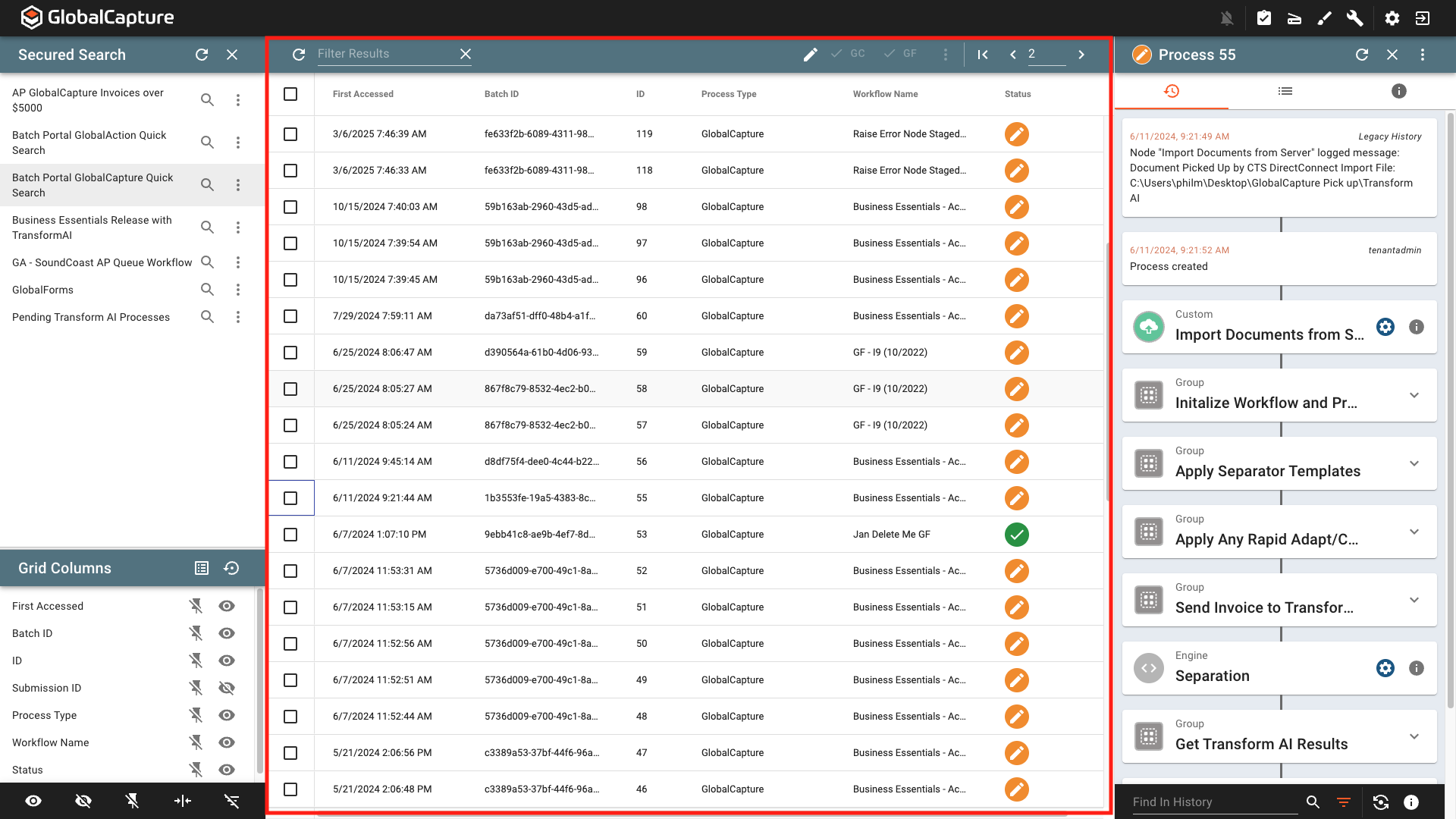
Search Results Toolbar
The availability of some of these function will vary based on user permissions.

Refresh ( 
Filter Results - Enter the filter criteria and press enter. Only results that contain the entered value in the Filter Results field will be displayed. To clear your filter click the X.
Save ( 
Edit ( 
Turning off edit without saving will result in any changes to data being lost.
GlobalCapture Validation ( 
GlobalForms Validation (
Selected Process Actions ( 
First Page ( 
Previous ( 
Page Number - Current page number of search results being displayed. The number of results per page varies and can be modified in User Settings.
Next ( .png?cb=b06c1d150619f1a79d5e43efee2382f1)
Open Process Drawer ( 
Search Results Grid

Column Width - Hover over the column header near the edge of the column until you see the resize icon ( 
Sort - Sort columns ascending ( 

GlobalCapture search results can only be sorted by one column at a time.
Order - Rearrange the order of the columns by clicking and dragging the column header to the desired position in the table.
Document Selection
-
Clicking anywhere on the document highlights that document and opens the process drawer displaying the details for the document. With proper security, process field data can be modified, actions can be taken, or the document can be launched into the appropriate document viewer.
-
Clicking the checkbox to the left of the document enabled toolbar actions for GlobalCapture or GlobalForms validation and allows for actions to be taken from the Selected Process Action Menu.
Selected Process Actions
Selected process actions be access from the more options menu on in the Process Drawer, by selecting a document and clicking on the Select Process Actions (
Delete - Delete the process from GlobalCapture. Deleted process cannot be recovered and deleting a document with a status of Processing may result in corrupted documents.
Stop Processing - Stops the document from processing and changes the status to Stopped. Stopping a document with a status of Processing may result in corrupted documents.
Set to Ready - Sets the status to Ready. This does not continue the process through the workflow, manual intervention is required by moving the document to a node in which to resume the workflow.
Move - Select a node to move the current process to in which to continue the workflow.
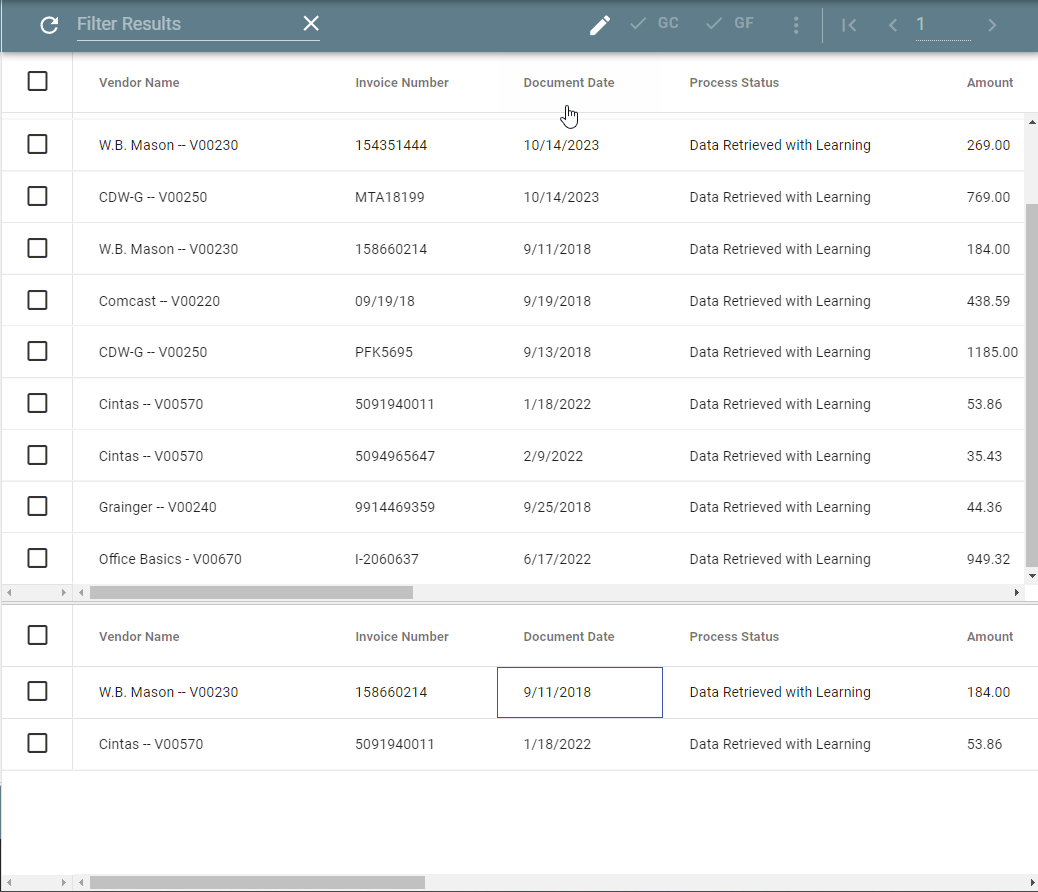
Quiver - Pin one or more processes to a table at the bottom of the Search Results Pane. Quiver documents to gather documents that span multiple pages.
-
Quivered documents remain in the quiver table until removed.
-
Quivered document remain in the quiver even if the page is refreshed or a new search is run.
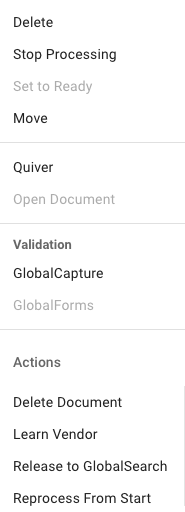
Open Document - Opens documents in GlobalAction workflows into the GlobalSearch Document Viewer.
Validation - Allows the document to be opened in the selected document viewer. Available actions are determined by security.
-
GlobalCapture - Opens the document in the GlobalCapture Document Viewer.
-
GlobalForms - Opens the document in GlobalForms where the form fields can be edited or additional form areas can be displayed in a multistep form process.
Actions - Options will vary. Select from the available actions configured by the GlobalCapture admin for documents in the workflow.