Overview
You may need to configure an import from a Google Workspace or Gmail Email address. To configure this with GlobalCapture, a few additional steps need to be configured to allow this to function.
Setup Your Gmail Account
-
If you do not already have a Gmail account, you can create one here.
-
Turn on POP in Gmail:
-
Click Settings > See All Settings
-
Click the Forwarding POP/IMAP
-
In the POP Access section, select Enable POP
-
Save Changes
-
-
Configure two step verification authentication (2FA) for your Gmail account as outlined here.
Get Your App Password
-
Go to your Google Account.
-
Select Security.
-
Under "Signing in to Google," select App Passwords. You may need to sign in.
-
If you don’t have this option, it might be because:
-
2-Step Verification is not set up for your account
-
2-Step Verification is only set up for security keys.
-
-
-
At the bottom, choose Select app and choose the app you using, select the device and choose the device you’re using generate.
-
Follow the instructions to enter the App Password. The App Password is the 16-character code in the yellow bar on your device.
-
Tap Done.
Configure Your GlobalCapture Environment
-
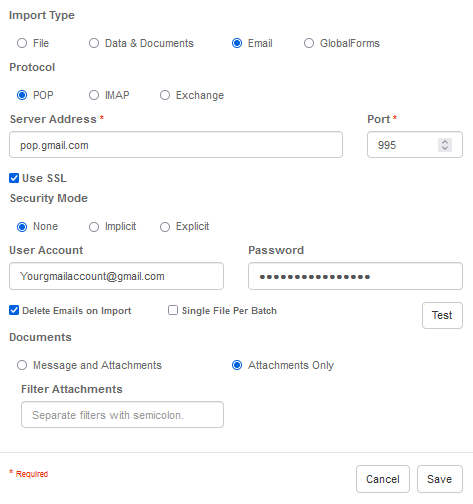
In the GlobalSearch Designer, double click your Import Node.
-
Configure it as follows:
-
Import Type: Email
-
Server Address: pop.gmail.com
-
User Account: Enter your email address.
-
Password: Enter your password.
-
Port: 995
-
Use SSL: True
-
Security Mode: None
-
Delete Emails on Import: True
-
-
Click Save