
This article will show you how to determine your software version. This information is useful when troubleshooting issues.
GlobalSearch GO
When you are logged into the GlobalSearch GO client you can check the version of the GlobalSearch Server you are connected to.
Click on the profile icon in the top right hand corner of the page and select “About”
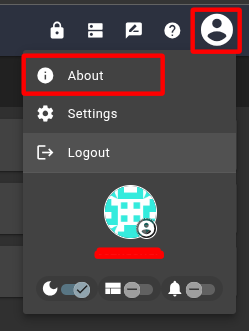
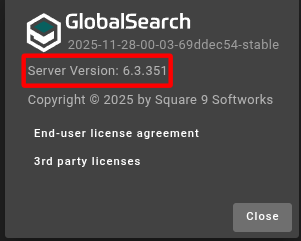
GlobalSearch
Method 1
If you have access to get into the desktop client, the software version can be determined by clicking on the GlobalSearch logo in the top left. The software version will be displayed in the menu that opens. In newer versions of GlobalSearch the process is much the same, you have to click the "File" tab instead of the GlobalSearch logo to get the menu to appear.
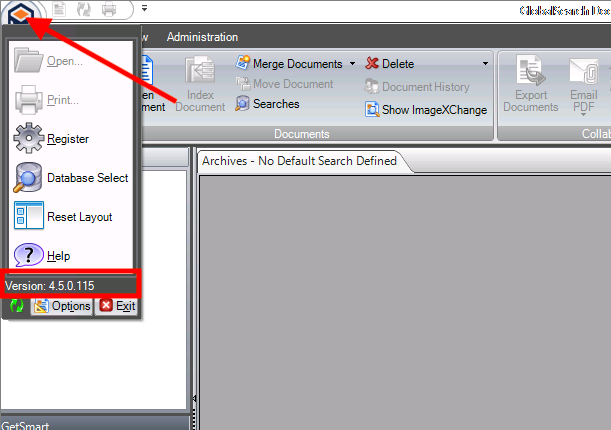
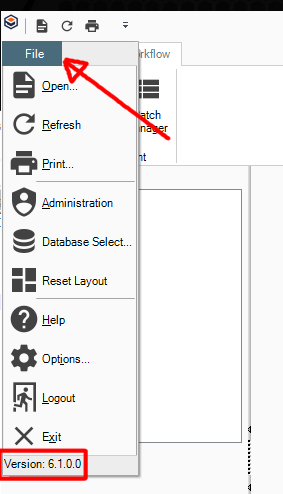
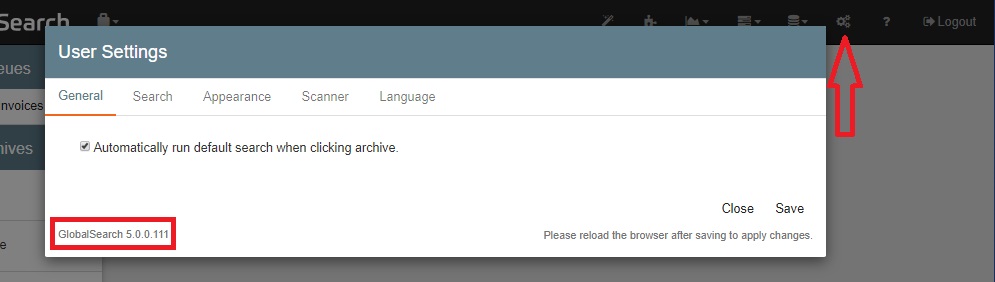
If you have access to the web client, the software version can be determined by clicking the in the upper right. The software version will be displayed in the menu that opens.
Icon: 
Method 2
If you are unable to open the software, the software version can be determined by looking at the SSInterface.exe file.
If you have access to the GlobalSearch server navigate to the directory where the application is installed (default C:\GetSmart)
If you do not have access to the server you can check the same file located on a client machine.
For versions 4.5.2 and higher:
C:\Program Files\Common Files\Square9\GetSmart\SSInterface.exe
For versions 4.5.0 and lower:
C:\Program Files (x86)\Common Files\Square9\GetSmart\SSInterface.exe
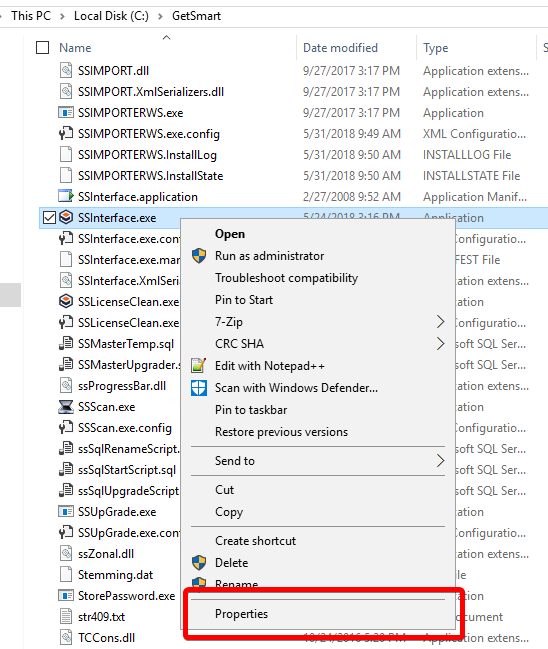
Right click on SSinterface.exe and select Properties
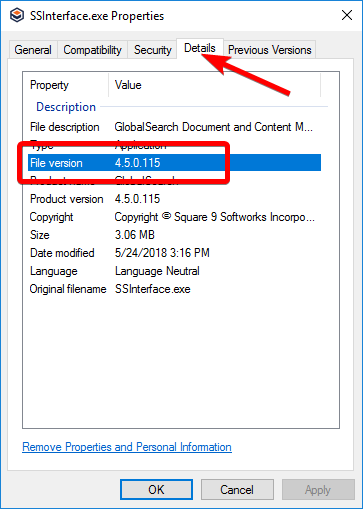
In the window that opens click on the Details menu item and note the File Version
GlobalCapture
Method 1
If you are able to log into your GlobalCapture Web Interface you can determine the version from the Settings dialog.
-
Log into the GlobalCapture Web Interface (http://servername/Square9CaptureWeb/index.html)
-
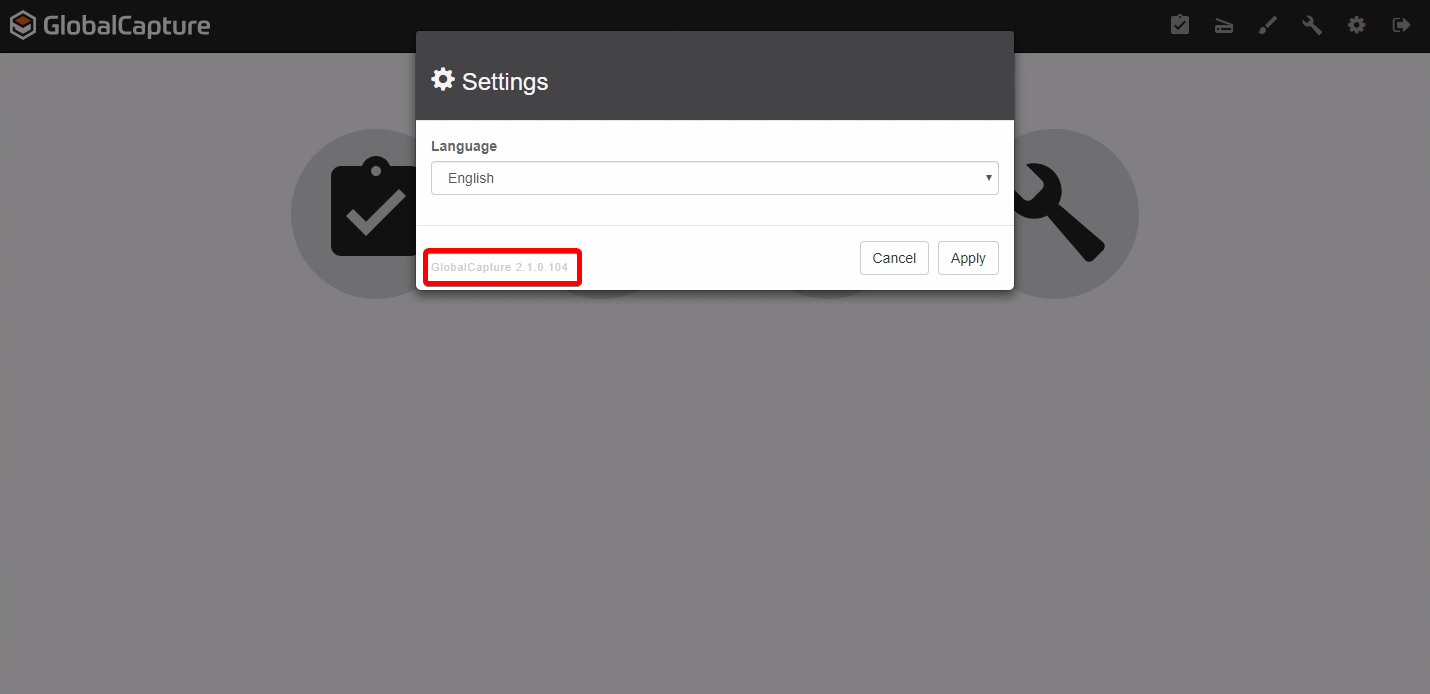
Select the cog icon
from the menu bar

-
In the window that opens the version will be on the bottom left
Method 2
If you are not able to access the GlobalCapture Web Interface you can determine the product version by navigating to the installation directory of one of the engines on the GlobalCapture Server.
-
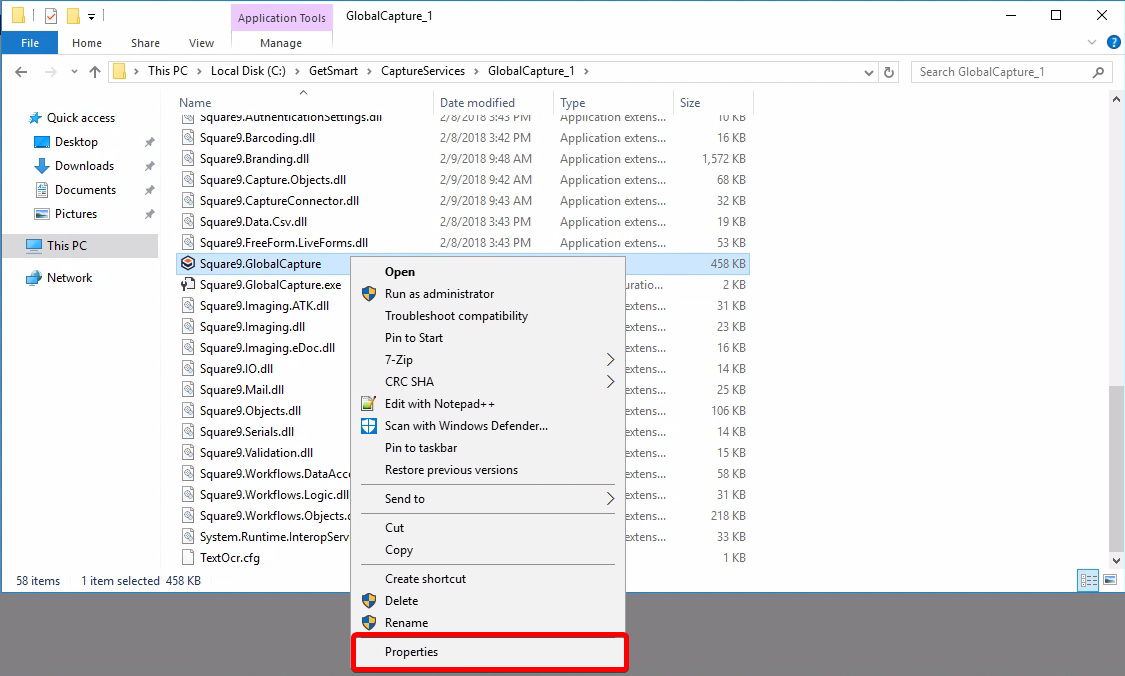
Navigate to the installation directory of the GlobalCapture Engine (C:\GetSmart\CaptureServices\GlobalCapture_1)
-
Right Click on Square9.GlobalCapture.exe and select Properties from the context menu
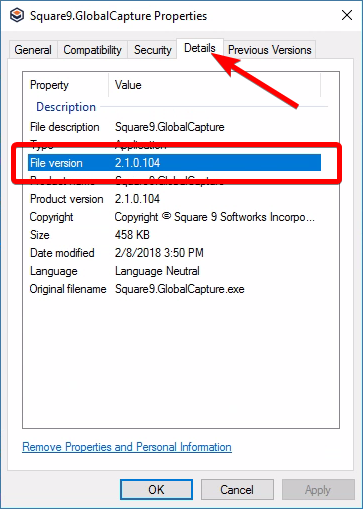
In the window that opens click on the Details menu item and note the File Version
GlobalForms 10
Method 1
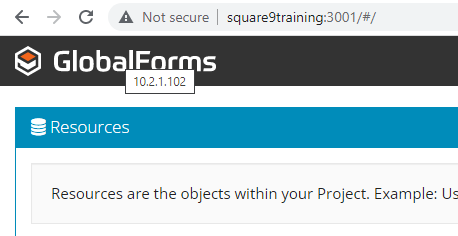
Log in to GlobalForms and hover your mouse cursor above the GlobalForms logo on the top left hand corner of the screen, the "alt text" that pops up will by your version number.
Method 2
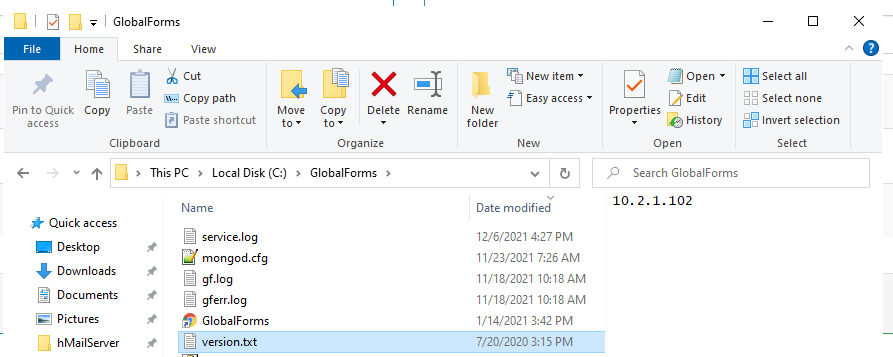
In the C:\GlobalForms directory (by default) there should be a version.txt file, this file will contain the current GlobalForms version number.
MongoDB
Method 1
You will need to check the location of your mongo database in the services property of mongo DB.
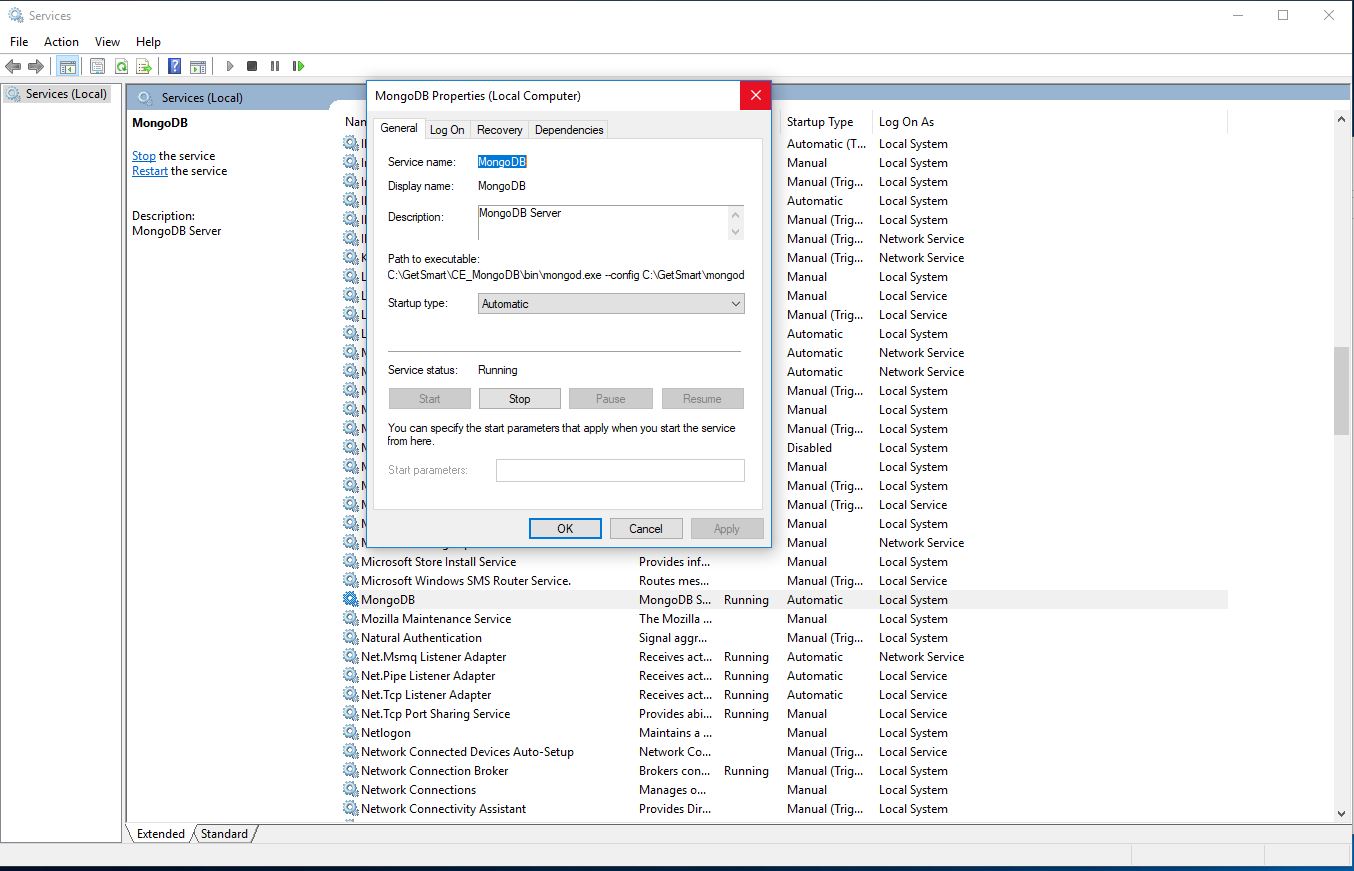
C:\GetSmart\mongodb\bin\
C:\GetSmart\CE_MongoDB\bin\
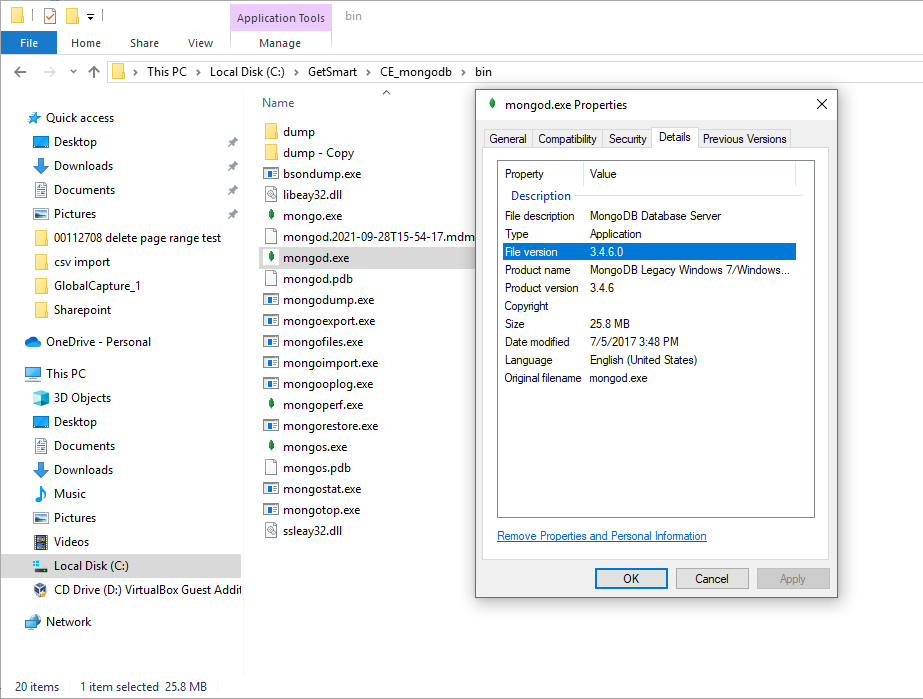
Go to the bin folder of your folder path and find mongod.exe. Right click on it and go to the details tab. That will tell you the version number of your mongo DB. Mine is 3.4.6.0 on my test machine.
Method 2
Go to your newest log file, mongo.log.
C:\GetSmart\CE_mongodb\logs
Or
C:\GetSmart\mongodb\logs
Open the text file. There will be a line at the top that shows the database version.
2025-01-14T05:56:20.786-0800 I CONTROL [initandlisten] db version v3.4.6
