
Your search results appear in a compact list or "Grid" to efficiently view many records at a glance. From the Grid, you can easily open, sort, filter, and view documents.
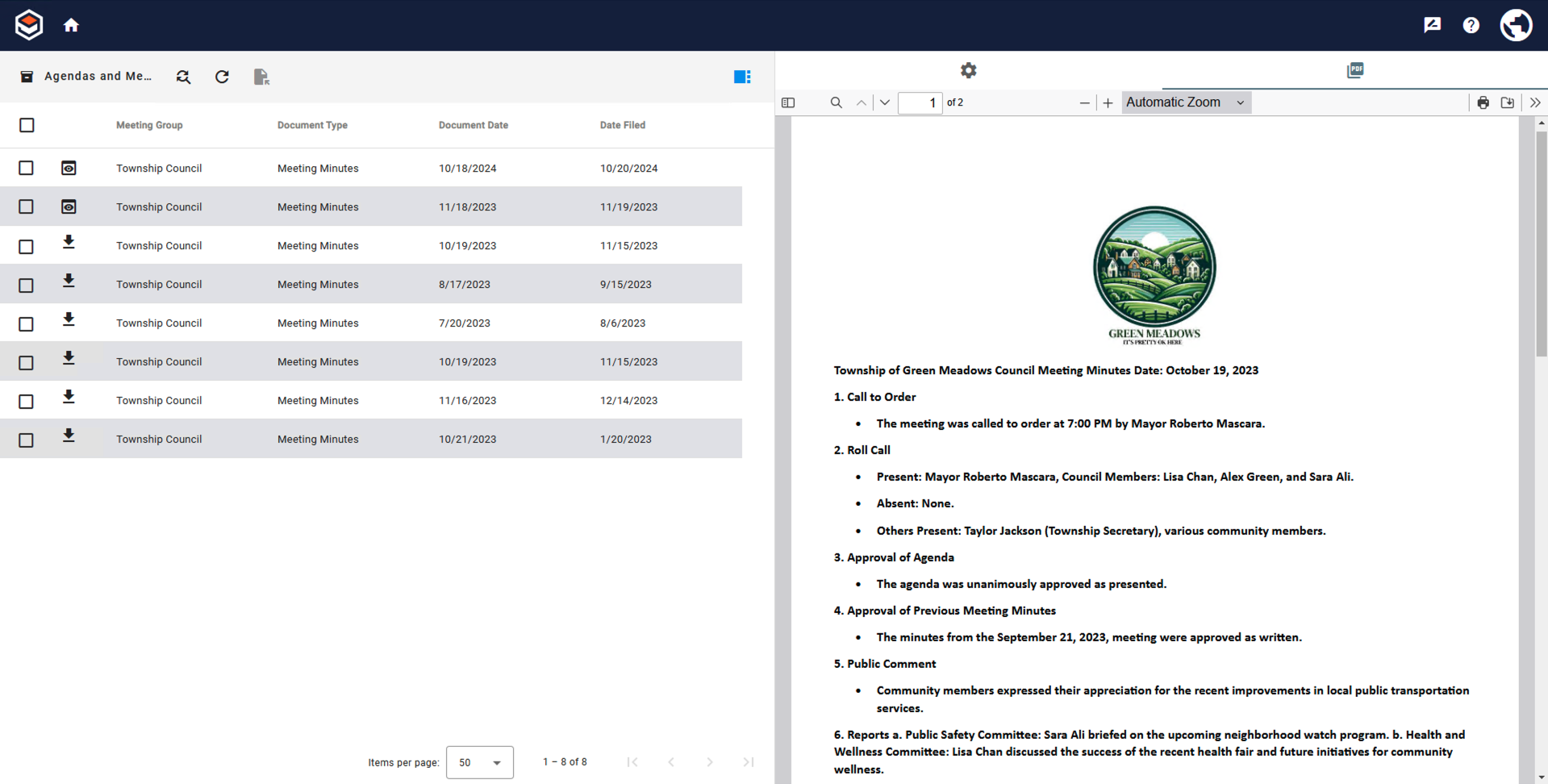
GlobalSearch Toolbar
The GlobalSearch Toolbar remains at the top of the browser window regardless of what functions you are performing. This toolbar allows you to easily access functions that stretch across the different GlobalSearch views. While the toolbar largely remains unchanged from the one that appears on the Dashboard, the Search Results View and the Document Viewer as an additional icon.
-
Home (

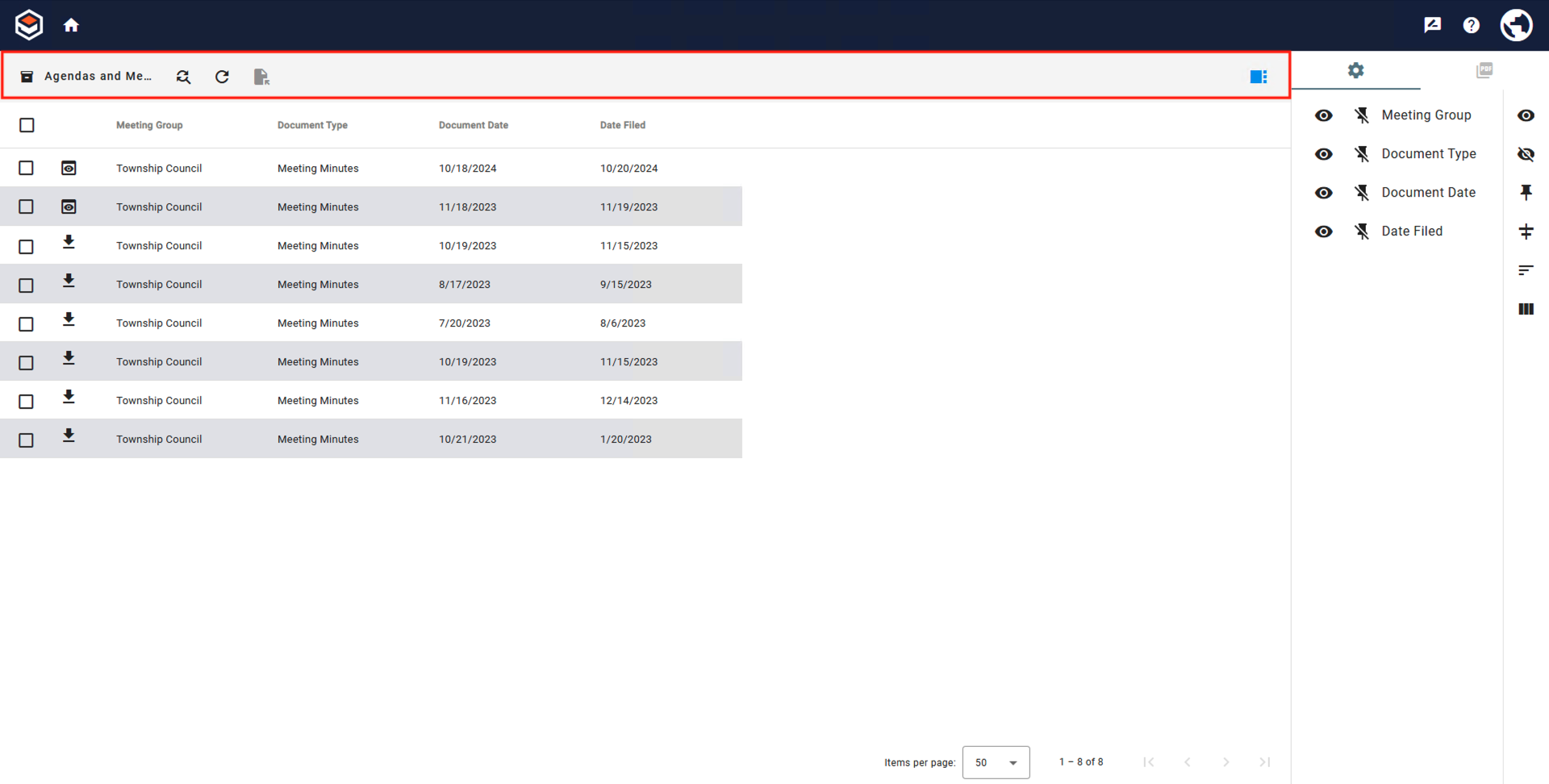
Search Results Toolbar
-
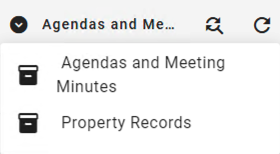
Archive Search Results (

-
Refine Search (

-
Refresh (

-
Open Documents (

-
Toggle Right Sidebar (

-
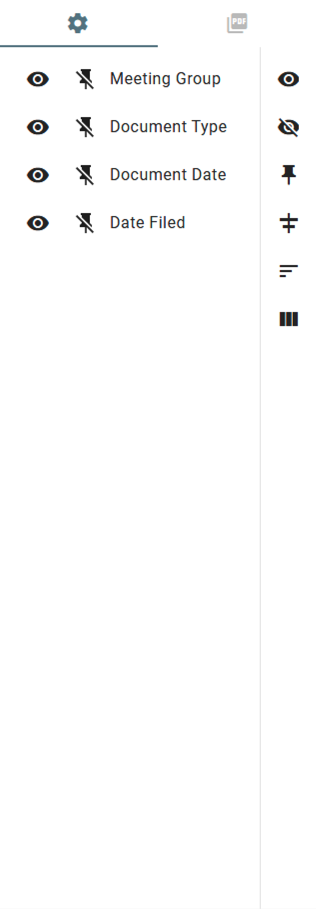
Grid Settings (

-
Column Visibility – Show or hide individual Index Field columns in the Grid View using the Visibility toggle switch. (The default is to display columns.)
-
The Visibility (


-
Column Pinning – Pin a column to the left-hand side or right-hand or of the Document List so that the column is always visible when scrolling across rows of records using the Pin (

-
This is a three-way switch:
-
The Pin Left (

-
The Pin Right (
.png?cb=b06c1d150619f1a79d5e43efee2382f1)
-
The Unpin (

-
-
Fit to Column Width (

-
Remove All Sorts (

-
Reset Layout (

-
-
Preview (

-
If a preview of the document is unavailable and download privileges have been enabled, the Download ( .png?cb=32afc89b11c6a3514b07be1a943a6b83)
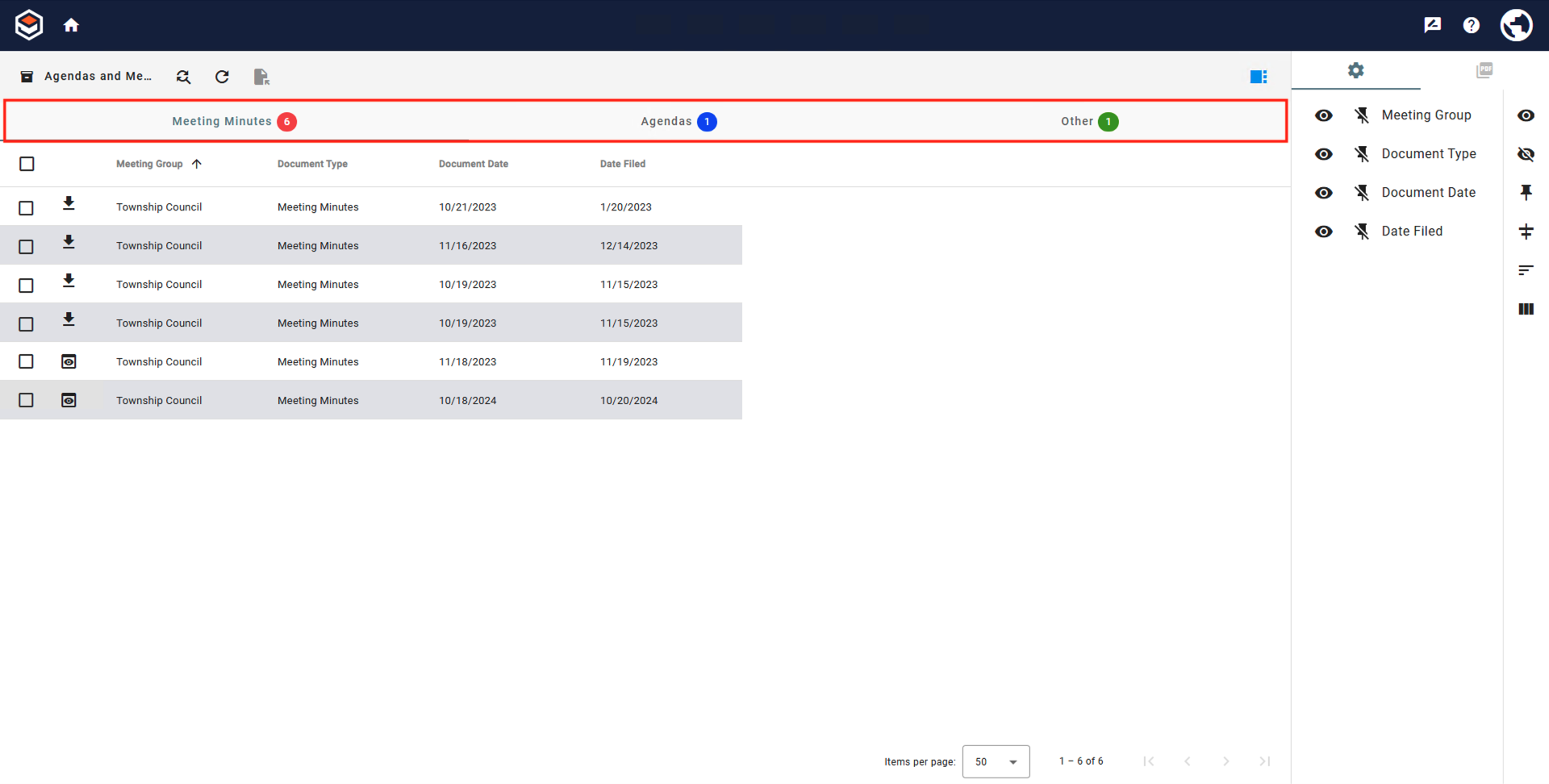
Search Results Grid
-
View Tabs - View Tabs allow for visual tab based grouping within a search result. These are only visible when configured by the system administrator and may not display on every search.
-
Index Fields- High value data associated with documents.
-
Sorting - Sort the list by newest first, alphabetically, or reverse alphabetically by clicking the name of the index field.
-
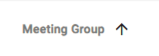
Click a column header to Sort results. A small black up arrow appears to indicate that results are sorted in ascending alpha-numeric order of the data in the selected column. Click the column header again to resort in descending order, indicated with a small down arrow icon. Click a third time to clear the sort.
To do additional Secondary Sorts, hold down your Shift key while clicking on other Index Field column header cells. Numbers will appear next to the small arrows to indicate which sort columns are primary, secondary, tertiary, etc.
-
-
Re-Arranging - Rearrange the order the columns appear in the grid.
-
Place your mouse cursor over the side of a header row cell and, when your mouse cursor turns into a Double-Arrow Move Cursor (

-
-
Filter - Use operator such as contains, greater than, etc. to further narrows down your search results.
-
You can further Filter your results without rerunning a search by selecting the Filter (

-
Over over the index field to filter by and select the Filter (
-
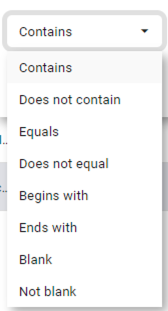
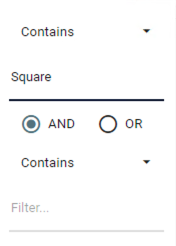
Select an Operator. None are case sensitive.
-
Enter text to filter your results.
-
Enter additional filters to broaden (OR) or narrow (AND) your results.
-
When a filter is applied, the Filtered (

-
To clear your filter, click the Filter (
-
-
-


|
Operator |
Enter at Prompt |
Search Results |
|---|---|---|
|
Contains |
Part or all of a word, phrase, or number. |
Anything that includes what has been entered. Ex. “Square 9” will included ”Square 9” and ”Square 9 Softworks”. |
|
Does not contain |
Part or all of a word, phrase, or number. |
Anything that does not have what has been entered. Ex. ”Square 9” will exclude ”Square 9” and ”Square 9 Softworks”. |
|
Equals |
Exact data you are looking for. |
Only documents whose data matches exactly what has been entered. Must match all data in the field to be included. Ex. ”Square 9” will only return ”Square 9”, not ”Square 9 Softworks”. |
|
Does not equal |
Exact data to exclude. |
Only documents whose data does not match exactly what has been entered. Must match all data in the field to be excluded. Ex. ”Square 9” will still return ”Square 9 Softworks”. |
|
Begins with |
The start of the data to look for. |
Any results whose data starts with the indicated values. Ex. ”S” will return ”Square 9” and ”S9S” |
|
Ends with |
The end of the data to looked for. |
Any results whose data ends with the indicated values. Ex. ”ks” will return ”Square 9 Softworks” and ”Works”, but not ”Square 9 Softworks Inc”. |
|
Blank |
No user prompt. |
Returns only results where the index field being filtered is blank. |
|
Not blank |
No user prompt. |
Returns only results where the index field being filtered has data. |
-
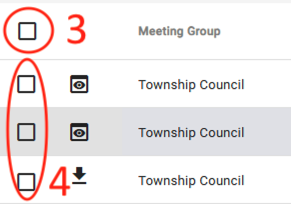
Select All Documents - Selects or deselects all the documents on the current search results page.
-
Document Selector - Selects the individual document for actions such as sharing, printing, exporting, etc.
-
Preview (

If a preview of the document is unavailable and download privileges have been enabled, the Download (
-
Page Navigation- Use this to navigation through your results. You can jump to a Search Results page, click through pages, and set how many records per page are displayed.
-
Items Per Page - Choose the maximum number of records to appear per page in a Search. The default setting is 50. You can select 25, 50, 100, or 1000 from the list or you can set the default anywhere between 25 and 200 in the User Settings.
-
First/Last Page (


-
Previous/Next Page(

-

Table Fields
-
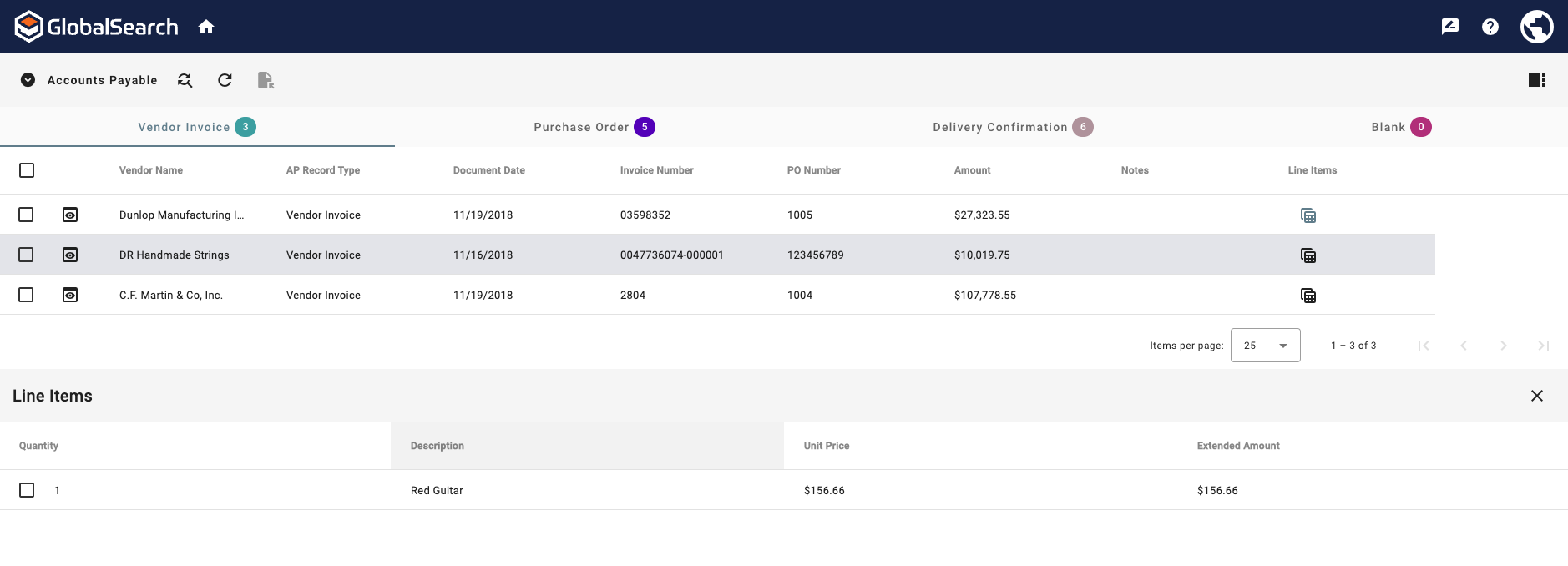
Table Field (

-
Data Table - Grid containing repeating document table fields.
-
Multi-Value Fields
-
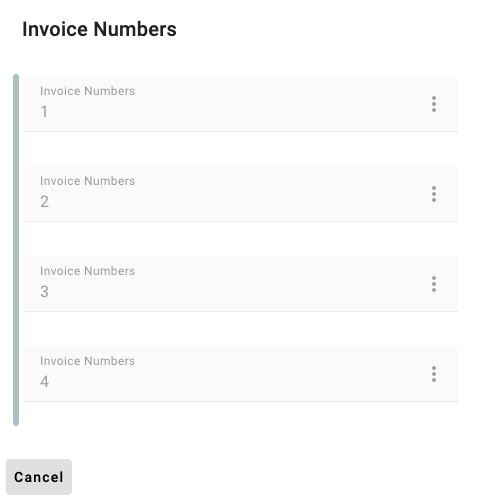
Multi-Value Field (

-
Cancel - Close the Multi-Value Field Window.
-
Resetting
To clear the sort, either click the arrow again in each header cell or click Reset Layout (