
InquireAI Page Count Report
Monitoring the page count in InquireAI helps ensure uninterrupted data extraction and allows you to stay proactive in the event of higher-than-expected usage. The Square 9 InquireAI Page Count Report workflow provides a simple way to track current page volume and receive notifications about your usage.
This workflow does not require any documents and does not increase the page count.
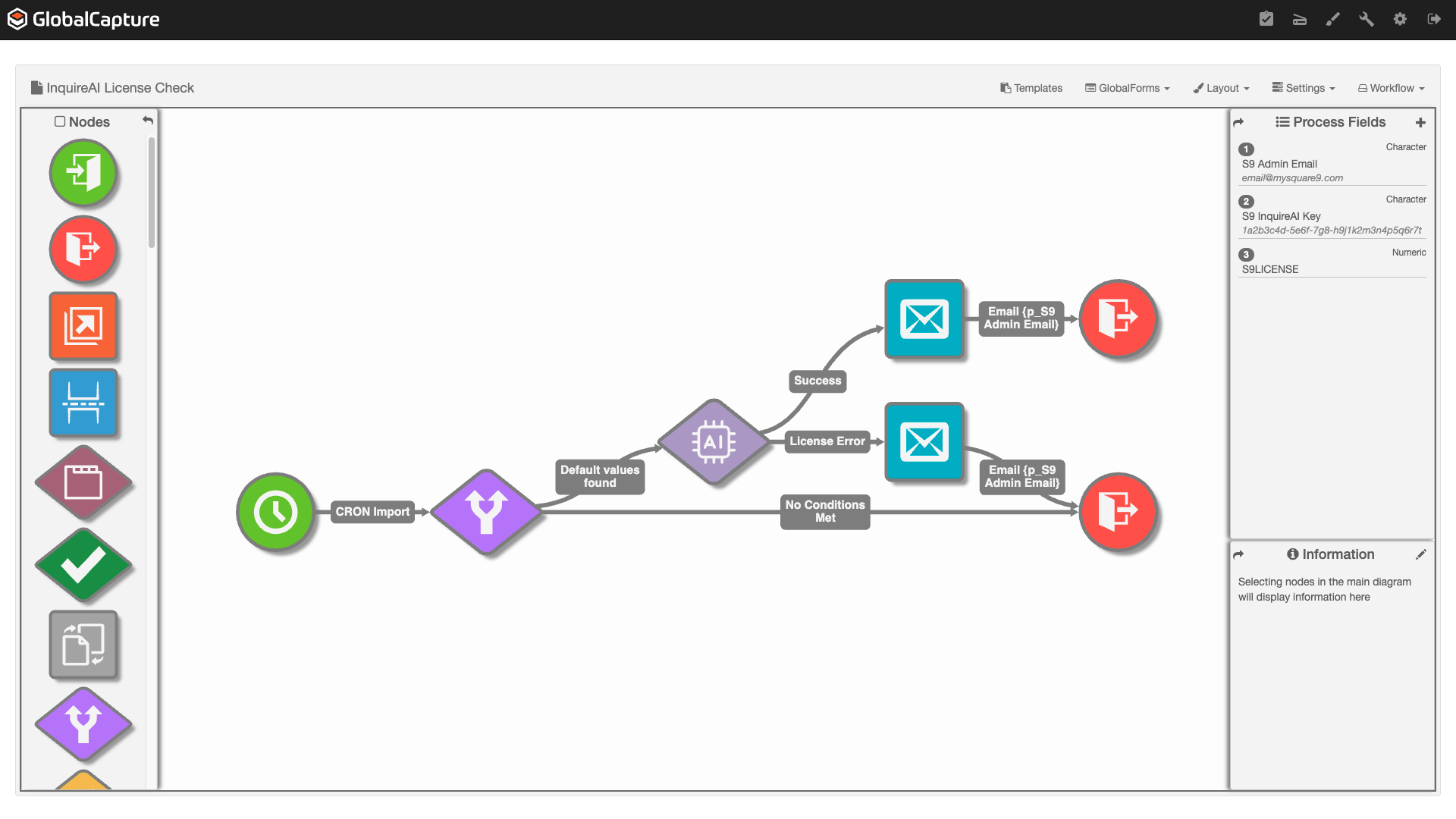
Default Settings
-
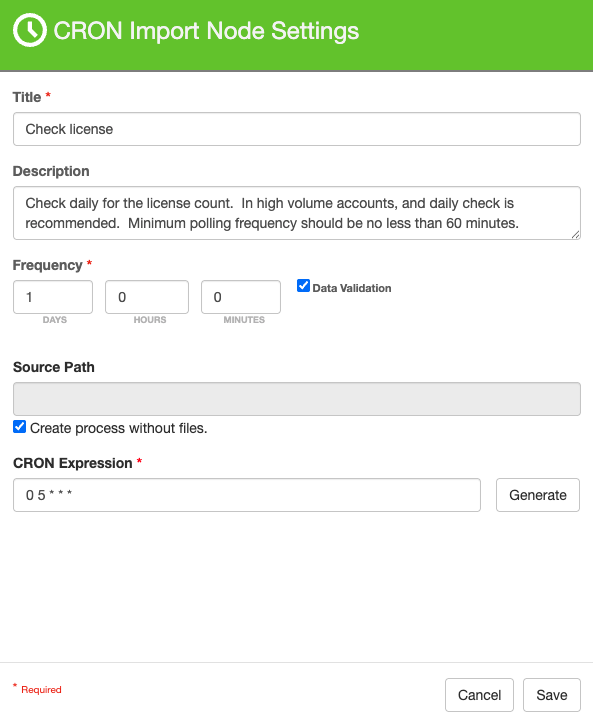
The time the email will be sent out is approximately 5 AM (CRON: 0 5 * * *) each morning. Sending one notification per day.
-
The polling Frequency is set at 15 minutes. This will check to see if the CRON time has occurred in the last 15 minutes.
Download and Configuration
-
Import the workflow from the Square 9 Solutions Delivery Network. If you are unfamiliar with importing workflow, see Transporting Workflows and Importing Workflows.
-
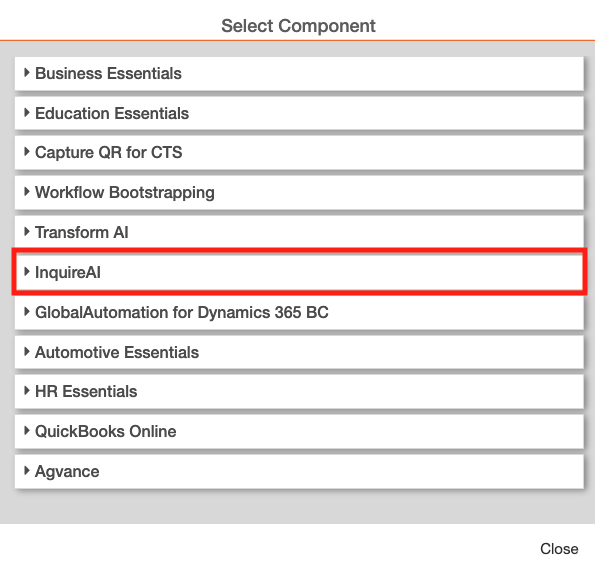
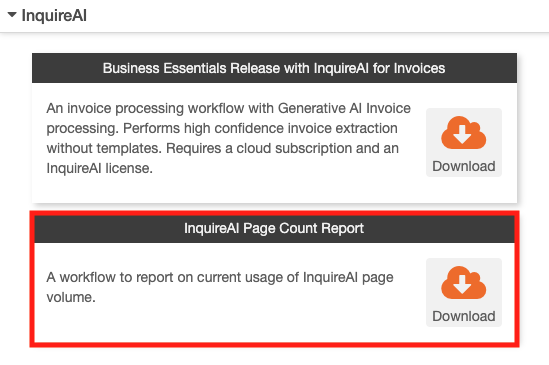
The workflow can be found on the InquireAI tab.
-
The name of the workflow is InquireAI Page Count Report. Click Download and resolve any conflicts.
-
-
Open the workflow in the on the GlobalCapture Design Canvas. You will need to:
-
Add your InquireAI License Key.
-
Set the email address of the person who should receive the daily notification.
-
Optionally, you can change the time at which the email is sent.
-
It is best practice to only send this email once per day.
-
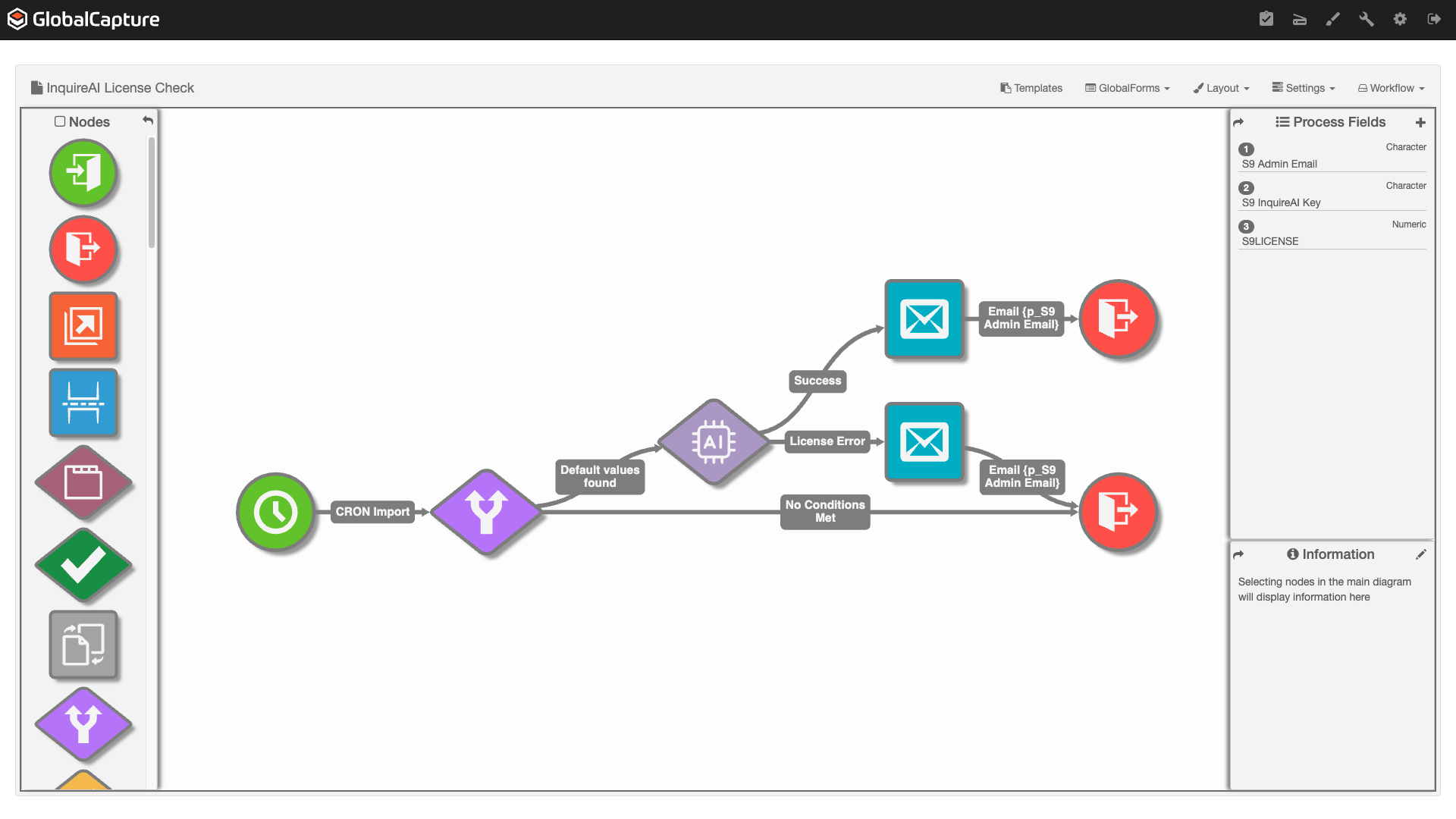
In the Process Fields pane, click the plus (+) to open the Workflow Process Field dialog.
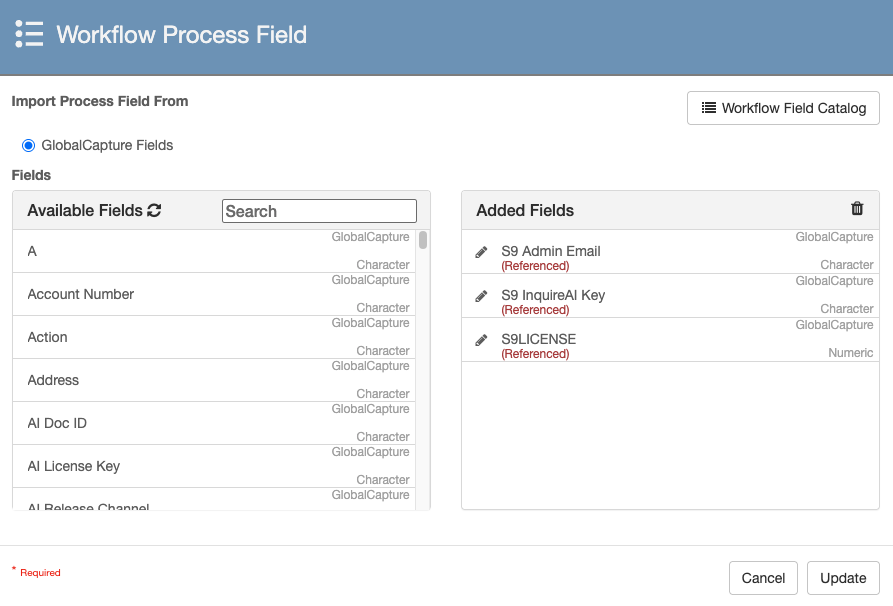
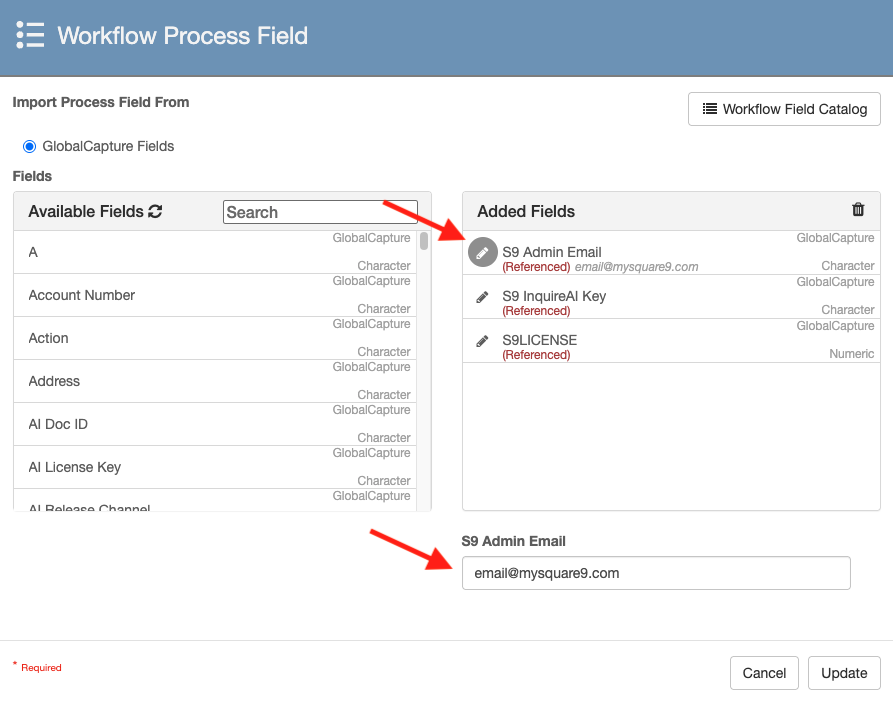
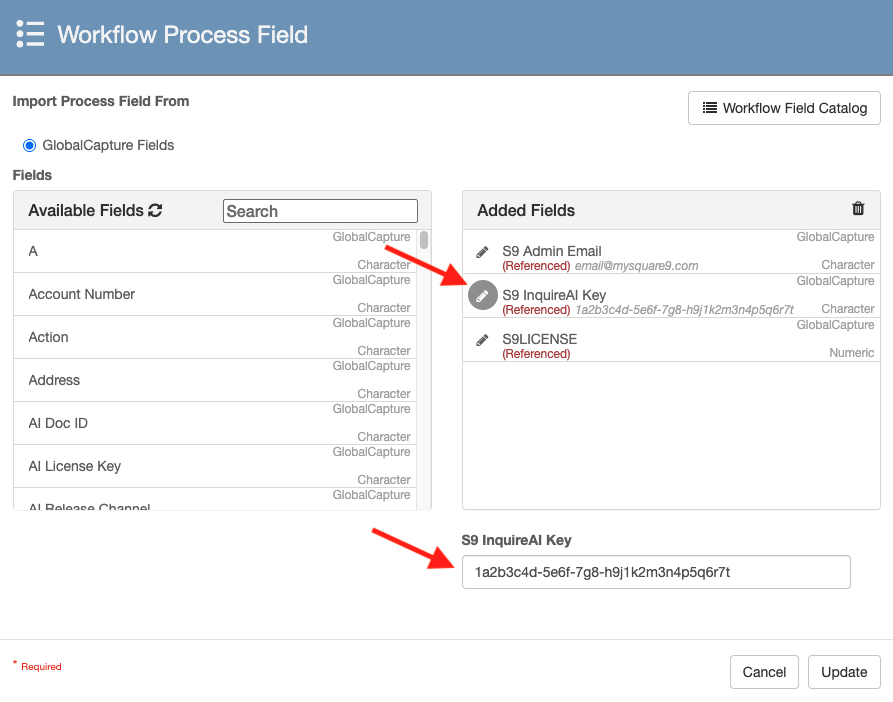
The values for the S9 Admin Email and S9 InquireAI Key MUST be set for the workflow to send the notification.
-
Click the pencil (

-
Click the pencil (
-
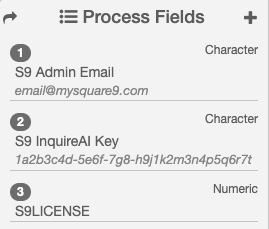
Click Update. The values should now be visible in the Process Fields pane.
-
OPTIONAL: Change the time at which the notification is sent.
-
Open the CRON node Setting.
-
Update the CRON Expression.
-
The first value represents the minute (0- 59).
-
The next value represents the hour [0(midnight) - 23(11 pm)].
-
The remaining values should be left as *.
-
-
Click the Generate button to learn more about setting CRON Expressions.
-
Publish and Save your workflow.
Business Essentials Release with InquireAI for Invoices
An invoice processing workflow with Generative AI Invoice processing. Performs high confidence invoice extraction without templates. Requires a cloud subscription and an InquireAI license.