
For customers looking to add Vendor Invoice Approval to an existing AP archive, using the following specifications for configuring in place changes to your setup.
Lists
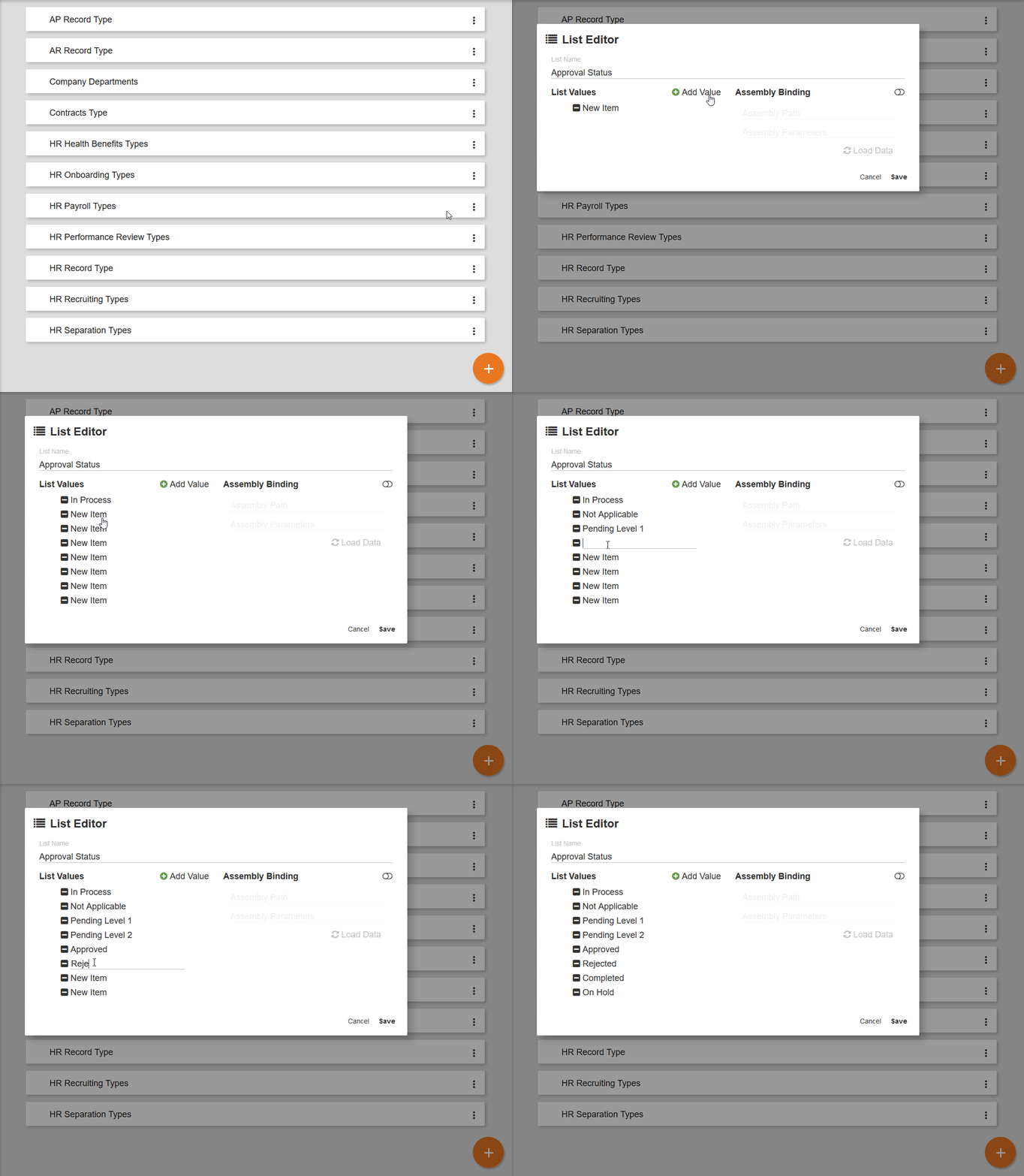
In preparation, the following fields must be added to your Business Essentials Database.
Approval Status
-
In Process
-
Not Applicable
-
Pending Level 1
-
Pending Level 2
-
Approved
-
Rejected
-
Complete
-
On Hold
-
New
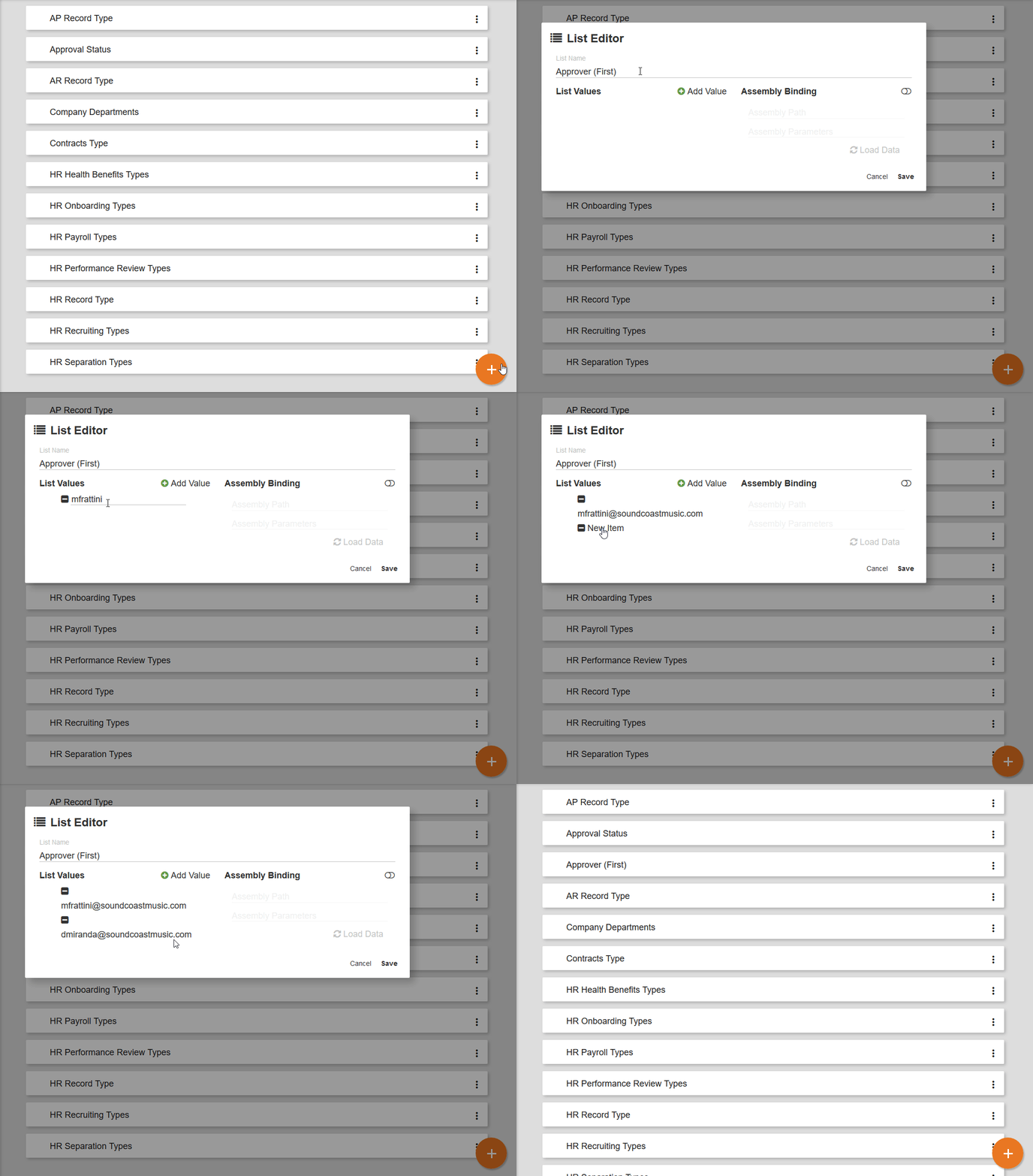
Create two lists named as outlined below containing the usernames/emails of anyone who will be approving documents.
Approver (First) and Approver (Second)
Fields
In preparation, the following fields must be added to your Business Essentials Database.
|
Field Name |
Data Type |
Length |
Properties |
List Binding |
|---|---|---|---|---|
|
Approval Status |
Character |
50 |
Read Only |
Approval Status |
|
First Approver |
Character |
255 |
None |
Approver (First) |
|
Second Approver |
Character |
255 |
None |
Approver (Second) |
|
Current Approver |
Character |
255 |
Read Only |
|
Adding Fields to the Archive
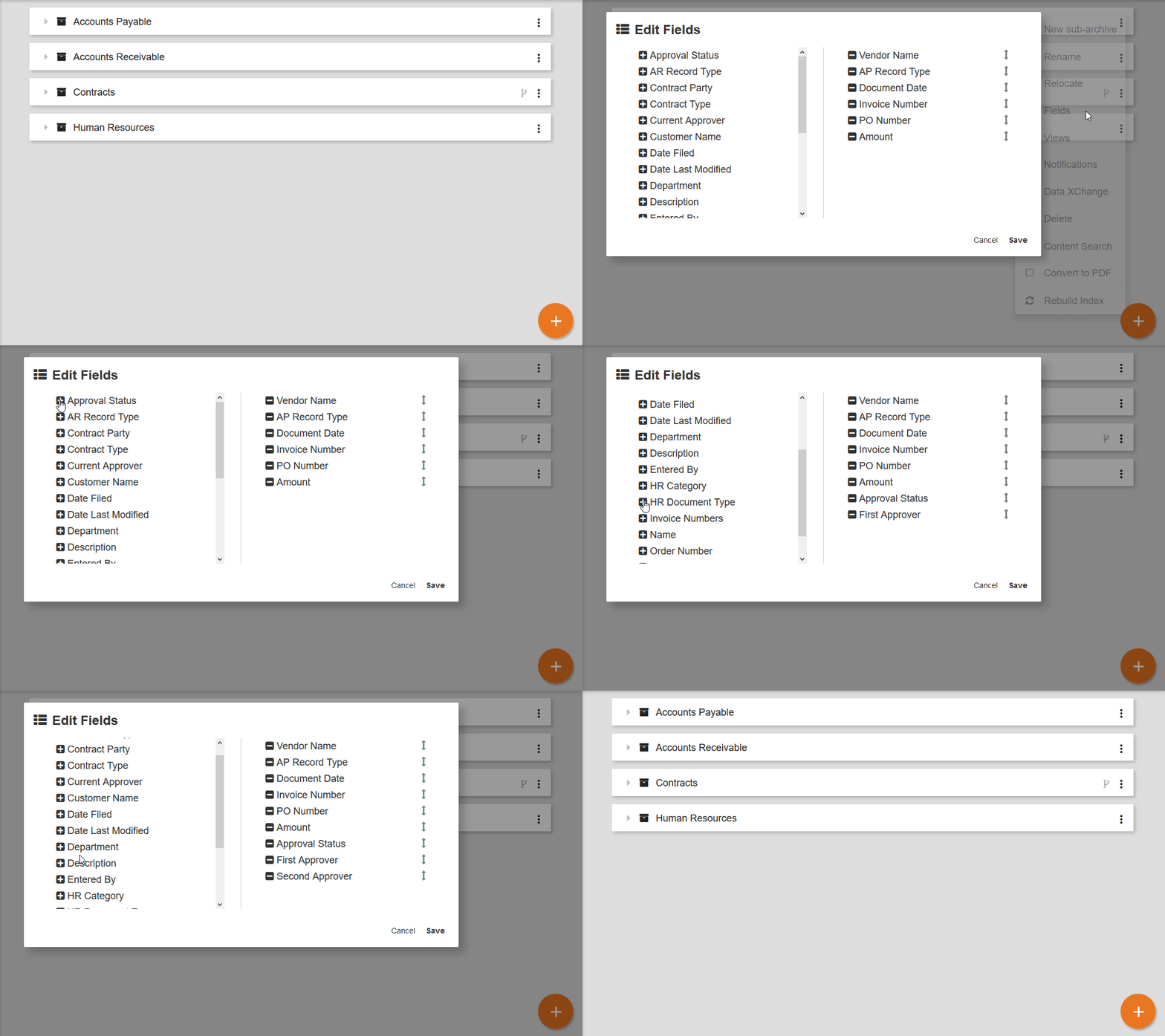
To support Invoice routing, add your newly created fields to your Accounts Payable archive.
From the Administration interface:
-
Select Archives
-
Ensure your Database is Selected
-
Click the More Options (

-
Add the following fields to your archive in the order defined below:
-
Approval Status
-
First Approver
-
Second Approver
-
Current Approver
-
Search Creation
Lastly, you must create two searches to support your workflow. For more information on how to create searches, consult this documentation.
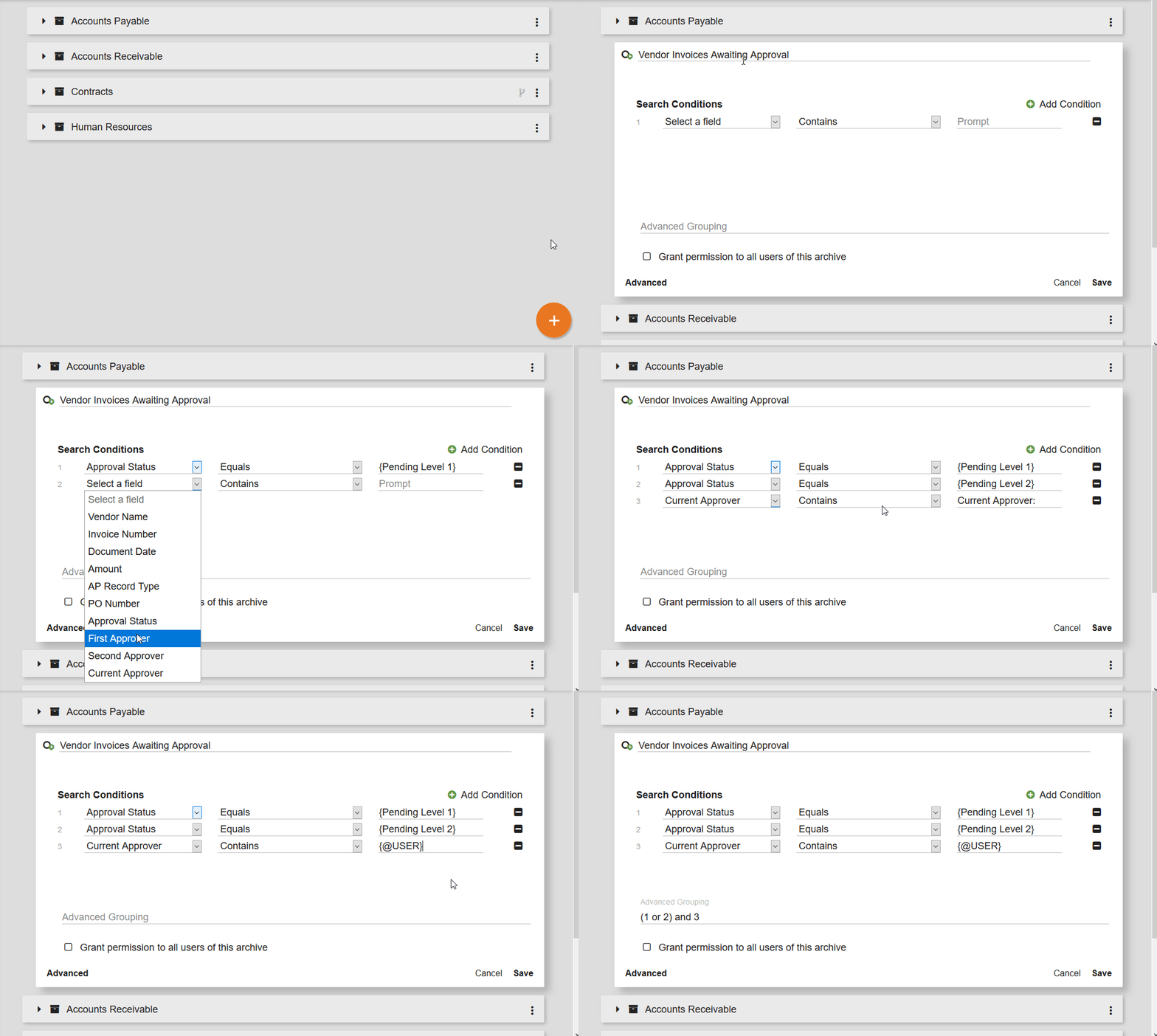
Vendor Invoices Awaiting Approval Search
You'll need to create a Search to show Vendor Invoices which are Pending Action.
|
Vendor Invoices Awaiting Approval |
||
|---|---|---|
|
Field |
Operator |
Prompt |
|
Approval Status |
Equals |
{Pending Level 1} |
|
Approval Status |
Equals |
{Pending Level 2} |
|
Current Approver |
Contains |
{@USER} |
|
Advanced Grouping: (1 or 2) and 3 |
||
GlobalAction Initator Search
This search will be used by GlobalAction to locate documents which need to be picked up. As defined in the configuration below, GlobalAction will only pickup documents which have an Approver selected.
|
GlobalAction - Invoice Approval |
||
|---|---|---|
|
Field |
Operator |
Prompt |
|
First Approver |
Is not Empty |
|
|
Second Approver |
Is not Empty |
|
|
Approval Status |
Is Empty |
|
|
Approval Status |
Equals |
{New} |
|
AP Record Type |
Equals |
{Vendor Invoice} |
|
Advanced Grouping: (1 or 2) and (3 or 4) and 5 |
||